

Tutorial: A Sponsor Marquee for an Event Pro
Build a continuously scrolling band of sponsor logos for a conference or event page, at a pace people can actually read.
Event sites have a sponsor section because sponsors paid to be seen. A marquee, a band of logos that scrolls without stopping, is a good fit: it never shows a "last slide", every sponsor passes through view, and it adds life to a page that's otherwise dates and times. The risk is speed. Too fast and nobody can read a single name, which defeats the point. This tutorial builds one with the Marquee block and shows two looks: a plain Standard strip and a bold Ribbon.
Time: about 10 minutes You'll use: Marquee · Standard and Ribbon styles · Scroll Speed · Pause on Hover
Pro block
The Marquee block is part of Logo Carousel Pro. See Free vs Pro.
What you're building
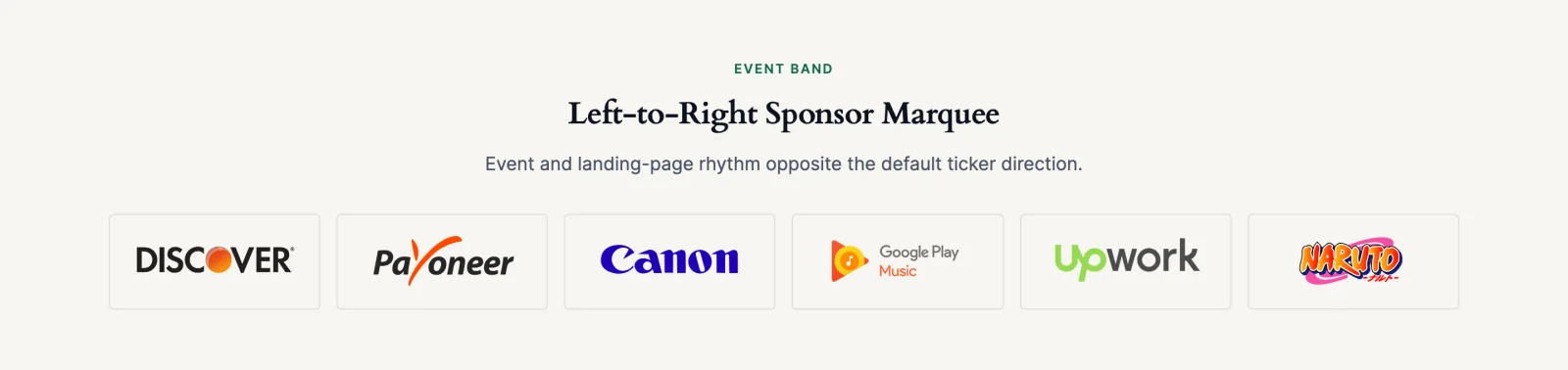
A full-width band of sponsor logos drifting from right to left at a calm pace, pausing when someone points at it, with the sponsor's name under each logo. Then, as an alternative, a tilted ribbon band that works as a striking section divider.
Before you start
- Have at least 8 sponsor logos. The marquee repeats logos to fill the band, so with only three or four the same names come round again and again, which looks thin.
- Use consistent files: transparent background, similar padding, SVG or PNG around 400 px wide.
- Check sponsor agreements. Some tiers are promised a bigger logo or a separate section. A single marquee treats everyone equally; see Variations for tiers.
Step 1: Insert the block and add logos
- Edit the event page, click +, search for Marquee and insert it.
- On Create Your Logo Showcase, click Start Blank.
- Add the logos with Upload Logo Images or Media Library.
- On Selected Logo Images, click the pencil on each logo and set Logo Title to the sponsor's name and Logo Alt Text to Name logo. Click Save Changes, move to the next with the arrow, and click Continue when done.
Order matters less than in a carousel, because everything passes through view. Put headline sponsors first anyway: they're what visitors see as the page loads.
Step 2: Choose Standard or Ribbon
Open the Layouts panel. On the Settings tab, Select Marquee Style offers three looks:
| Style | Looks like | Use it for |
|---|---|---|
| Standard | A straight, level band of logos | Most sponsor sections. Clean, readable, works under a heading. |
| Wave | Logos bob along a gentle wave | Playful brands. Harder to read, so not ideal for sponsors. |
| Ribbon | Logos on a tilted coloured band, one band or two crossing | A bold divider between sections, or a festival look |
Start with Standard. We'll build the Ribbon version in Step 6.
Step 3: Size the Standard band
Still on Layouts → Settings, with Standard selected:
- Leave Display Orientation on Horizontal.
- Leave Rows at 1. One lane of sponsors is easy to follow; two lanes moving at once compete for attention.
- Set Columns: this is how many logos fit across the band at once. Try 6 on desktop, 4 on tablet and 3 on mobile. Fewer columns means bigger logos.
- Raise Gap Between Logos to about 40 px. Moving logos need more space between them than still ones, or they blur into one stream.
- Optional: open Edge Fade and switch it on, so logos fade in and out at the edges instead of being sliced off. Keep Fade Color on Auto.
Step 4: Set a readable speed
Switch to the Carousel tab of the Layouts panel.
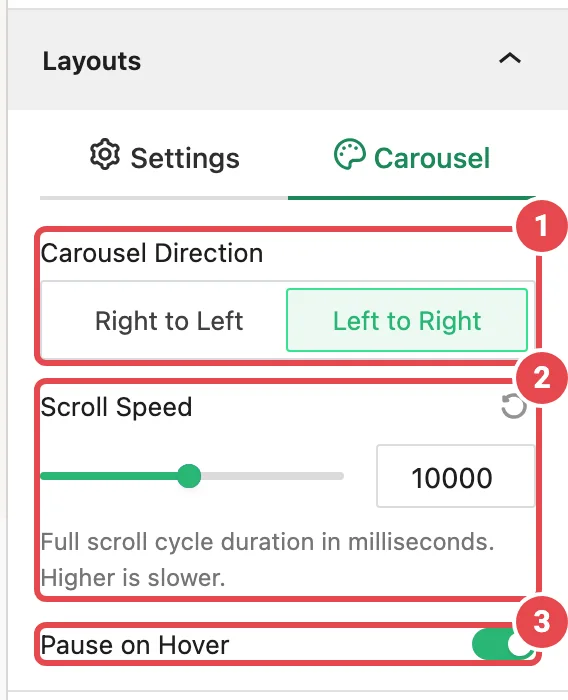
- Carousel Direction: keep Right to Left. It's the direction people read, so names arrive from where the eye expects them.
- Scroll Speed: start at the default 5000 and only adjust if needed. A higher number is slower. Try 7000 if your logos are detailed wordmarks.
- Pause on Hover: keep it on. A visitor who points at a sponsor wants to read it; the band stops until they move away.
How to judge the speed: in the editor preview (the marquee moves there too), pick one logo and read its name out loud as it crosses. If you can't comfortably finish before it leaves, slow it down.
The plugin also stops the animation for visitors whose device asks for reduced motion, and pauses marquees that are scrolled out of view. You don't need to set anything for that. See Accessibility.
Step 5: Show sponsor names
Open Display Elements and switch on Title. Each sponsor's name appears under its logo, which helps with symbol-only logos and gives sponsors a second mention.
Keep Description and Read More off. Nobody reads a paragraph that's moving.
If you'd like a little extra on hover, open Tooltips, switch on Tooltips and keep Title on. Because Pause on Hover stops the band, the tooltip stays put while it's read.
Step 6: The Ribbon alternative
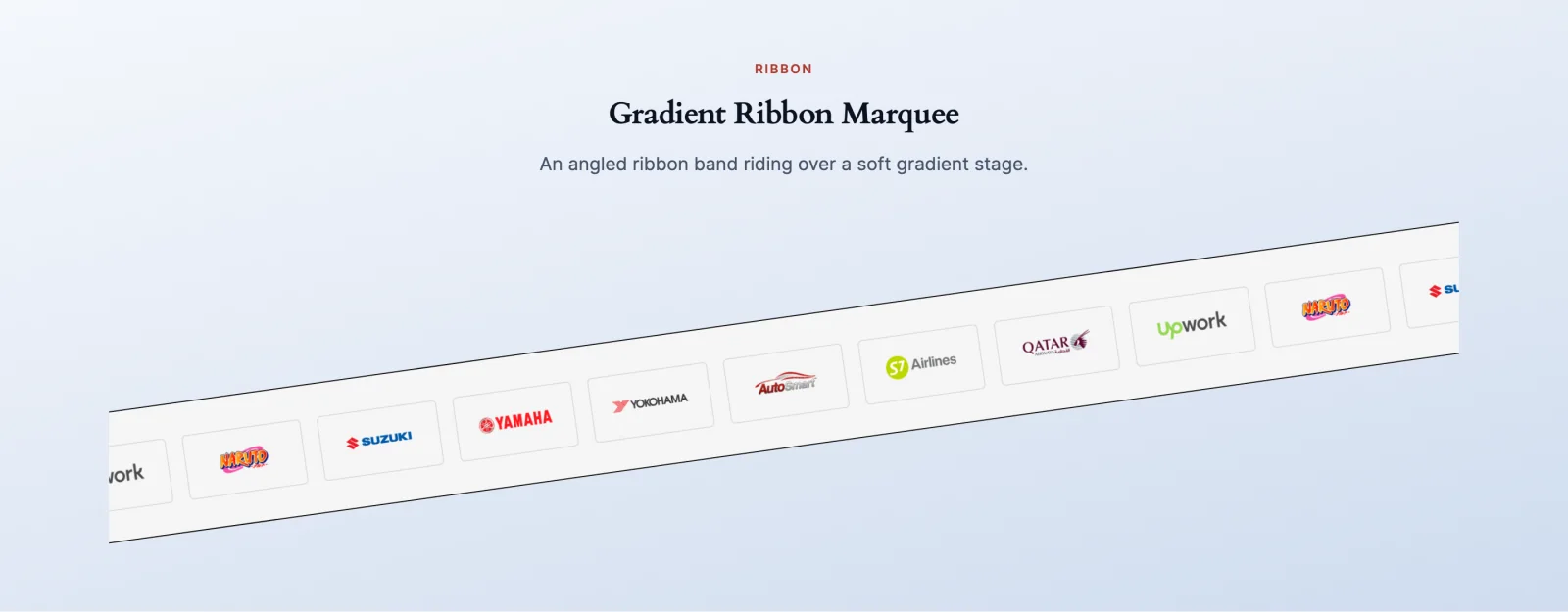
A ribbon is the same logos on a tilted, coloured band. It's louder than Standard, which makes it great as a divider between, say, the schedule and the ticket section.
- In Layouts → Settings, set Select Marquee Style to Ribbon.
- Choose a Ribbon Style:
- Single Ribbon: one tilted band. Easier to read; the safer choice for sponsors.
- Cross Ribbon: two bands crossing in an X. Dramatic, but each band carries the logos, so the eye has two things to follow.
- Ribbon Rotation: for Single Ribbon, keep -8 or soften it to -4. For Cross Ribbon, use opposite signs (for example -8 and 8) so the bands actually cross.
- Ribbon Height: about 120 px suits most logo sets. Raise it if the logos look squeezed.
- On the Carousel tab, set the ribbon's Background Type and colour to your event's brand colour. Make sure your logos still stand out against it; light logos on a pale band disappear.
What Ribbon leaves out
On a Single Ribbon, only titles are shown under logos (no descriptions). On a Cross Ribbon, there are no titles or tooltips at all. Neither ribbon style offers the Ajax Live Filter or Ajax Search. If sponsor names matter, use Standard or Single Ribbon.
Step 7: Publish and check
Publish and open the page in a private window.
What done looks like:
- [ ] The band moves smoothly from right to left, with no jump where the logos repeat
- [ ] You can read each sponsor's name before it leaves the band
- [ ] Pointing at the band stops it; moving away starts it again
- [ ] On a real phone: logos are big enough to recognise and the page doesn't scroll sideways
- [ ] With your system's "reduce motion" setting on, the band stands still
Variations
Separate sponsor tiers
Add one Marquee per tier under its own heading (Gold, Silver, Bronze). Give the top tier fewer Columns so its logos are bigger, and a higher Scroll Speed number so it moves more slowly. Visitors read that as importance without you saying it.
Two lanes in opposite directions
On Standard, set Rows to 2. A Carousel Direction choice of Alternate appears on the Carousel tab: the lanes move in opposite directions. It's lively, but it halves the time anyone spends on a single logo. Keep it for large sponsor lists.
Link each logo to the sponsor
Add a Logo URL to each logo, then set Logo Images → Settings → Click Actions to Logo URL. Pause on Hover makes the moving logos easy to click. Links open in a new tab.
The same band on every event page
Save the block as a Saved Template and place [lc_template id="…"] on each page. When a sponsor signs up late, you update one template.
Common problems
| Symptom | Likely cause | Fix |
|---|---|---|
| Too fast to read | Scroll Speed too low | Raise it; higher is slower |
| The same logos repeat constantly | Too few logos for the band | Add logos or lower Columns |
| Names don't appear | Cross Ribbon or Wave style | Use Standard or Single Ribbon |
| The marquee doesn't move for some visitors | Their device asks for reduced motion | Expected, and intentional |
| The marquee doesn't move at all | License not active, or a script conflict | See Troubleshooting |
Related
- Marquee block: every option in detail
- A "Trusted by" client logo carousel
- Accessibility
- Best Practices