

How to use Logo Carousel in Divi
Place a logo showcase you built with Logo Carousel into any Divi page, in Divi 5 or Divi 4, using the Logo Carousel module.
Divi's Visual Builder is its own editor, so Logo Carousel's blocks don't appear in it directly. Instead, you save your showcase as a Saved Template (a reusable copy of a logo showcase you designed in the block editor) and add it with Logo Carousel's Divi module. It previews in the builder, and it stays in sync: edit the template once and every Divi page that uses it updates.
Logo Carousel supports both generations of Divi. It detects which one your site runs and loads the matching module, so there's nothing to choose. The first steps are the same for both; after that, follow Divi 5 or Divi 4.
You can do this in 2 steps
- Get a Saved Template readyTurn on the Divi integration and make sure you have a published template.
- Add it in DiviInsert the Logo Carousel module and pick the template, in Divi 5 or Divi 4.
Not sure which Divi you have?
Check Appearance → Themes (or Plugins, if you use the Divi Builder plugin). A version that starts with 5 is Divi 5; anything earlier is Divi 4.
Before you start
- Logo Carousel (free or Pro) is active, and the Divi theme (or the Divi Builder plugin) is active.
- The Saved Templates module is on. It is by default; see Modules.
- You have at least one published Saved Template. New to them? Create one first.
Part 1: Get a Saved Template ready
Step 1: Turn on the Divi integration
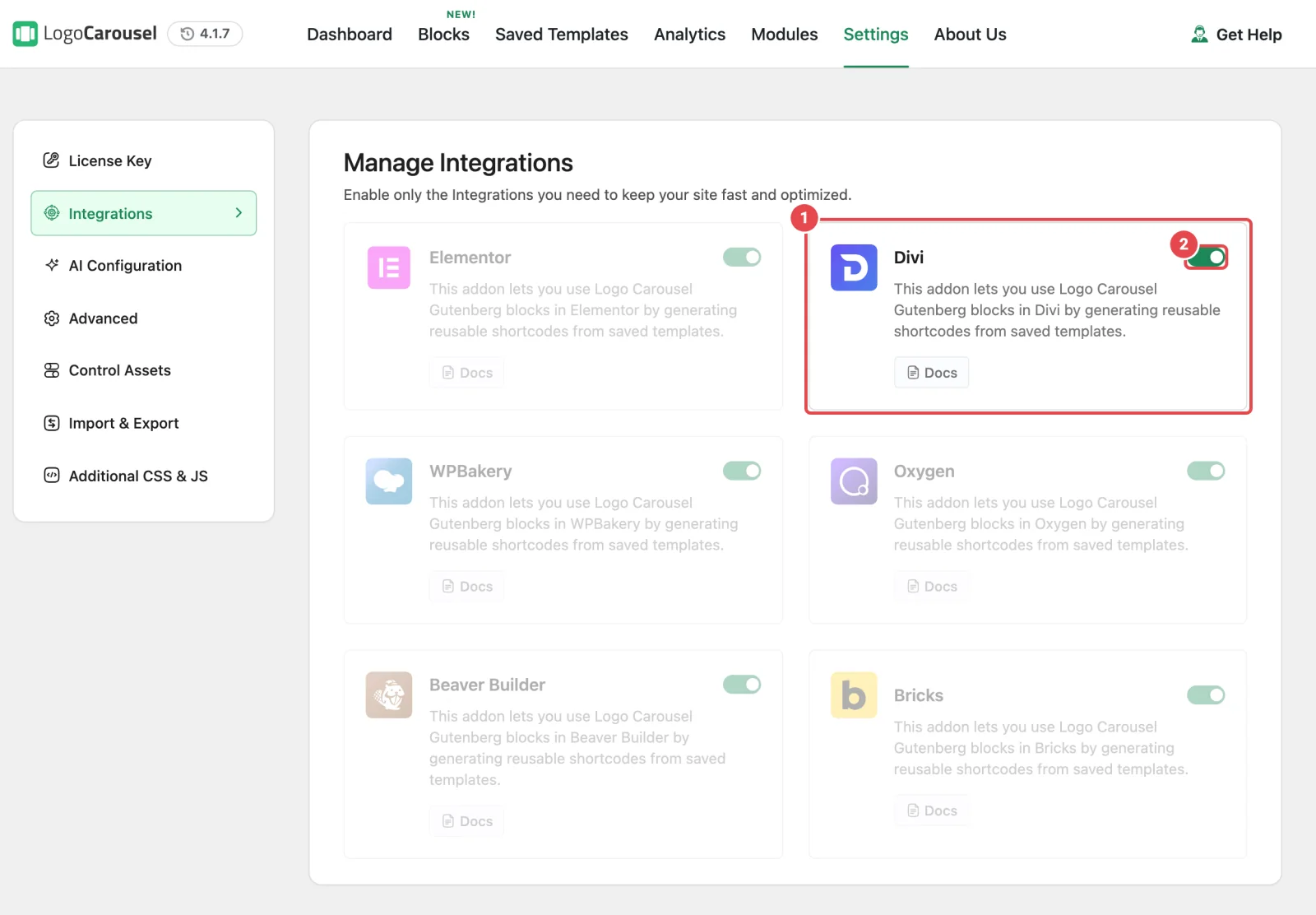
- In your WordPress dashboard, go to Logo Carousel → Settings.
- Click Integrations in the left-hand menu.
- Make sure the Divi switch is on. One switch covers both Divi 5 and Divi 4.
It's on by default, and it saves as soon as you flip it.
Step 2: Check your template
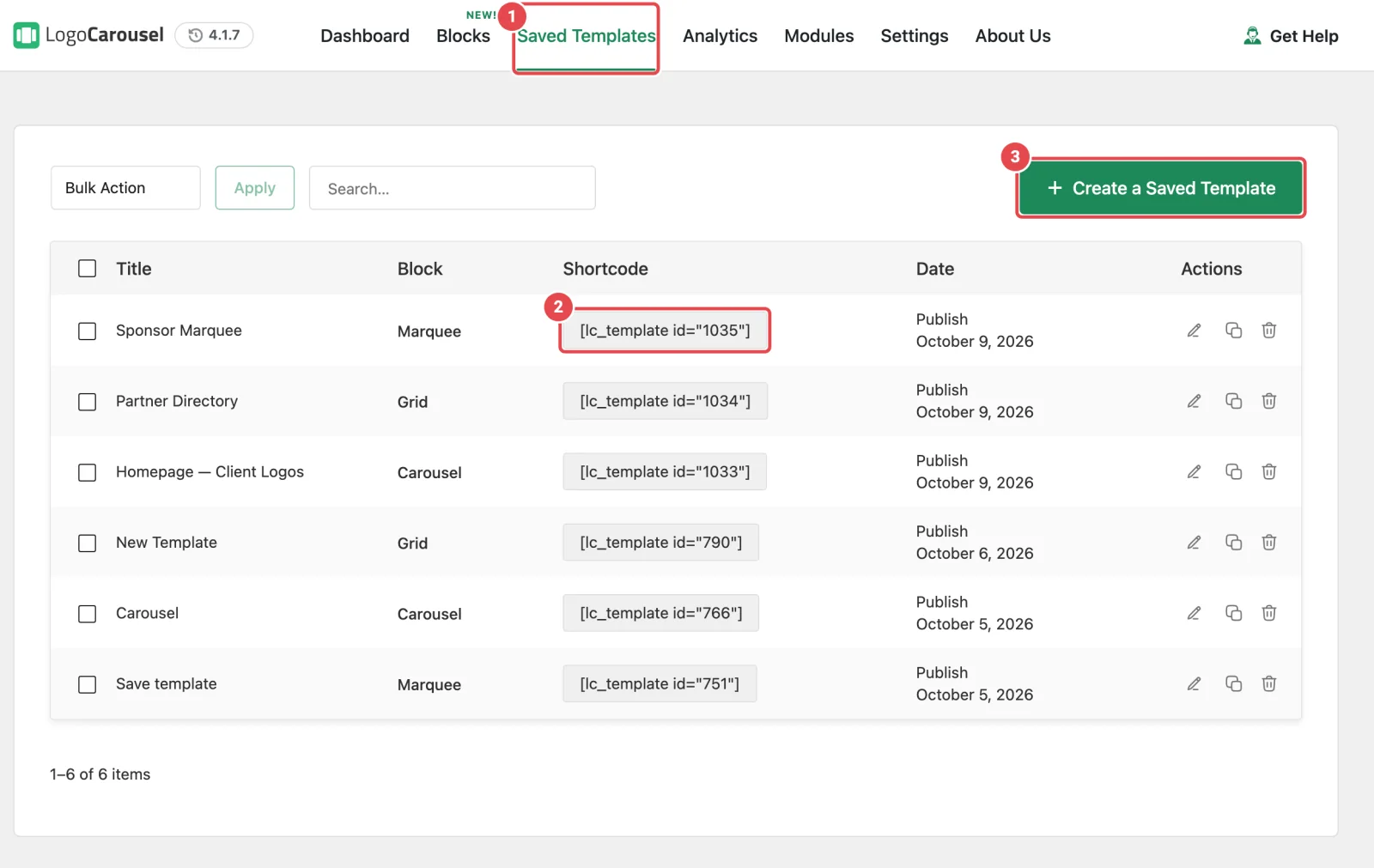
- Go to Logo Carousel → Getting Started and click the Saved Templates tab.
- Find the template you want to show. Only published templates appear in Divi.
- Optional: click its shortcode to copy it, for the shortcode route.
Part 2: Add it in Divi
Step 3: Open your page with the Divi Builder
This step is the same in Divi 5 and Divi 4.
- Go to Pages and open the page you want the showcase on (or create a new one).
- Click Use The Divi Builder in the top toolbar.
Once a page uses Divi, the block editor shows a This Layout Is Built With Divi box instead. Click Edit With The Divi Builder to open it again.
Now follow the steps for your version of Divi.
Divi 5
Step 4: Insert the Logo Carousel module
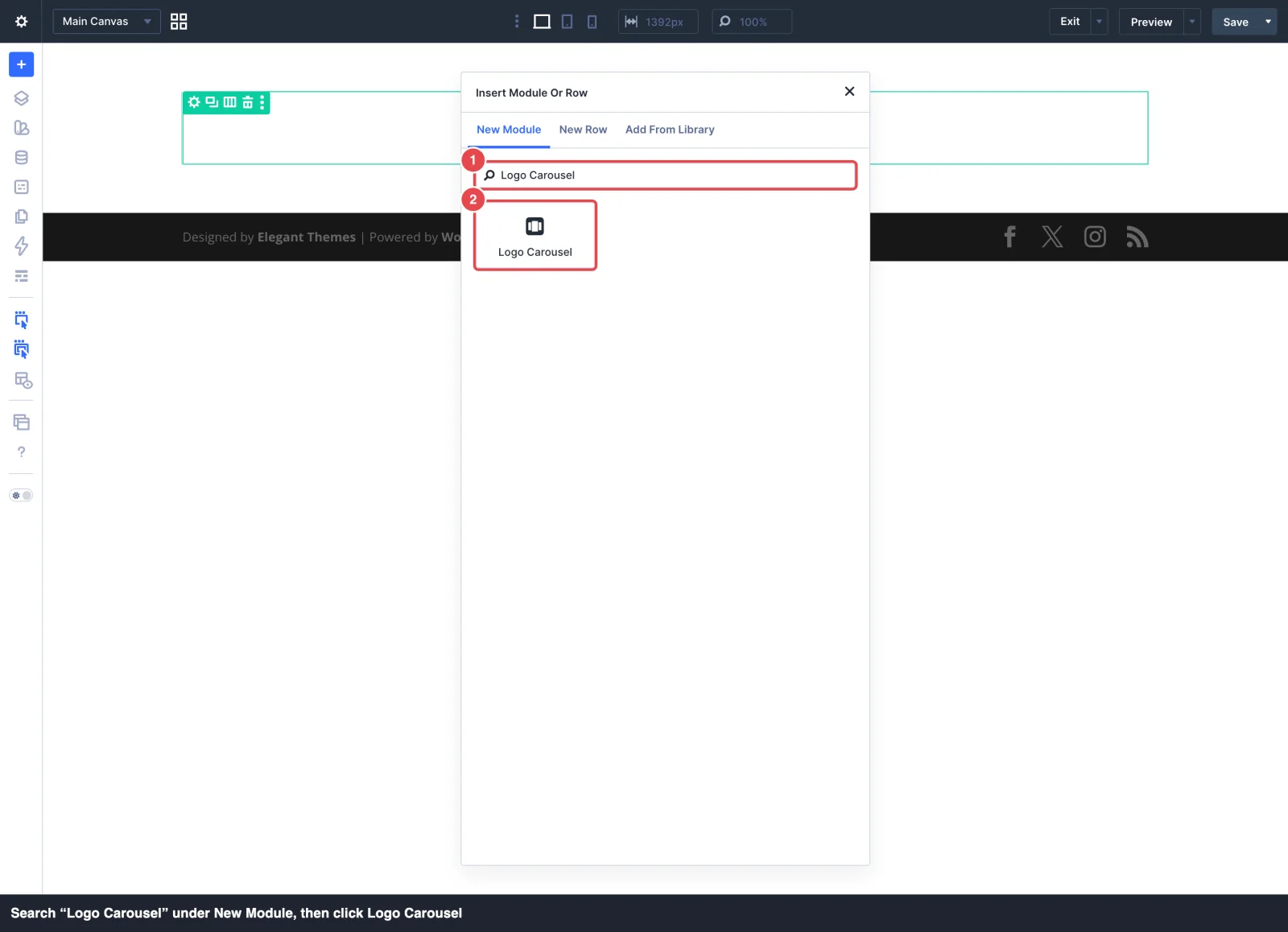
- In the Visual Builder, find the row where the showcase should go and click the + inside it to add a module.
- In the window that opens, search for Logo Carousel.
- Click Logo Carousel.
Step 5: Pick your template and save
- The module's settings open. On the Content tab, under Settings, open the Saved Template dropdown.
- Choose your template. The module shows "Loading template..." for a moment, then the showcase appears on the canvas.
- Click Save.
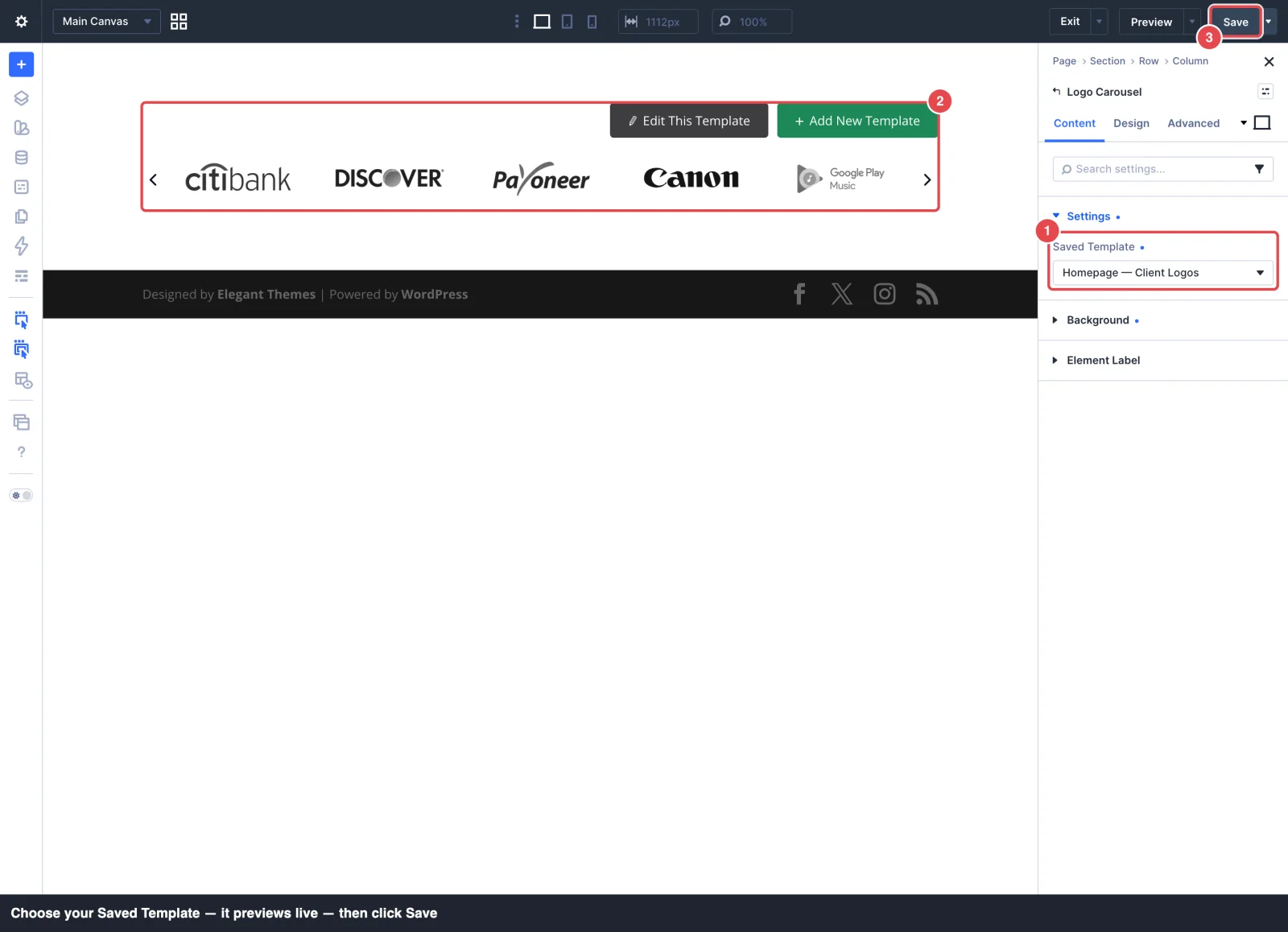
Save stores your Divi layout. If the page itself is still a draft, publish it from WordPress as usual.
The module's Design and Advanced tabs hold Divi's standard options (spacing, background, border, and so on). They style the box around the showcase. The showcase itself is styled in the template.
Divi 4
Step 4: Insert the Logo Carousel module
- Add a row to the page if it doesn't have one yet.
- In the row, click the + to add a new module.
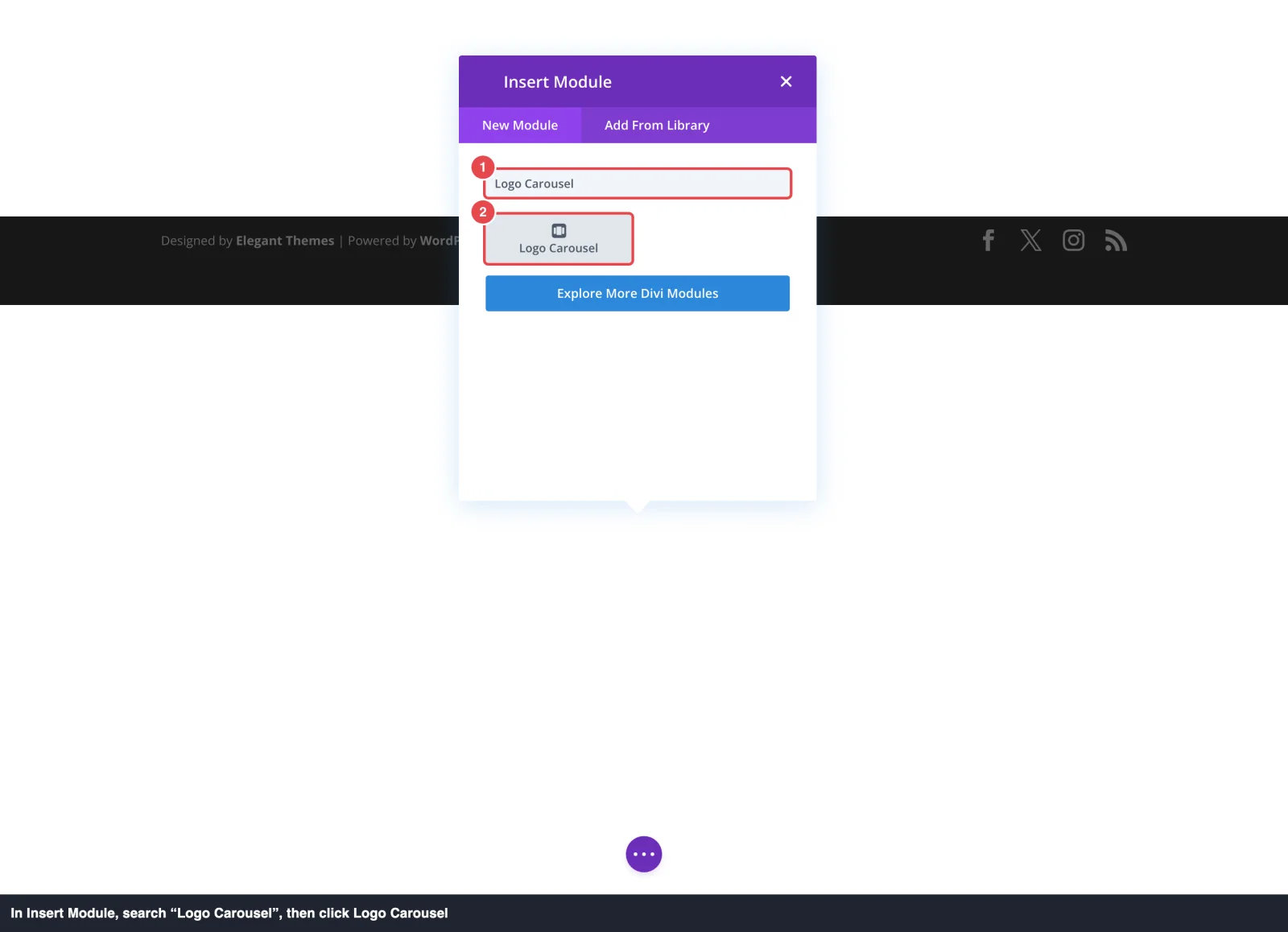
- In Insert Module, type Logo Carousel into the search box and click Logo Carousel.
Step 5: Pick your template, then publish
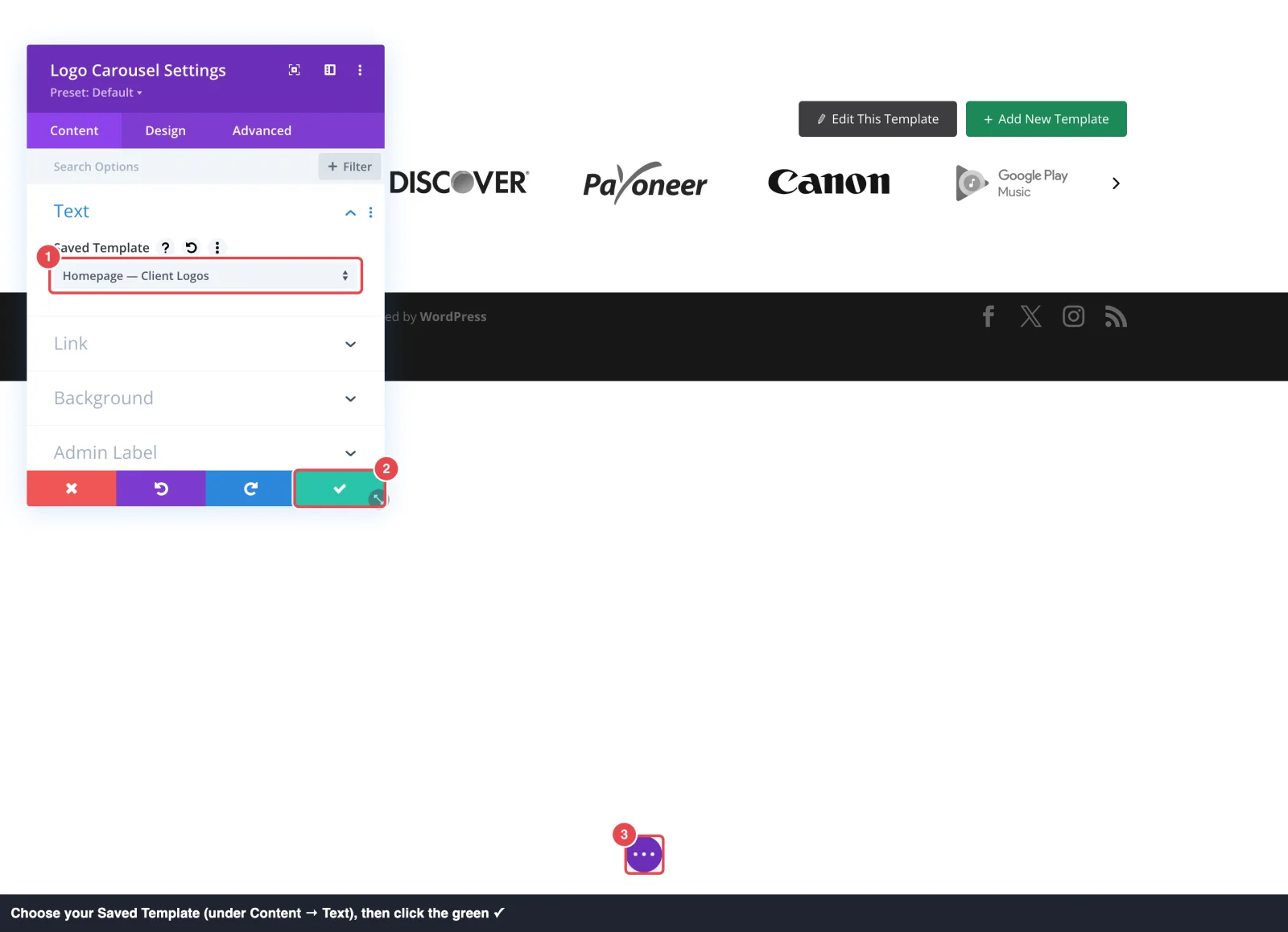
- The Logo Carousel Settings window opens. On the Content tab, under Text, open the Saved Template dropdown and choose your template.
- Click the green ✓ at the bottom of the window to keep the change.
- Save the page: open Divi's page bar at the bottom of the screen and click Publish (or Save Draft).
Prefer a shortcode?
Divi's own Code module works in both Divi 5 and Divi 4:
- Copy the template's shortcode from the Saved Templates tab (Step 2).
- Insert a Code module where the showcase should go.
- Paste the shortcode, for example
[lc_template id="123"], and save.
Good to know
- One switch, both versions. You never need to tell Logo Carousel which Divi you use. It loads the Divi 5 module or the Divi 4 module to match whichever version is active.
- Template buttons open a new tab. Above the showcase on the canvas, Edit This Template opens the template in the block editor and Add New Template starts a new one, each in a new browser tab.
- Changes flow through. Edit the template in the block editor and every Divi page using it updates. Clear your page cache if the change doesn't show.
- Removing the template breaks the spot. If a template is unpublished or deleted, the module shows "Template not found or not published." on the page.
Troubleshooting
| What you see | Likely cause | Fix |
|---|---|---|
| Logo Carousel isn't in the module list | The Divi switch is off. | Turn it on (Step 1), then reload the Visual Builder. |
| The Saved Template dropdown only shows "- Select Template -" | No published templates. | Publish a template on the Saved Templates tab. |
| "Please select a saved template" in the module | No template chosen yet. | Open the module's settings and pick one under Saved Template. |
| Divi 5: "Failed to load template" | The builder couldn't fetch the preview. | Reload the Visual Builder. Your choice is still saved; check the published page. |
| "Enable the Saved Templates module…" | The Saved Templates module is off. | Turn it on in Modules. |
More fixes: Integrations → Troubleshooting.


