

Manage Views
Create a classic logo showcase, preview it, and get the shortcode that puts it on a page.
A view is a saved logo showcase. It holds two decisions: which logos to show (from your logo library) and how they look and behave. Every view gets its own shortcode, so you can build "Homepage clients" once and paste it wherever you need it.
The Manage Views list
Open Logo Carousel → Manage Views. The list is titled Manage Logo Views and has these columns:
| Column | Shows |
|---|---|
| Title | The view's name. Click it to edit. |
| Layout | The layout preset it uses, for example "Carousel" or "Multi rows". |
| Shortcode | The view's shortcode, such as [logocarousel id="123"]. Click it to copy it to your clipboard. |
| Date | When it was published or last changed. |
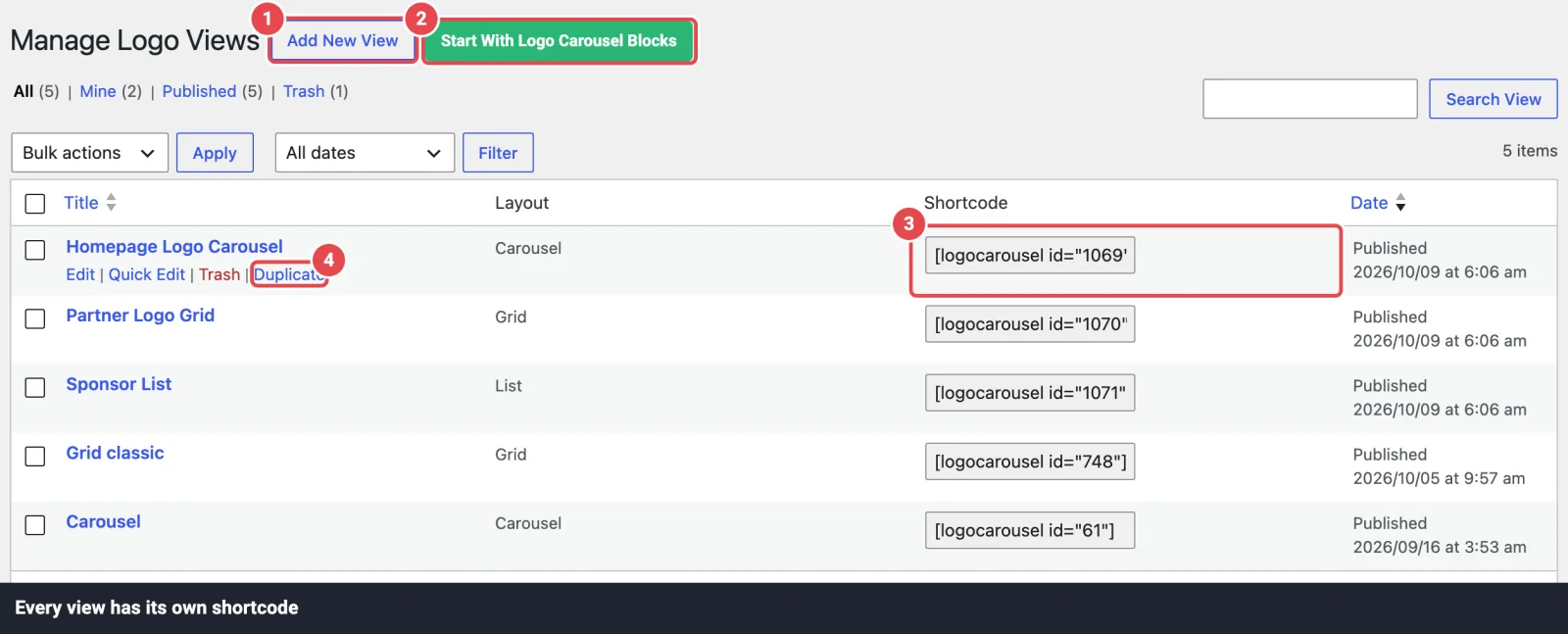
Beside Add New View you'll also see Start With Logo Carousel Blocks. It opens a new page in the block editor, for when you'd rather build with blocks instead.
Create a view step by step
- Click Add New View.
- Type a title you'll recognise later, like "Footer sponsors". It's for you, unless you turn on Section Title, which shows the view's title above the logos.
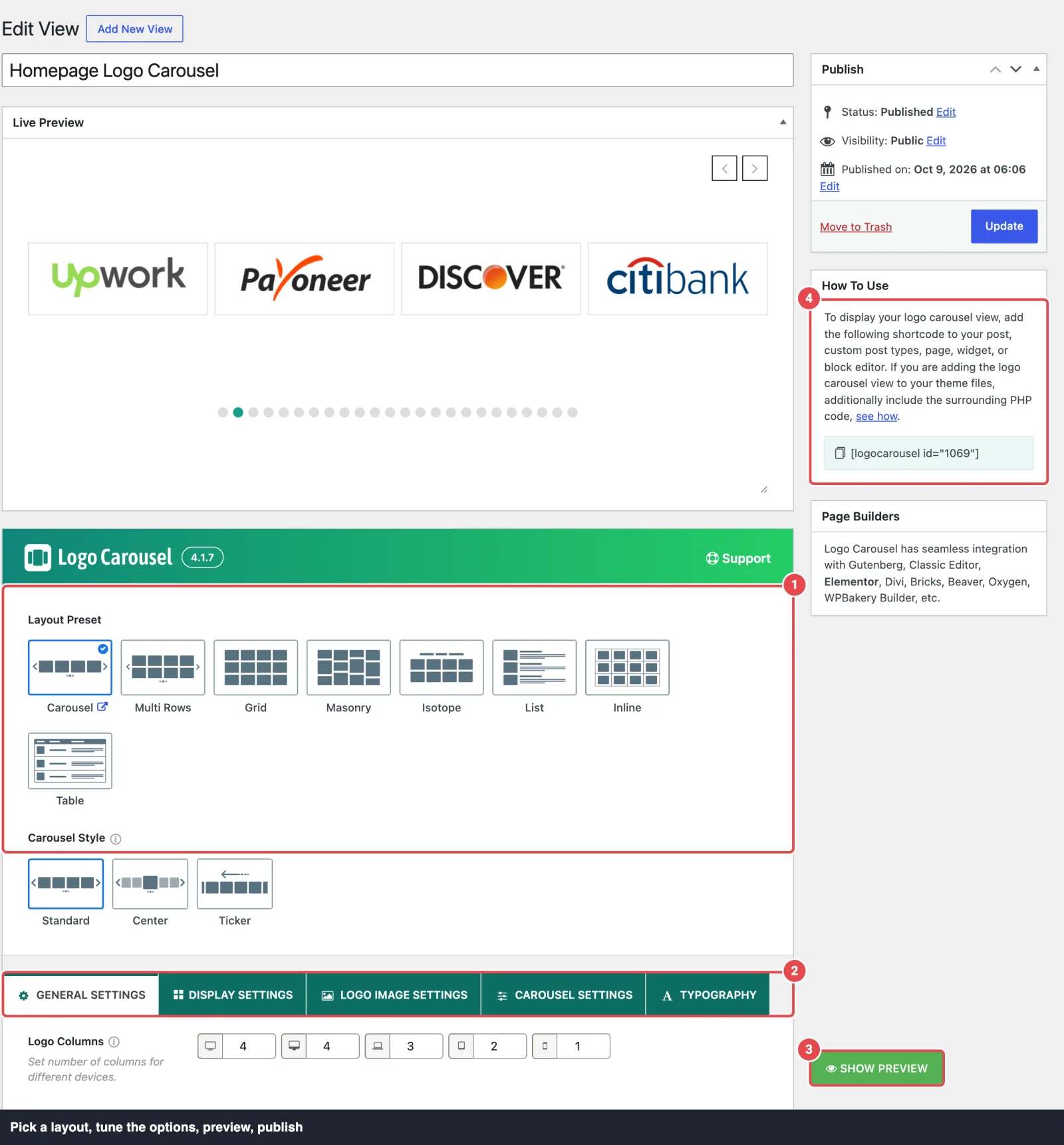
- In the Layout box, pick a Layout Preset (see below).
- Work through the Shortcode Options tabs. Every option is described on View Options.
- Click Show Preview to see the result before saving.
- Click Publish.
- Copy the shortcode from the How To Use box and paste it into a page.
What's on the edit screen
| Box | Where | What it's for |
|---|---|---|
| Live Preview | Top of the main column | Shows the view after you click Show Preview. |
| Layout | Main column | The Layout Preset and its style options. |
| Shortcode Options | Main column | Five tabs: General Settings, Display Settings, Logo Image Settings, Carousel Settings and Typography. |
| How To Use | Sidebar | The view's shortcode, ready to copy. |
| Page Builders | Sidebar | A short note on using the view in page builders. |
Layout presets
The Layout Preset is the biggest decision on the screen. Most other options adapt to it, appearing and disappearing as you switch.
| Preset | What you get |
|---|---|
| Carousel | A sliding row of logos with arrows and dots. The default. |
| Multi Rows Pro | A carousel with two or more rows that slide together. |
| Grid | A static grid of logos in even columns. |
| Masonry Pro | A grid where logos of different heights pack together without gaps. |
| Isotope Pro | A grid with category filter buttons above it. Logos need categories. |
| List Pro | Logos stacked one per row, aligned left, centre or right. |
| Inline Pro | Logos side by side in a bordered strip. |
| Table Pro | Logos in a table with a header row. |
Some presets have their own style choice, shown right under the presets:
| Preset | Extra option | Choices |
|---|---|---|
| Carousel | Carousel Style | Standard (default), Center Pro, Ticker Pro (continuous scrolling). Ticker also offers Enable Multi Rows. |
| Isotope | Filter Mode | Normal (default) hides logos that don't match; Opacity fades them instead. |
| Isotope (Normal mode) | Isotope Style | Even (default) or Masonry. |
| List | List Style | Left (default), Center, Right. |
| Inline | Inline Style | Outer Border (default) or Inner Border. |
| Grid, Inline | Justify Logo | Left (default), Center Pro, Right. |
Switching layouts is safe
Changing the preset hides options that don't apply, but it doesn't throw away what you set. Switch back, and your earlier settings are still there.
Preview before you publish
Click Show Preview at any time. The Live Preview box renders the view with your current settings, even ones you haven't saved yet. It uses your real logos, so it's the quickest way to check columns, spacing and colours.
Changed something? Click Show Preview again to see the new version.
Copy the shortcode
The How To Use box in the sidebar shows the shortcode for this view:
[logocarousel id="123"]Click it to copy. Then paste it into a page, a post, a widget or a page builder. For theme files, the box links to instructions for the PHP version, <?php logocarousel( 123 ); ?>. All the ways to place a view are on the Classic Overview.
The ID only appears after the first save
A brand-new view has no ID until you save it as a draft or publish it. Save first, then copy.
Duplicate a view
Hover over a view in the list and click Duplicate. You get an exact copy with all its settings, saved as a draft with the same title. Rename it, change what you need, and publish. It gets its own new shortcode ID.
Duplicating is the fastest way to make variations, like the same logos as a grid on one page and a carousel on another.
Edit once, update everywhere
Change a view and click Update, and every page that uses its shortcode shows the change. You never have to re-paste the shortcode.
Trashing a view removes it from every page
If you trash a view, every page using its shortcode shows nothing in that spot. Check where it's used first: the Dashboard lists every page with a Logo Carousel shortcode.
Move views between sites
Export views (all or a selection) to a JSON file and import them elsewhere from Dashboard → Settings → Import & Export. Imported views are new posts with new IDs, so copy their new shortcodes.
Troubleshooting
| Symptom | Likely cause | Fix |
|---|---|---|
Raw [logocarousel id="…"] text shows on the page | The plugin is inactive. | Activate it under Plugins. |
| Nothing shows where the shortcode is | Wrong ID, the view is in the trash, or no logos match its filters. | Copy the shortcode fresh from the list, and check Filter Logos. |
| Nothing shows only during certain dates | Scheduling is on and you're outside the window. | Check Scheduling in General Settings. |
| Admins see "Please activate the license key…" | The Pro license isn't active on this site. | Activate your license. |
| Changes don't appear | A page or server cache. | Clear your caches and reload in a private window. |
| An option you expected is missing | It doesn't apply to the chosen layout. | Check the layout; see View Options. |
Next steps
- View Options: every setting, tab by tab
- Manage Logos: the logos behind your views
- Classic Version Overview: all the ways to place a view