

Analytics Pro
See how many people saw each logo and how many clicked it, so you can show sponsors and partners real numbers.
Logo Analytics counts two things for every logo on your site: impressions (a visitor saw it) and clicks (a visitor clicked it). It works for Logo Carousel blocks and for classic [logocarousel] shortcodes, and shows the results on the dashboard's Analytics tab.
Turn it on
Analytics needs two switches on. Until both are, nothing is recorded.
- The Analytics module. It's on by default. Check it under Logo Carousel → Getting Started → Modules.
- The Logo Analytics setting. It's off by default. Go to Logo Carousel → Settings → Advanced, switch on Logo Analytics, and click Save Changes.
Then open the Analytics tab, from the dashboard or from Logo Carousel → Analytics in the sidebar.
If one switch is off, the Analytics tab tells you which, with a link to fix it: Open Modules or Open Advanced settings.
Counting starts from now
Analytics doesn't look back. You'll see numbers once visitors load pages with logos after you've turned it on.
What counts as a view and a click
- Impression (view): a logo is counted when at least a quarter of it scrolls into view in the visitor's browser. A logo on a page nobody scrolls to isn't counted.
- Click: a click on a logo's link, or on a logo that opens a details popup.
Each visitor is identified by their IP address, and each logo counts at most one impression and one click per IP address, ever. So the numbers are closer to "unique people who saw or clicked this logo" than to raw page views. A visitor who comes back every day still counts once, on the day they first saw the logo.
Blocks and classic share a logo's stats
If a block and a classic logo use the same image, their stats are combined into one row.
Tracking runs only on the public site, never inside the admin or the editor.
Pick a date range
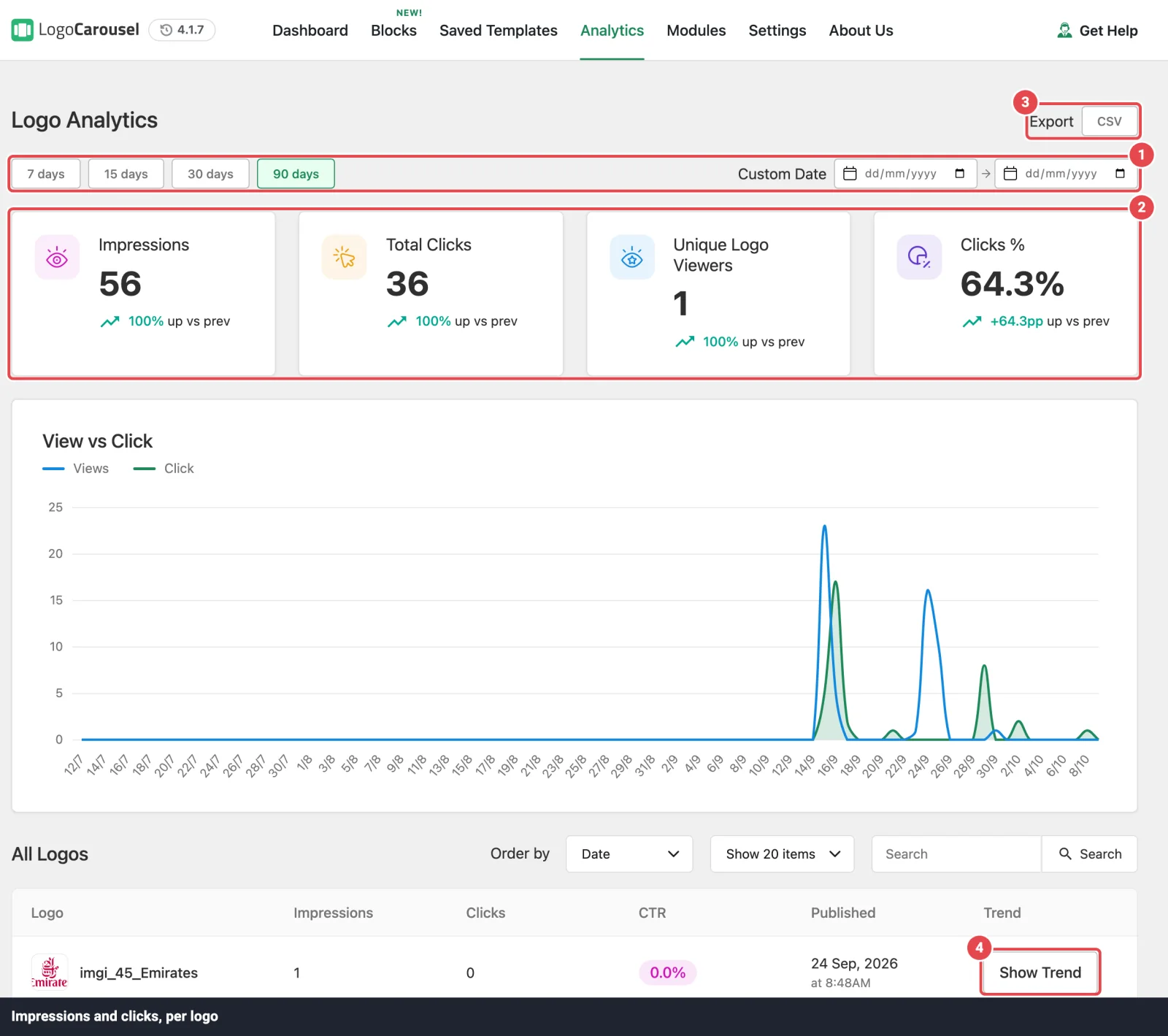
Use the buttons at the top: 7 days, 15 days, 30 days (the default) or 90 days. Choose Custom Date to set your own start and end dates.
Each number is compared with the period of the same length just before it, for example the last 30 days against the 30 days before that.
The metric cards
| Card | What it shows |
|---|---|
| Impressions | Logo views in the period. |
| Total Clicks | Logo clicks in the period. |
| Unique Logo Viewers | Different visitors (IP addresses) who saw at least one logo. |
| Clicks % | Clicks divided by impressions: your click-through rate (CTR). Its change is shown in percentage points. |
Under each number you'll see how it moved, such as "12% up vs prev".
The View vs Click chart
A line chart with two lines, Views and Click, across the chosen period. Use it to spot a launch, a campaign, or a logo that suddenly stopped getting attention.
If the period has no data yet, you'll see No analytics data for this period yet instead.
The All Logos table
Every tracked logo, one row each:
| Column | Shows |
|---|---|
| Logo | The logo. |
| Impressions | Its views in the period. |
| Clicks | Its clicks in the period. |
| CTR | Clicks as a percentage of impressions. |
| Published | When the logo (or, for block logos, its image) was published. |
| Trend | Show Trend draws a small day-by-day chart for that logo. Hide Trend closes it. |
Above the table you can Order by Date, Clicks, CTR, Impressions or Name, show 10, 20 or 50 items per page, and search by name.
Export to CSV
Click Export → CSV to download logo-analytics.csv. It has one row per logo with the columns Logo, Impressions, Clicks, CTR and Published. Open it in any spreadsheet app to build a report for a sponsor.
Privacy
To count unique visitors, Analytics stores each visitor's IP address in a database table on your site, alongside the logo, the type (impression or click) and the date. Nothing is sent to an outside analytics service.
IP addresses can count as personal data under laws like the GDPR. If that applies to you:
- Mention logo analytics in your privacy policy.
- Turn on Analytics only if you need it. Switching off Logo Analytics stops new data being saved immediately.
- To remove stored data, turn on Clean-up Data on Deletion in Settings → Advanced before deleting the plugin. That removes the analytics table. See Uninstalling.
Troubleshooting
| Symptom | Likely cause | Fix |
|---|---|---|
| No Analytics tab | The Analytics module is off. | Turn it on in Modules. |
| The tab says Logo Analytics is off | The setting isn't on. | Click Open Advanced settings and switch it on. |
| Numbers stay at zero | No one has loaded a page with logos since you turned it on, or you're testing from the admin. | Visit a page with logos in a private window and scroll them into view. |
| My own visits don't add up | Each IP address counts once per logo. | That's expected; test from a different network. |
| Impressions but no clicks | The logos have no links or popups. | Give logos a link or a popup click action. |
Related
- Modules: the Analytics module switch
- Settings: the Logo Analytics setting
- Logo Details Popup
- Admin Dashboard