

Marquee Pro
A strip of logos that scrolls on its own in an endless loop, with no arrows or dots.
The Marquee block keeps your logos moving across the screen at a steady pace and never stops to wait for a click. It's the classic "trusted by" or "as seen in" strip: a band of client, partner or sponsor logos that adds a little motion to a page without asking visitors to do anything.
It comes in three styles. Standard is a straight scrolling row (or column). Wave floats the logos along a gentle curve. Ribbon puts them on tilted bands, either one band or two that cross like an X.

Pro block
Marquee is part of Logo Carousel Pro. On the free plugin you'll see it in the inserter as a teaser. See Free vs Pro.
When to use it
- A row of client or partner logos that scrolls by itself under a hero section.
- A sponsor strip at an event page, where you want every sponsor to get screen time.
- A decorative, eye-catching band (Wave or Ribbon) between two sections of a landing page.
If visitors need to step through logos themselves, use the Carousel instead. It has arrows, dots and autoplay that stops between slides.
How to add it
- In the block editor, click the + inserter and search for Marquee. You'll find it in the Logo Carousel category.
- Add your logos. See Adding logos if you haven't done this before.
- Open the Layouts panel and pick a style under Select Marquee Style.
- Switch to the Carousel tab in the same panel to set direction, Scroll Speed and Pause on Hover.
Expected result
The logos start scrolling right away in the editor preview, so you can judge the speed and spacing as you change them. There are no arrows or dots, by design.
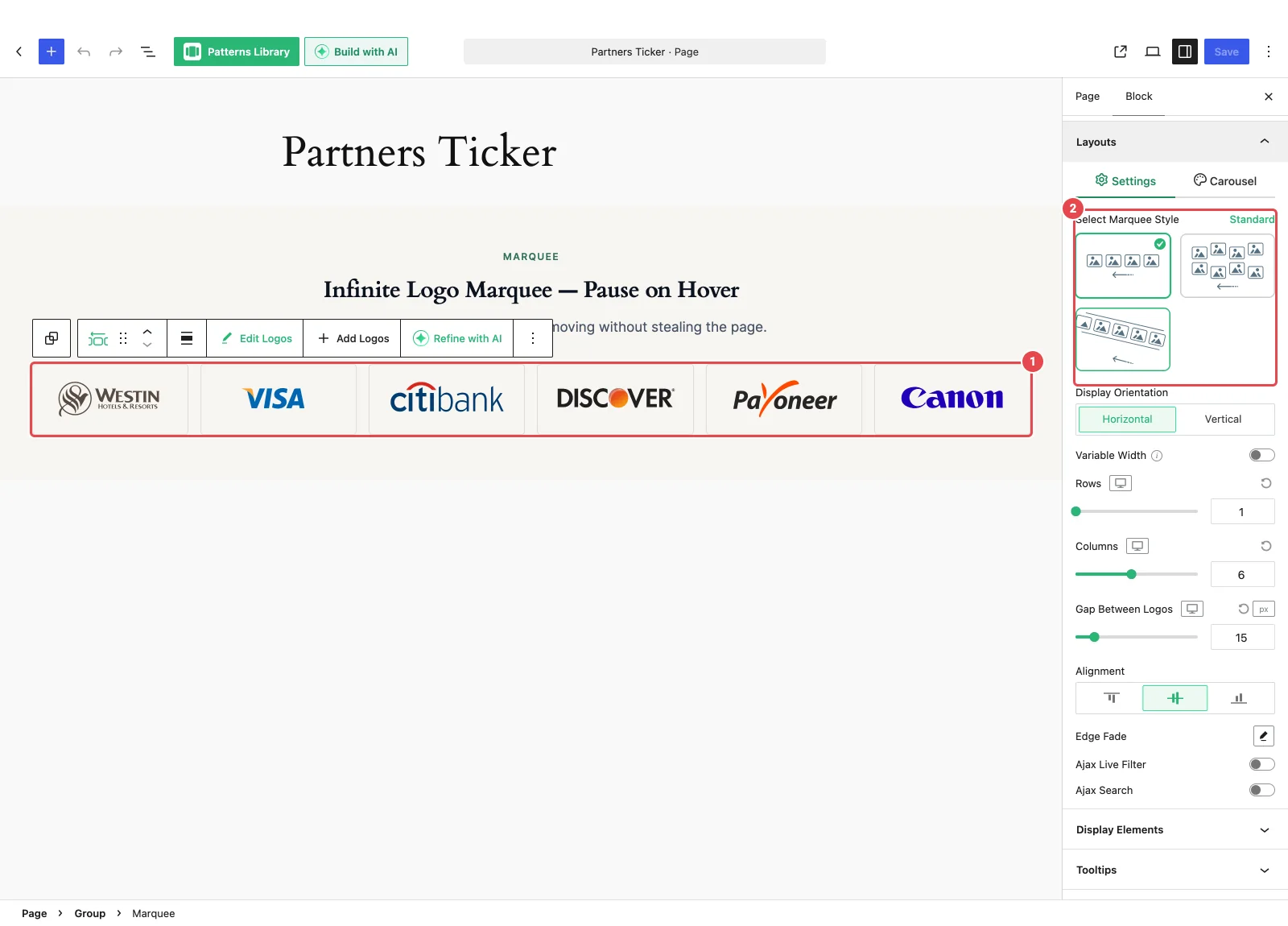
Marquee styles
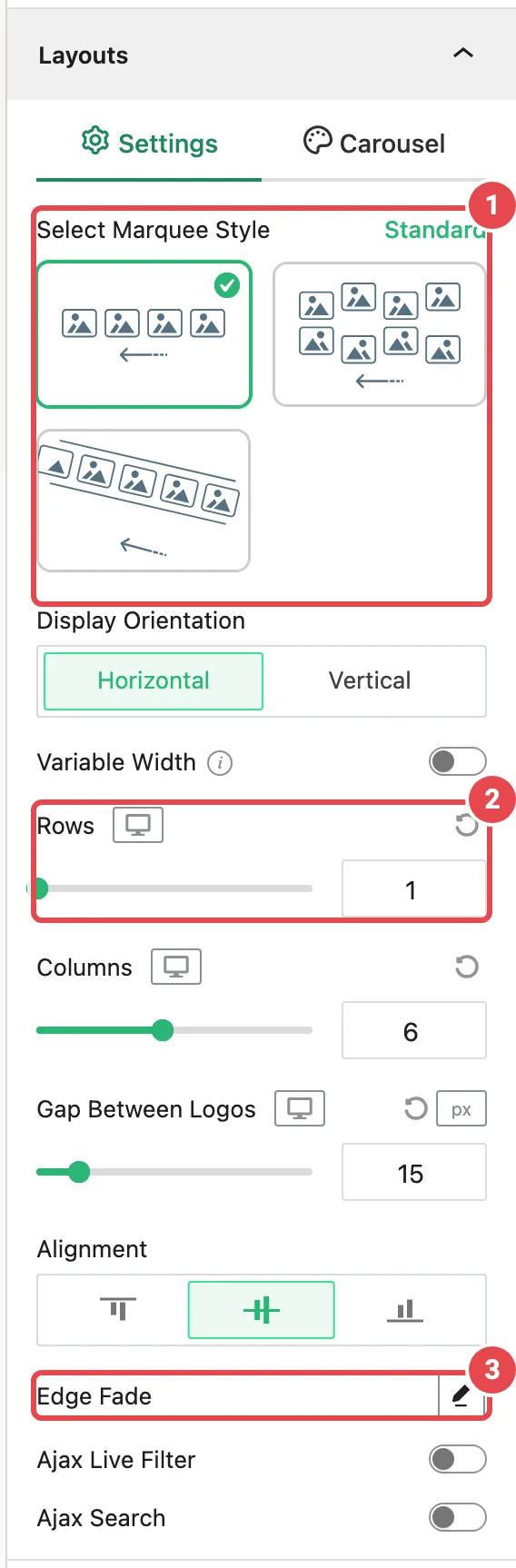
Pick a style with Select Marquee Style at the top of the Layouts panel's Settings tab.
| Style | What it looks like | Good for |
|---|---|---|
| Standard | A straight row (or column) of logos sliding past. You can have several rows. | Most logo strips. It's the default. |
| Wave | Logos float along a soft up-and-down curve as they move. | Playful, eye-catching sections. |
| Ribbon | Logos ride on a tilted band. Choose Cross Ribbon (two bands crossing in an X) or Single Ribbon (one band). | Bold section dividers and event pages. |
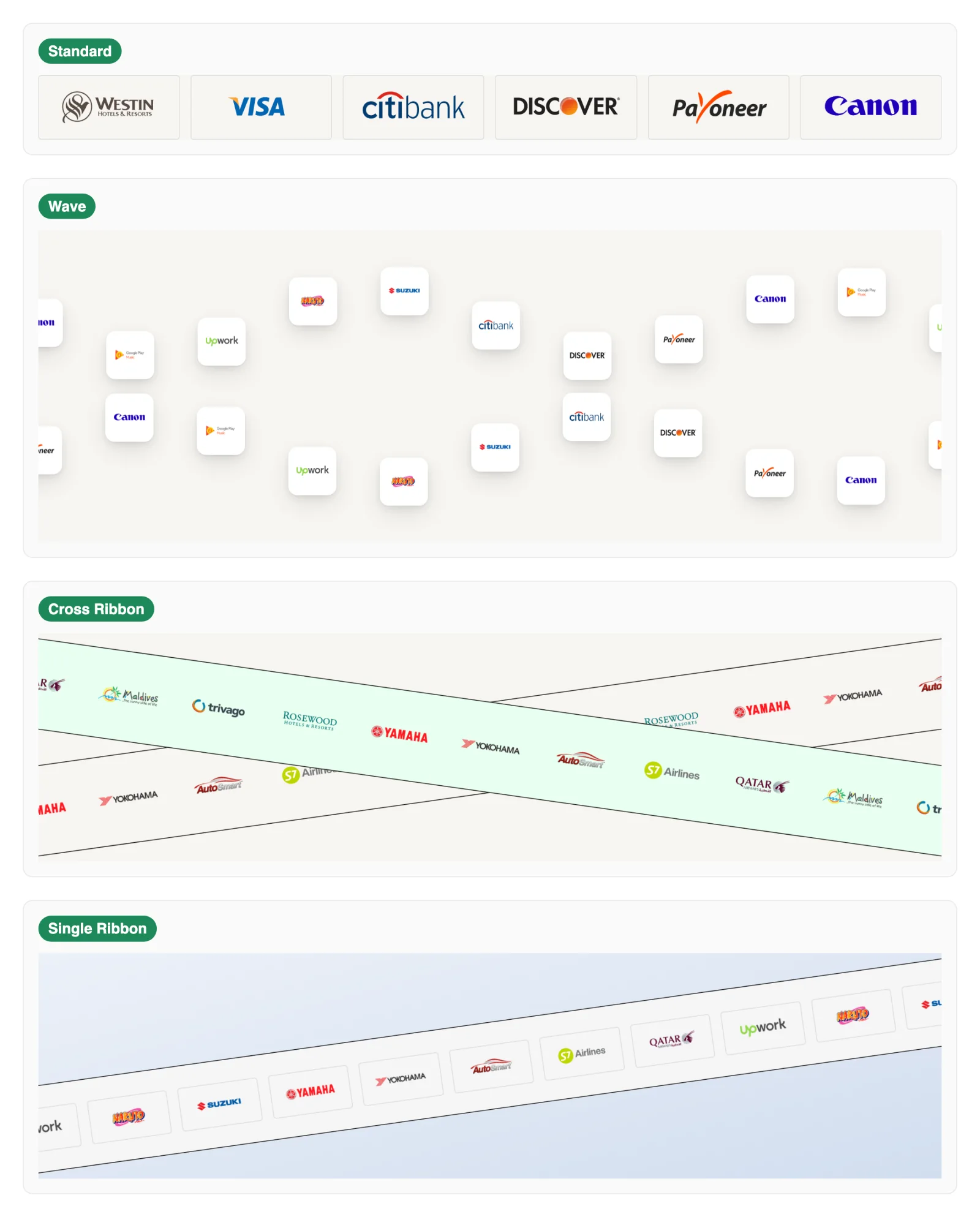
Wave and Ribbon always run sideways
Only the Standard style can scroll vertically. Wave and Ribbon are always horizontal.
Layouts panel: Settings tab
The controls on this tab change with the style you've picked. Settings marked "per device" can have a different value on desktop, tablet and mobile.
Standard
| Option | What it does | Default |
|---|---|---|
| Display Orientation | Horizontal scrolls left or right. Vertical scrolls up or down. | Horizontal |
| Variable Width | Lets each logo keep its natural width instead of forcing equal-width columns. Hidden when the orientation is Vertical. | Off |
| Rows | How many rows (lanes) of logos scroll at once, per device. 1–12. | 1 |
| Columns | How many logos fit across the visible area, per device. 1–12. | 6 / 4 / 3 |
| Gap Between Logos | Space between logos, per device, in px, % or em. | 15px |
| Alignment | Lines logos up inside their lane: top, center or bottom (left, center or right when vertical). | Center |
| Edge Fade | Opens a popup to fade the logos out softly at the edges. See Edge Fade. | Off |
Wave
| Option | What it does | Default |
|---|---|---|
| Wave Height | How tall the curve is, per device. 0–150px. | 45px |
| Wave Frequency | How many waves fit across the strip. 1–6. | 2 |
| Logo Size | The size of each logo on the wave, per device. 40–150px. | 64px |
| Rows | How many waves run at once, per device. 1–12. | 2 |
| Columns | How many logos sit across the visible area, per device. 1–12. | 10 |
| Gap Between Logos | Space between logos, per device. | 15px |
| Alignment | Top, center or bottom. | Center |
| Edge Fade | Soft fade at the edges. | Off |
Ribbon
| Option | What it does | Default |
|---|---|---|
| Ribbon Style | Cross Ribbon (two bands in an X) or Single Ribbon (one band). | Cross Ribbon |
| Ribbon Rotation | The tilt of each band, in degrees. Single Ribbon has one field (−12° to 12°). Cross Ribbon has a 1st and 2nd field (−90° to 90°). | Single −8°; Cross −8° and 8° |
| Columns | How many logos fit across a band, per device. 1–12. | 10 |
| Ribbon Height | How tall each band is, per device. 40–400px. | 120px |
| Gap Between Logos | Space between logos. | 15px |
| Alignment | Top, center or bottom. | Center |
| Edge Fade | Soft fade at the edges. | Off |
Cross Ribbon and Single Ribbon remember their own Columns, height, gap, alignment and edge fade, so switching between them doesn't lose your work.
Getting a clean X
For Cross Ribbon, give the two bands opposite rotations, like −8° and 8°. If both numbers have the same sign, the bands overlap instead of crossing, and the panel shows a reminder.
Edge Fade
Click the pencil next to Edge Fade to open its popup.
| Option | What it does | Default |
|---|---|---|
| Edge Fade | Turns the fade on. | Off |
| Fade Strength | How strong the fade is. 0–100. | 80 |
| Fade Width | How far the fade reaches in from each edge. 0–100. | 50 |
| Fade Color | Auto or Custom. | Auto |
| Select Color | The color to fade into. Only shown when Fade Color is Custom. | — |
Ajax Live Filter and Ajax Search
On the Standard and Wave styles, the Settings tab also has Ajax Live Filter and Ajax Search switches. They add a category filter and a search box above the marquee. When both are on, three more controls appear: Filter & Search Orientation (Inline or Stacked), Filter & Search Gap, and Justify Filter & Search.
These switches aren't offered for the Ribbon style. See Ajax Live Filter and Ajax Search for the details.
Layouts panel: Carousel tab
The second tab in the Layouts panel is called Carousel. It controls how the marquee moves.
| Option | What it does | Default |
|---|---|---|
| Carousel Direction / Wave Flow | Shown when there's more than one lane (two or more rows, or Cross Ribbon). Uniform moves every lane the same way. Alternate sends neighbouring lanes in opposite directions. The label reads Wave Flow on the Wave style. | Uniform |
| Carousel Direction | Which way the logos travel: Right to Left or Left to Right (or Bottom to Top / Top to Bottom when vertical). Hidden when lanes are set to Alternate, since each lane then has its own direction. | Right to Left |
| Scroll Speed | How fast the logos move. 500–20,000. A higher number is slower. | 5000 |
| Pause on Hover | Stops the marquee while a visitor's pointer is over it, so they can take a closer look. | On |
With the Ribbon style, this tab also holds the band's look:
| Option | What it does | Default |
|---|---|---|
| Background Type + background color or gradient | The fill behind the logos. Cross Ribbon has separate settings for the 1st and 2nd ribbon; the 2nd follows the 1st's type (solid or gradient). | Single: light grey. Cross: 2nd ribbon light green. |
| Border | A line around each band. | Solid, 1px, grey |
| Inner Padding | Space between the band's edge and the logos. | 0 |
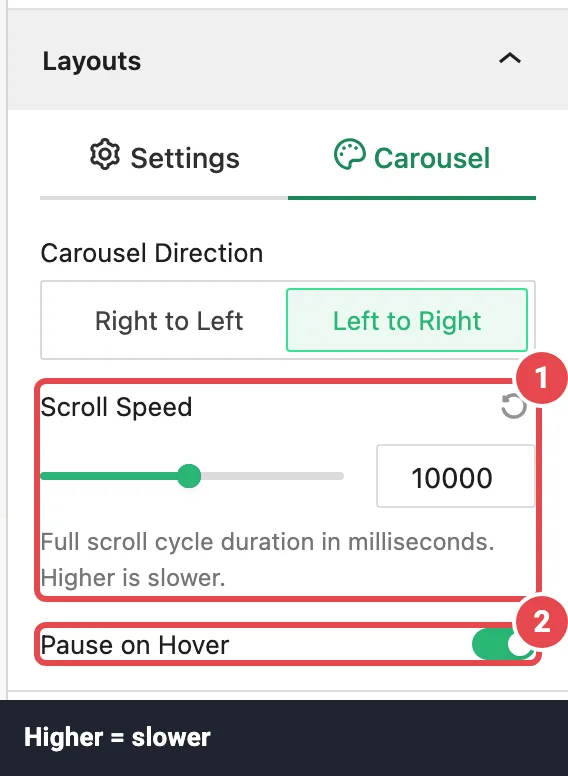
How Scroll Speed works
Think of Scroll Speed as "how relaxed the motion is." The default, 5000, is a calm pace that's easy to read. Raise the number to slow the logos down, and lower it to speed them up.
The logos move at a steady pace whatever the number of logos. So adding more logos doesn't make them rush; it just means it takes a little longer for the first logo to come around again.
Built-in motion care
You don't need to set these up. They happen on their own on the live page:
- Off-screen pause. A marquee that's scrolled out of view stops animating, and starts again when it comes back. This saves battery and processing on long pages.
- Reduced motion. If a visitor has turned on "reduce motion" in their device settings, the marquee stays still. A Wave marquee shows a single still frame. See Accessibility.
- Resizing. When the screen crosses a tablet or mobile size, the lanes rebuild to match your per-device Rows and Columns.
Which other panels apply
Marquee shares most of its panels with the Carousel, and they work the same way there. This page only covers what's different. Some panels hide depending on the style, because a moving wave or a crossing ribbon has no room for text:
| Panel | Standard | Wave | Single Ribbon | Cross Ribbon |
|---|---|---|---|---|
| Logo Images | ✓ | ✓ | ✓ | ✓ |
| Display Elements | ✓ | — | Title only | — |
| Tooltips | ✓ | — | ✓ | — |
| Ajax Live Filter / Ajax Search | ✓ | ✓ | — | — |
| Scheduling | ✓ | ✓ | ✓ | ✓ |
| Motion Effects | ✓ | ✓ | ✓ | ✓ |
| Advanced Settings | ✓ | ✓ | ✓ | ✓ |
A few small differences from the Carousel:
- Standard and Single Ribbon each keep their own Display Elements settings, so changing one doesn't change the other.
- Marquee has no Navigation Arrows, Pagination Dots or Pagination panel.
- Scheduling and Motion Effects only appear when those modules are switched on in the dashboard.
You can also turn a Marquee into any other Logo Carousel block from the block toolbar. See Block transforms.
Troubleshooting
| Symptom | Likely cause | Fix |
|---|---|---|
| It scrolls too fast to read | Scroll Speed is set low. | Raise Scroll Speed on the Carousel tab. A higher number is slower. |
| There are no arrows or dots | A marquee never stops, so it has nothing to navigate. | Use the Carousel block if visitors need to click through. |
| Titles or tooltips don't show | You're on the Wave or Cross Ribbon style, which hide them. | Switch to Standard, or Single Ribbon for titles. |
| The filter and search switches are missing | The Ribbon style doesn't offer them. | Switch to Standard or Wave. |
| The Display Orientation option is gone | Only Standard can scroll vertically. | Switch to Standard. |
| The Cross Ribbon bands don't make an X | Both rotations have the same sign. | Use opposite values, such as −8° and 8°. |
| The marquee doesn't move for one visitor | Their device has "reduce motion" turned on. | Nothing to fix. This is on purpose, for comfort and accessibility. |
| The block shows a license notice on the live site | The Pro license isn't active. | See License notice. |
Tips
- Keep logos simple and similar in size. Moving logos are harder to read than still ones, so clean, high-contrast marks work best.
- Start with the default Scroll Speed and only slow it down if it feels busy.
- Leave Pause on Hover on, so curious visitors can stop a logo long enough to read it.
- Edge Fade looks best against a plain section background.
- Two rows set to Alternate gives a lively look without needing Wave or Ribbon.
Related
- Carousel — the full reference for shared panels
- Blocks overview
- Sponsor marquee tutorial
- Accessibility
- Glossary: Marquee