

Admin Dashboard
One place to start new showcases, see where logos appear on your site, and control blocks, modules, analytics and settings.
The dashboard is Logo Carousel's home screen in the WordPress admin. You don't build showcases here. You build those on a page (with blocks) or under Manage Views (the classic version). The dashboard is where you start them, find them again, and make site-wide decisions.
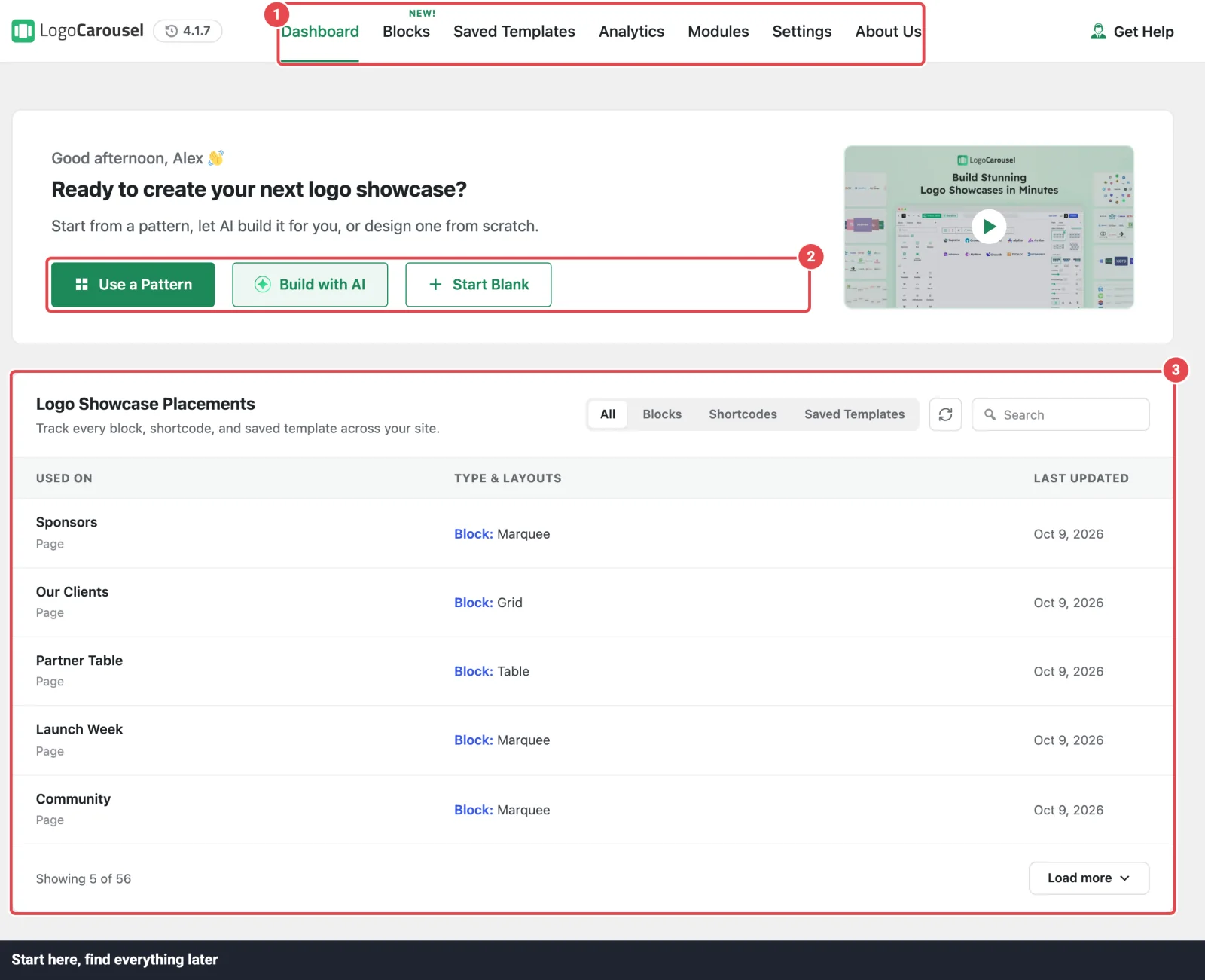
Open it
In the WordPress sidebar, click Logo Carousel → Getting Started. That opens the dashboard on its Dashboard tab.
The first time you activate the plugin, WordPress takes you to the setup wizard instead.
The Logo Carousel admin menu
| Menu item | What it opens |
|---|---|
| Getting Started | The dashboard. Most tabs live inside it. |
| All Logos | The classic logo library. See Manage Logos. |
| Add New Logo | A new classic logo. |
| Categories | Logo categories for classic logos. |
| Manage Views | Your classic views and their shortcodes. See Manage Views. |
| Analytics | Jumps to the dashboard's Analytics tab. Shown only while the Analytics module is on, with a NEW badge. |
| Settings | Jumps to the dashboard's Settings tab. |
Old links still work
The classic Settings and Analytics pages from earlier versions are no longer in the menu. If you (or an old bookmark) open their addresses, you're redirected to the matching dashboard tab.
Dashboard tabs
Tabs across the top switch sections without reloading the page. Each tab has its own address, such as …&page=lcpro_dashboard#modules, so you can bookmark it.
| Tab | What it's for |
|---|---|
| Dashboard | Start buttons, intro video and the placements table (below). |
| Blocks | Turn each block on or off. |
| Saved Templates | Reusable block designs with their own shortcode. Hidden while the Saved Templates module is off. |
| Analytics | Logo impressions and clicks. Hidden while the Analytics module is off. |
| Modules | Turn features on or off. |
| Settings | License, integrations, AI, advanced options, assets, import and export, custom code. |
| About Us | About the team behind the plugin, plus other ShapedPlugin products. |
In the free version the tab bar ends with Lite vs Pro and Our Plugins instead of About Us.
The Get Help menu in the header links to the documentation, technical support, the Setup Wizard, feature requests, video tutorials, what's new, the blog and the community. The version number next to the logo opens the changelog.
The welcome screen
The Dashboard tab greets you by name. On your first visit it says Welcome to Logo Carousel Pro. Once you have showcases on the site, it asks if you're ready to create the next one.
Below that are up to three start buttons. Each one opens a new page in the block editor:
| Button | What happens |
|---|---|
| Use a Pattern | Opens a new page in a new tab with the Ready Patterns library already open. Hidden if the Ready Patterns module is off. |
| Build with AI | Opens the editor with the AI builder open. Shown only when the Build with AI module is on and your site allows AI features. |
| Start Blank | Opens a new page with an empty Carousel block inserted. |
Next to them is a short intro video you can play in place.
Logo Showcase Placements
This table answers "where on my site are my logos?" It lists every page and post that uses Logo Carousel:
- Logo Carousel blocks
- classic shortcodes (
[logocarousel]) and Saved Template shortcodes ([lc_template]) - Logo Carousel elements in Elementor, Divi, WPBakery, Bricks, Beaver Builder and Oxygen
- widgets
| Column | Shows |
|---|---|
| Used on | The page or post, linked. |
| Type & Layouts | Which block, shortcode or template, and its layout. |
| Last updated | When that page last changed. |
Use the tabs (All, Blocks, Shortcodes, Saved Templates) and the search box to narrow it down. A tab appears only if the scan found something of that type. The list shows 5 rows at a time; click Load more for the rest. A classic view that isn't placed anywhere yet shows Not used yet.
The table doesn't update by itself. Click Sync placements to rescan your site; the button shows when it last synced. The scan checks your 500 most recently updated items, and says so if you have more.
Check before you delete
Before you trash a view or turn off a block, look it up here so you know which pages will be affected.
Setup wizard
A short wizard opens the first time you activate the plugin. You can reopen it any time from Get Help → Setup Wizard.
- Welcome: a quick tour of what the plugin can do, with an intro video.
- Blocks: switch the blocks you want on or off.
- Modules: switch features on or off.
- License Pro: enter your license key. This step is skipped if your license is already active, and the free version doesn't have it.
- Finish: buttons to Add Your First Logo View (a new page with a Carousel block) or Go to Dashboard, and a link to explore the patterns.
Every choice saves as you make it, and you can change all of them later in the dashboard. Use Skip Setup (or close the wizard) to leave it.
The consent checkbox
The Finish step has a checkbox to share non-sensitive diagnostic data (WordPress and PHP versions, theme and plugins, general system details, and your email for occasional updates). It's ticked by default. Untick it before you click Finish if you'd rather not share. What We Collect? shows the full list.
Activate your license early
Without an active Pro license, blocks (and classic shortcodes, on sites first installed after version 3.3.15) show nothing to visitors; admins see a reminder instead. An expired license keeps everything showing. See Activate your license.
Who can see the dashboard
Only users who can manage site options, which normally means Administrators. Editors and authors can still use Logo Carousel blocks on pages they're allowed to edit; they just can't reach the dashboard or settings.
Developers can change the required capability with the sp_lc_ui_permission filter. See Hooks.
Troubleshooting
| Symptom | Likely cause | Fix |
|---|---|---|
| No Logo Carousel menu | The plugin is inactive, or your account isn't an Administrator. | Check Plugins, then your user role. |
| Saved Templates or Analytics tab missing | Its module is off. | Turn it on in Modules. |
| Use a Pattern or Build with AI missing | The Ready Patterns or Build with AI module is off, or AI is disabled on the site. | Check Modules and AI Configuration. |
| A page is missing from Placements | The report is out of date. | Click Sync placements. |
| The dashboard is blank | A JavaScript error, often caused by another plugin. | Check your browser console, then test with other plugins turned off on a staging site. |