

Settings
Activate your license and adjust the plugin-wide options that aren't tied to a single logo showcase.
The Settings screen holds everything that affects the whole plugin: your license, page-builder switches, AI keys, clean-up and search options, asset loading for classic shortcodes, import and export, and your own CSS and JavaScript.
Open it
Go to Logo Carousel → Settings in your WordPress dashboard. You can also click the Settings tab at the top of any dashboard screen.
The tabs down the left side are:
| Tab | What it's for |
|---|---|
| License Key Pro | Activate Pro on this site. |
| Integrations | Switch page-builder elements on or off. |
| AI Configuration | Add API keys for the AI Builder. |
| Advanced | Clean-up on deletion, search, Google Fonts, analytics. |
| Control Assets | Load or skip CSS and JS files for classic shortcodes. |
| Import & Export | Move logos and classic views between sites. |
| Additional CSS & JS | Add your own CSS and JavaScript. |
The free plugin has every tab except License Key, and a shorter list on some of them (noted below).
License Key Pro
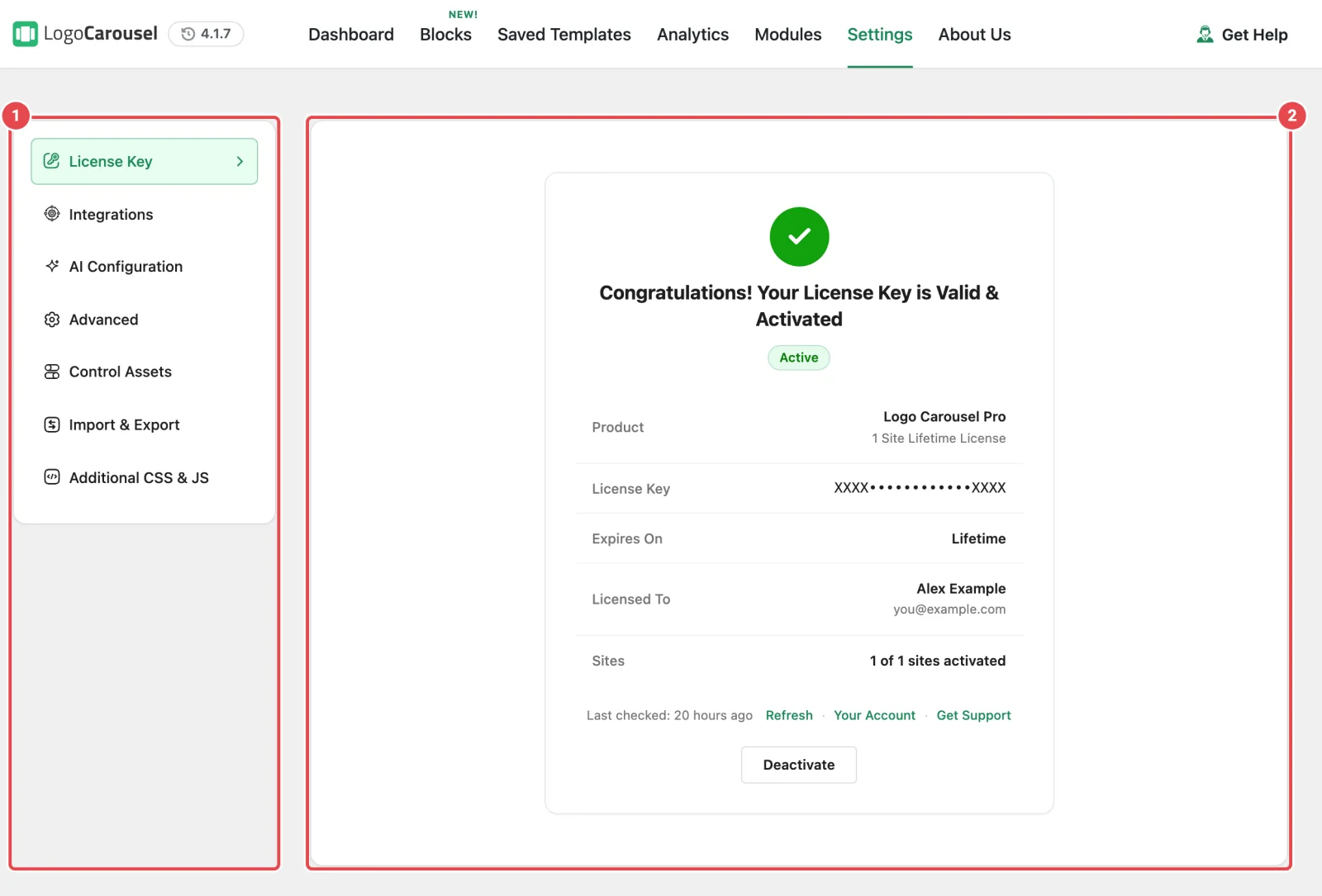
Your license unlocks Pro updates and support, and it's what lets your blocks show on the front end. Without an active license, logged-in admins see an activation notice where the showcase should be, and visitors see nothing. The block editor keeps working either way.
- Copy your key from your ShapedPlugin account.
- Paste it into the License key field (the placeholder reads "Place Your License Key").
- Click Activate License.
Once activated, the form becomes a status card showing the Product, the masked License Key, Expires On (or Lifetime), Licensed To, and Sites ("x of y sites activated"). Click Refresh to re-check the status, or Deactivate to free this site's activation.
An expired license keeps your showcases on the page
When a license expires, your showcases keep displaying. You lose updates and support until you renew. It's a missing or never-activated license that stops front-end output.
Step-by-step activation, every status message, and what to do when activation fails are on Installation.
Integrations
Six switches, one per page builder: Elementor, Divi, WPBakery, Oxygen, Beaver Builder, and Bricks. Each switch adds a Logo Carousel element to that builder, which displays one of your Saved Templates.
- Every switch is on by default and saves the moment you flip it. There's no Save button.
- One Divi switch covers both Divi 5 and Divi 4.
- If the Saved Templates module is off, you'll see "Integrations display saved templates. Turn on the Saved Templates module to use them."
The step-by-step guide for each builder starts on Integrations.
AI Configuration
This is where you connect the AI Builder (Build with AI in the editor) to an AI provider. Nothing here is required: leave it empty and the rest of the plugin works as usual. The tab is hidden when the Build with AI module is off in Modules.
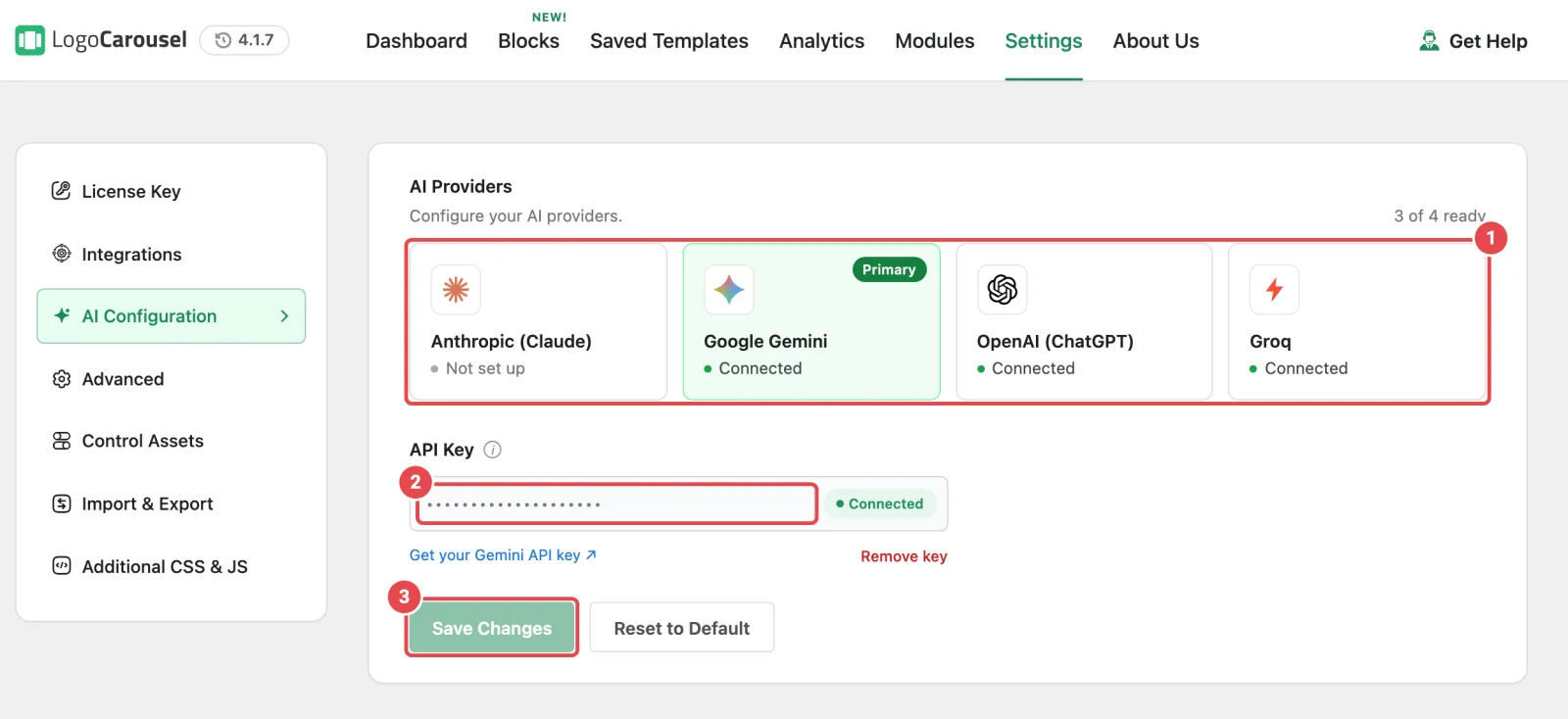
Under AI Providers you'll find four cards: Anthropic (Claude), Google Gemini, OpenAI (ChatGPT), and Groq. A counter shows how many are ready, and each card shows Not set up, Connected, or Invalid key.
- Click a provider's card.
- Paste your key into API Key. The Get your … API key link opens the right page on that provider's site.
- Click Save Changes. The key is checked with the provider before it's saved, and a key the provider rejects isn't stored.
A few things worth knowing:
- Keys are stored encrypted, one per provider, and never sent to the browser in full. A saved key shows only its first and last four characters.
- The first key you save becomes the Primary provider. It's selected first in the editor. Use Make primary to change it.
- Add a backup. With only one provider ready, the screen suggests adding another so building keeps working if the first one hits its limit.
- To change a key, click Remove key, then enter the new one. Check again re-tests a saved key.
- WordPress Connectors. If a provider is already set up in WordPress's own Connectors screen, the card shows Connected via WordPress and there's no key to enter here.
You choose the model in the editor each time you build, not on this tab. Writing prompts and everything else about the builder is on AI Builder.
Advanced
Site-wide switches. Click Save Changes after you change anything here.
| Option | What it does | Default |
|---|---|---|
| Clean-up Data on Deletion | When on, deleting the plugin also removes the data it stored. See the warning below. | Off |
| Exclude from Search Pro | Keeps logos out of your site's general search results. | Off |
| No Result Found Pro | The message shown when a classic view's filter or search finds nothing. | "No result found." |
| Google Fonts Pro | Loads or skips Google Fonts for classic shortcodes. Blocks load the fonts they use regardless of this switch. | Off |
| Logo Analytics Pro | Records impressions and clicks for classic shortcodes and blocks. When off, no new data is saved. Hidden while the Analytics module is off. | Off |
The free plugin has only Clean-up Data on Deletion.
Clean-up Data on Deletion is permanent
With this on, deleting the plugin removes your logos, classic views, Saved Templates, logo categories, the plugin's settings, and its analytics data. There's no undo. Your media files and the block markup inside your pages stay where they are.
Leave it off unless you're removing the plugin for good, and take a database backup first. The full breakdown is on Uninstalling.
Logo Analytics needs the Analytics module on as well. What it tracks and where you read the numbers is on Analytics.
Control Assets
Turn individual CSS and JavaScript files on or off. Each switch saves straight away, and all of them start on.
Classic shortcodes only
These switches affect showcases made under Manage Views (the [logocarousel] shortcode). Logo Carousel blocks load their own files and ignore this tab.
Turn a file off only if your theme or another plugin already loads the same library, and check your classic showcases afterwards.
| CSS | JS (under JS Enqueue/Dequeue) |
|---|---|
| FontAwesome CSS | Remodal JS Pro |
| Swiper CSS | BXSlider JS Pro |
| BX Slider CSS Pro | Swiper JS |
| Tooltipster CSS Pro | Tooltipster JS Pro |
| Animation CSS Pro | Isotope JS Pro |
The free plugin lists FontAwesome CSS, Swiper CSS, and Swiper JS.
Import & Export
Move logos and classic views from one site to another, or keep a backup.
What this tool covers
It exports and imports logos and classic views (from Manage Views). Saved Templates and blocks inside your pages aren't included. To move those, use WordPress's own export, or copy the blocks.
Export
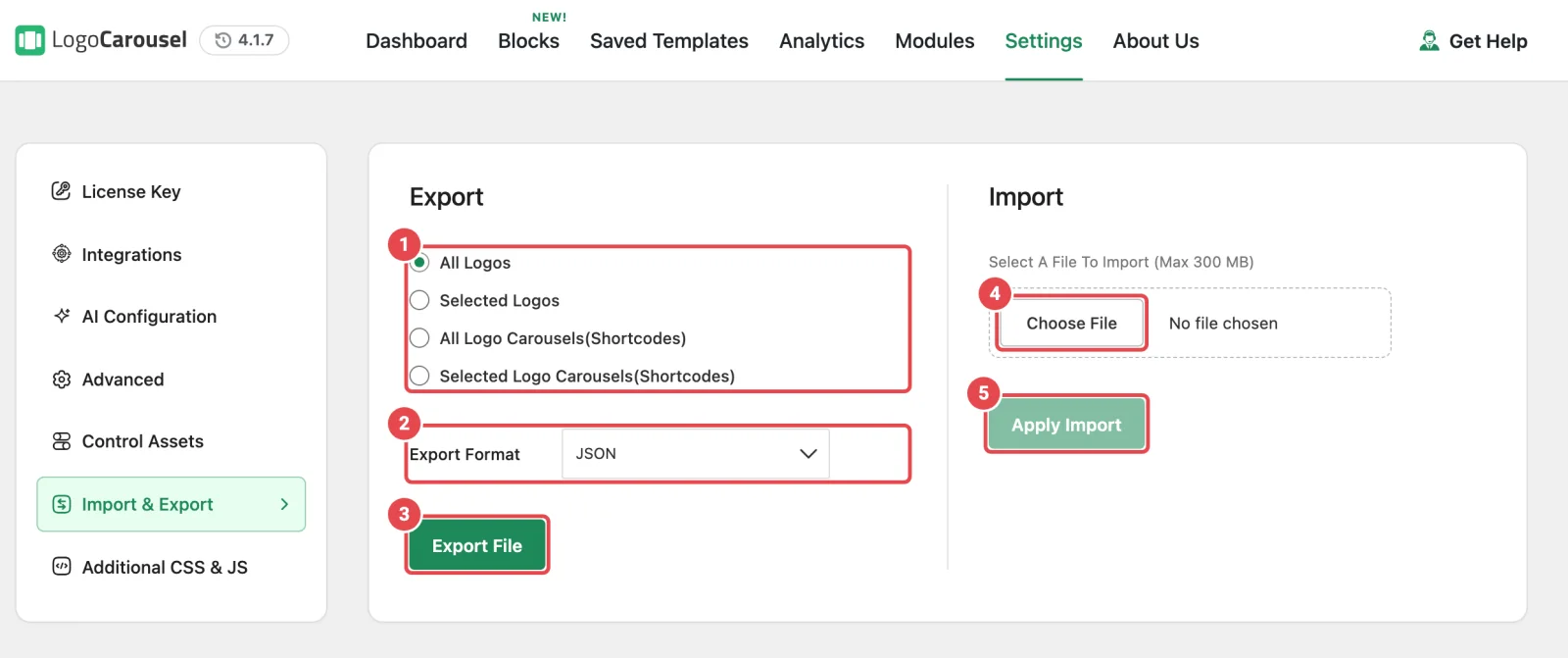
- Choose what to export: All Logos, Selected Logos, All Logo Carousels(Shortcodes), or Selected Logo Carousels(Shortcodes). For a "Selected" option, tick the items under Choose logo(s) or Choose group(s).
- Pick an Export Format: JSON or CSV. CSV is only for logos.
- Click Export File. Your browser downloads a file named like
logo-carousel-export-….json.
The free plugin offers All Logos, All Logo Carousels(Shortcodes), and Selected Logo Carousels(Shortcodes), in JSON only.
Import
- Click Choose File and pick a
.jsonor.csvexport file (up to 300 MB). - Click Apply Import.
Imported items are added as new, published posts; nothing on the site is overwritten. Logo images are downloaded into your Media Library from their original URLs, and missing categories are created. After a successful import, you're taken to the list of what you imported.
Keep the old site online while you import
Logo images are fetched from the old site's URLs. If the old site is already gone, the logos import without their images.
Additional CSS & JS
Two boxes, Custom CSS and Custom JS, for small tweaks that load with Logo Carousel's output. Click Save Changes when you're done.
Your code loads on pages that show a Logo Carousel block or a classic shortcode. Custom CSS also applies inside the block editor preview, so you see your tweaks while you edit.
Do
- Give the block a CSS class in its Advanced Settings, then target that class here. It's far more reliable than guessing at the plugin's own class names.
- Keep snippets short, and add a comment saying what each one fixes.
Don't
- Edit plugin files directly. Updates wipe them.
- Paste large third-party libraries here. Load those from your theme.
Example: give one showcase a soft background on the homepage.
/* Homepage client logos: match the section behind it. */
.home-client-logos {
	background: #f6f8f7;
	border-radius: 12px;
}
Troubleshooting
| What you see | Likely cause | Fix |
|---|---|---|
| No AI Configuration tab | The Build with AI module is off. | Turn it on in Modules. |
| No Logo Analytics switch under Advanced | The Analytics module is off. | Turn on Analytics in Modules. |
| A Control Assets switch did nothing to a block | These switches only affect classic shortcodes. | That's expected. Blocks load their own files. |
| Custom CSS has no effect | Theme CSS is more specific, or the selector doesn't match. | Target your own CSS class from Advanced Settings. |
| Saved Templates are missing after an import | Import & Export doesn't include them. | Recreate them, or move them with WordPress's export tool. |
| Showcases disappeared for visitors | The license isn't active on this site. | Activate it on the License Key tab. See Troubleshooting. |