

Blocks
Choose which Logo Carousel blocks your site uses, and keep the block inserter tidy.
The Blocks tab is a set of on/off switches, one per block. If your team only ever uses Carousel and Grid, switch the others off and the inserter gets simpler for everyone.
Open it
- Go to Logo Carousel → Getting Started.
- Click the Blocks tab.
Direct link: …&page=lcpro_dashboard#blocks.
What you'll see
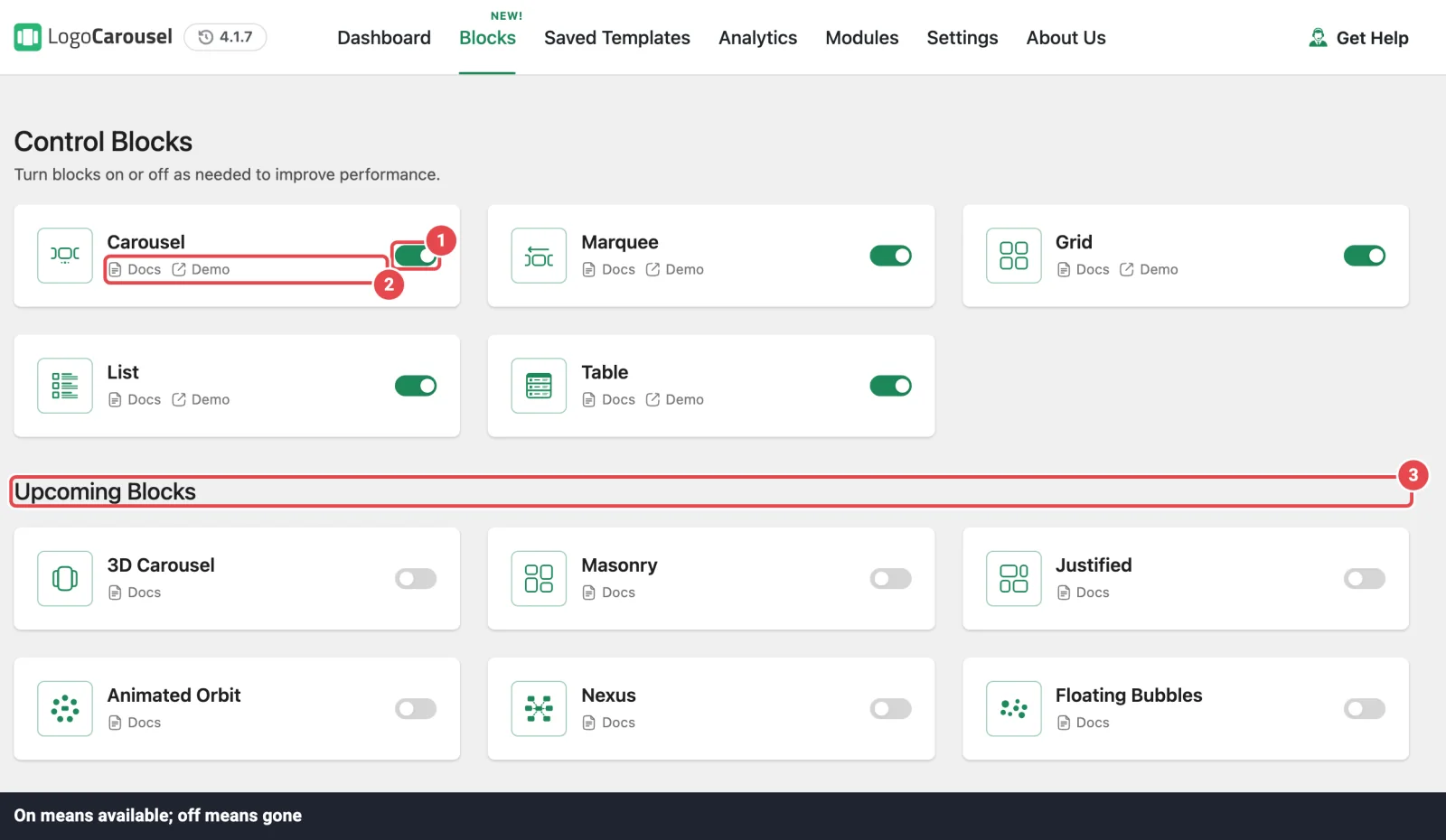
The tab is headed Control Blocks: "Turn blocks on or off as needed to improve performance." Each card has the block's icon and name, a Docs link, a Demo link, and a switch.
Demo opens a new page in the editor with the Ready Patterns library filtered to that block, so you can see what it can do. It's hidden if the Ready Patterns module is off.
The five blocks
All five are on by default.
| Block | What it's for | |
|---|---|---|
 | Carousel | A sliding row of logos with arrows and dots. |
 | Marquee Pro | Logos scrolling continuously in an endless loop. |
 | Grid | Logos evenly spaced in a responsive multi-column grid. |
 | List Pro | Logos stacked vertically in a clean list. |
 | Table Pro | Logos in a structured table layout. |
Upcoming Blocks
A second group, Upcoming Blocks, shows blocks planned for a future version: 3D Carousel, Masonry, Justified, Animated Orbit, Nexus and Floating Bubbles. Their switches are locked, and there's nothing to set up yet.
What turning a block off does
Each switch saves the moment you click it. You'll see "The block has been enabled" or "The block has been disabled".
| When a block is… | In the editor | On your site |
|---|---|---|
| On | It's in the inserter, ready to add. | It renders normally. |
| Off | It's removed from the inserter. | WordPress no longer knows the block type, so pages that already use it won't show it to visitors. |
An off block also isn't offered by Build with AI.
Nothing is deleted from your pages. Turn the block back on and every existing placement works again exactly as before.
Off means off for visitors too
Switching a block off isn't just tidying the inserter. If your homepage uses a Marquee and you turn Marquee off, that section disappears. Before turning a block off, check the Placements table on the Dashboard tab to see where it's used.
Classic views aren't affected
These switches only control the blocks. Classic views and their [logocarousel] shortcodes keep working whatever you set here, and so does the Classic Shortcode block.
Tips
- New site? Leave everything on while you explore. Having a block available costs nothing.
- Many authors? Switch off the blocks your design doesn't use, so nobody adds one by accident.
- After changing a switch, reload any open editor tabs so the inserter catches up.
Troubleshooting
| Symptom | Likely cause | Fix |
|---|---|---|
| A block is missing from the inserter | It's switched off. | Turn it on here, then reload the editor. |
| A section of a page disappeared | Its block was switched off. | Turn the block back on. |
| An Upcoming block can't be switched on | It isn't released yet. | Nothing to do; it'll unlock in a later version. |
| The Demo link is missing | The Ready Patterns module is off. | Turn it on in Modules. |
Related
- Blocks Overview: which block to pick
- Modules: switch features, not blocks
- Admin Dashboard