

Ajax Search Pro
Add a search box above your logos, so visitors can find a company by typing part of its name.
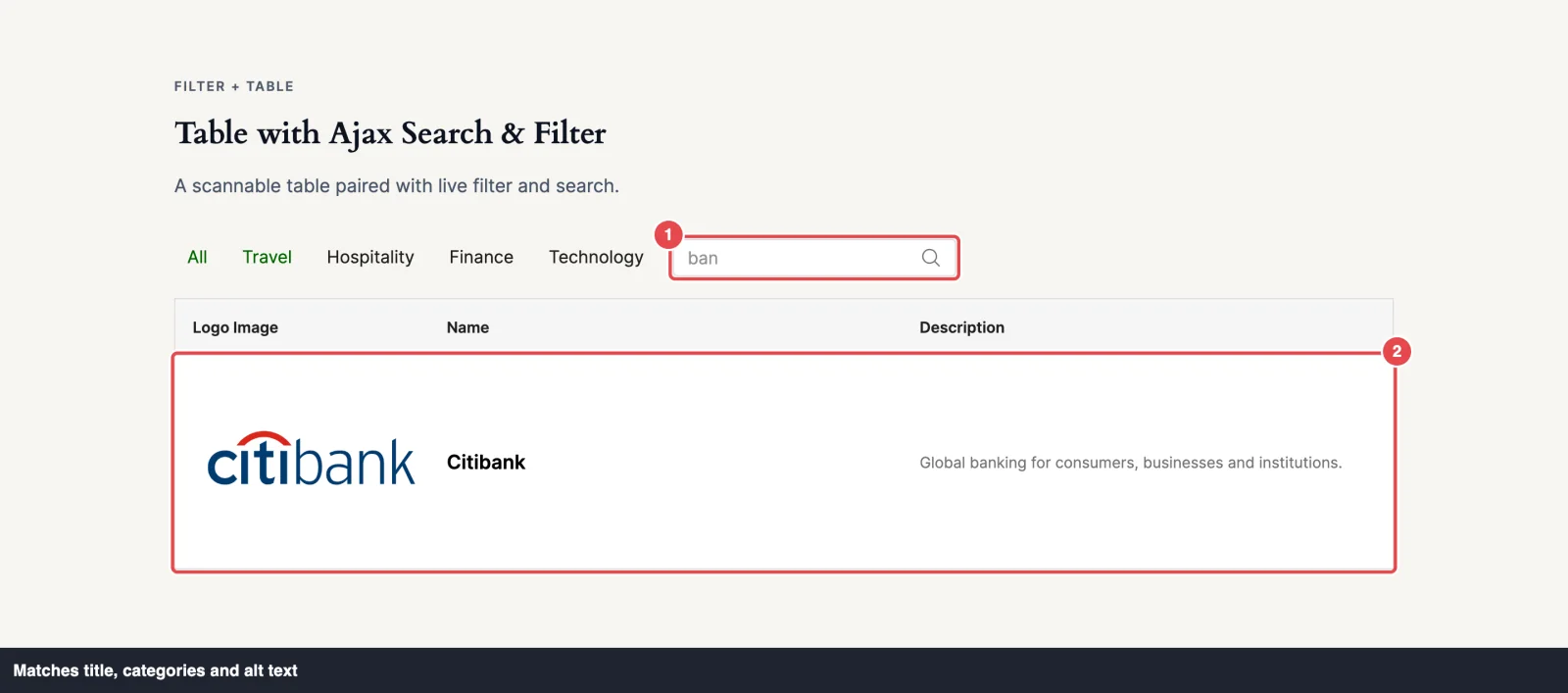
Scrolling through 80 partner logos to find one is no fun. Ajax Search puts a search box above your block. As a visitor types, the logos narrow down to the ones that match, right there on the page.
There's no reload and no waiting. ("Ajax" is a web term for updating part of a page without reloading it. See Ajax.) Every logo is already on the page, so the search runs in the visitor's browser and doesn't ask your server for anything.
Pro feature
Ajax Search is part of Logo Carousel Pro. See Free vs Pro.
When to use it
- A long partner, member or vendor directory where visitors look for a specific name.
- A Table or List with many rows.
- Alongside Ajax Live Filter, when categories alone don't narrow things down enough.
Which blocks support it
| Block | Ajax Search |
|---|---|
| Carousel | ✓ (all styles except Staggered) |
| Grid | ✓ |
| List | ✓ |
| Marquee | ✓ (Standard and Wave styles; not Ribbon) |
| Table | ✓ |
What it searches
The search box looks at three things on each logo:
| Field | Where you set it |
|---|---|
| Title | The logo editor. See Edit a logo. |
| Categories | The logo editor's Category field. See Logo categories. |
| Alt text | The logo editor's Logo Alt Text field. |
It ignores upper and lower case, and it matches part of a word. Typing "acm" finds "Acme Corp". Typing "retail" also finds every logo in a "Retail" category, even if the word isn't in its name.
Descriptions aren't searched, so a word that only appears in a logo's description won't find it.
How to turn it on
- Select your block and open the Layouts panel.
- Switch on Ajax Search. It's off by default.
- A new Ajax Search panel appears further down the inspector. Open it to choose a look and adjust the settings below.
Expected result
A search box appears above your logos in the editor preview. On the live page, typing in it narrows the logos a moment after the visitor stops typing. Pressing Enter searches straight away.
Search bar styles
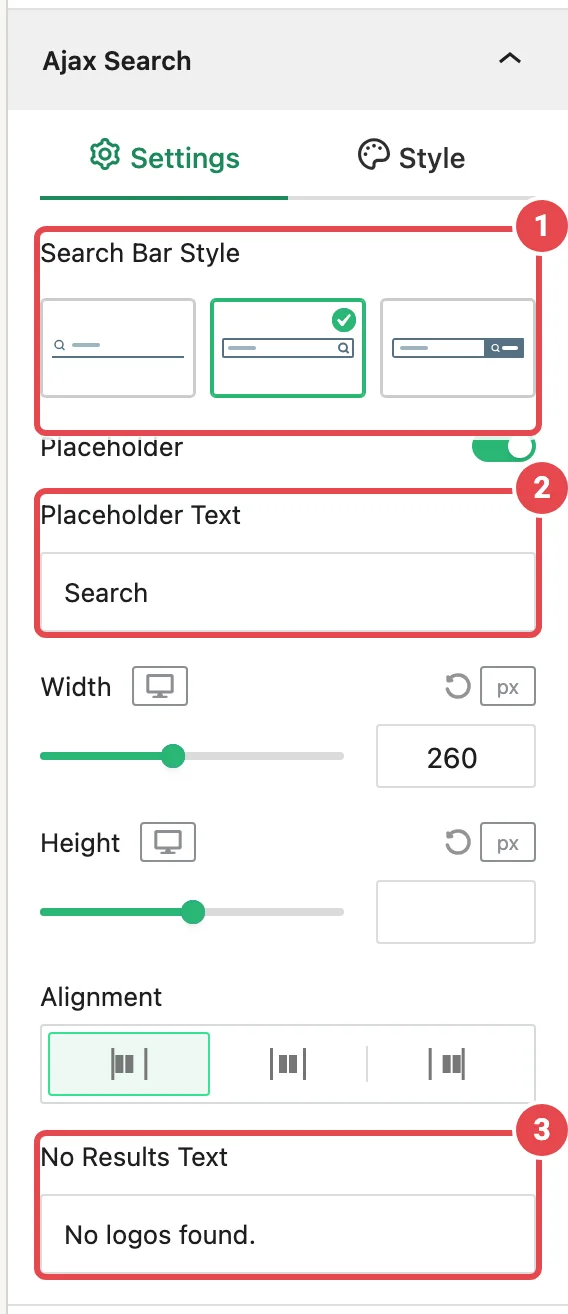
Choose a look under Search Bar Style at the top of the Settings tab:
| Style | What it looks like |
|---|---|
| Style 1: underline | A minimal field with just a line underneath. |
| Style 2: outlined field | A field with a full border. The default. |
| Style 3: field with button | A field with a search button next to it. |
Settings tab
| Option | What it does | Default | Shown for |
|---|---|---|---|
| Search Button Title | Shows text on the search button. | On | Style 3 |
| Button Text | The button's text. | Search | Style 3, with Search Button Title on |
| Placeholder | Shows hint text inside the empty box. | On | All styles |
| Placeholder Text | The hint, such as "Search partners…". | Search | Placeholder on |
| Width | How wide the search box is, per device. In px or %. | 260px | All styles |
| Height | How tall the box is, per device. Leave empty to use the natural height. | — | All styles |
| Alignment | Left, Center or Right. | Left | All styles |
| No Results Text | The message shown when nothing matches. | No logos found. | All styles |
Style tab
- Every style: Typography, Text Color, Search Icon Color, Inner Padding and Border Radius, with a Normal / Hover & Active switch for the states.
- Style 1: Underline Thickness and Underline Color.
- Style 2 and Style 3: a background and border for the field.
- Style 3: Button Title Typography, Button Title Color and the button background.
Using it with the filter and pagination
- With Ajax Live Filter: search and filter combine. A logo has to match the selected category and the search text to stay on screen. When both are on, the Layouts panel adds Filter & Search Orientation (Inline or Stacked), Filter & Search Gap, and Justify Filter & Search.
- With Pagination (Grid, List, Table): the search results are paged again, so page numbers and the Load More button only count matching logos.
Troubleshooting
| Symptom | Likely cause | Fix |
|---|---|---|
| A logo doesn't turn up when I search its name | The name is only in the description, or the title is empty. | Add the name as the logo's title or alt text in the logo editor. |
| Search finds nothing while a category is selected | Search and filter combine, so the logo must be in the selected category too. | Select All in the filter, then search again. |
| The Ajax Search switch is missing | The Carousel is on the Staggered style, or the Marquee is on Ribbon. | Switch to another style. |
| The box looks too narrow on mobile | Width is a fixed pixel value. | Set a smaller width for mobile, or use %. |
Tips
- Give every logo a clear title. It's the main thing visitors will search for.
- Fill in alt text too. It helps screen reader users, and it gives search one more thing to match. See Accessibility.
- Write a friendly No Results Text, like "No partners match that name. Try another spelling."
- Use a specific Placeholder Text, such as "Search 120 partners", so visitors know what the box is for.
Related
- Ajax Live Filter · Pagination
- Adding logos — titles, alt text and categories
- Partner directory tutorial
- Grid · List · Table