

Pagination Pro
Break a long Grid, List or Table into pages, a Load More button, or an endless scroll.
A block with 60 logos makes visitors scroll a long way to reach the rest of your page. Pagination shows the first batch of logos and keeps the rest tucked away until the visitor asks for them, by clicking a page number, pressing Load More, or simply scrolling down.
It all happens in the browser, with no page reload. Every logo is already part of the page, so changing page is instant: pagination just shows the next set and hides the others.
Pro feature
Pagination is part of Logo Carousel Pro. See Free vs Pro.
Not the same as Pagination Dots
The Carousel has Pagination Dots, which show which slide you're on. This page is about splitting a Grid, List or Table into pages. See Pagination Dots for the carousel version.
When to use it
- A big logo Grid that pushes the rest of your page too far down.
- A partner List or Table with more rows than people want to scroll past.
- A "show more" feel, where the first few logos tease the rest.
Which blocks support it
| Block | Pagination |
|---|---|
| Grid | ✓ |
| List | ✓ |
| Table | ✓ |
| Carousel | — (uses Navigation Arrows and Pagination Dots) |
| Marquee | — (it scrolls on its own) |
How to turn it on
- Select your Grid, List or Table block and open the Layouts panel.
- Switch on Pagination. It's off by default.
- A new Pagination panel appears further down the inspector. Open it to choose the type and how many logos to show at a time.
Expected result
Only the first batch of logos shows, with a Load More button or page numbers underneath. If all your logos fit in one batch, there's nothing to paginate, so no button or numbers appear.
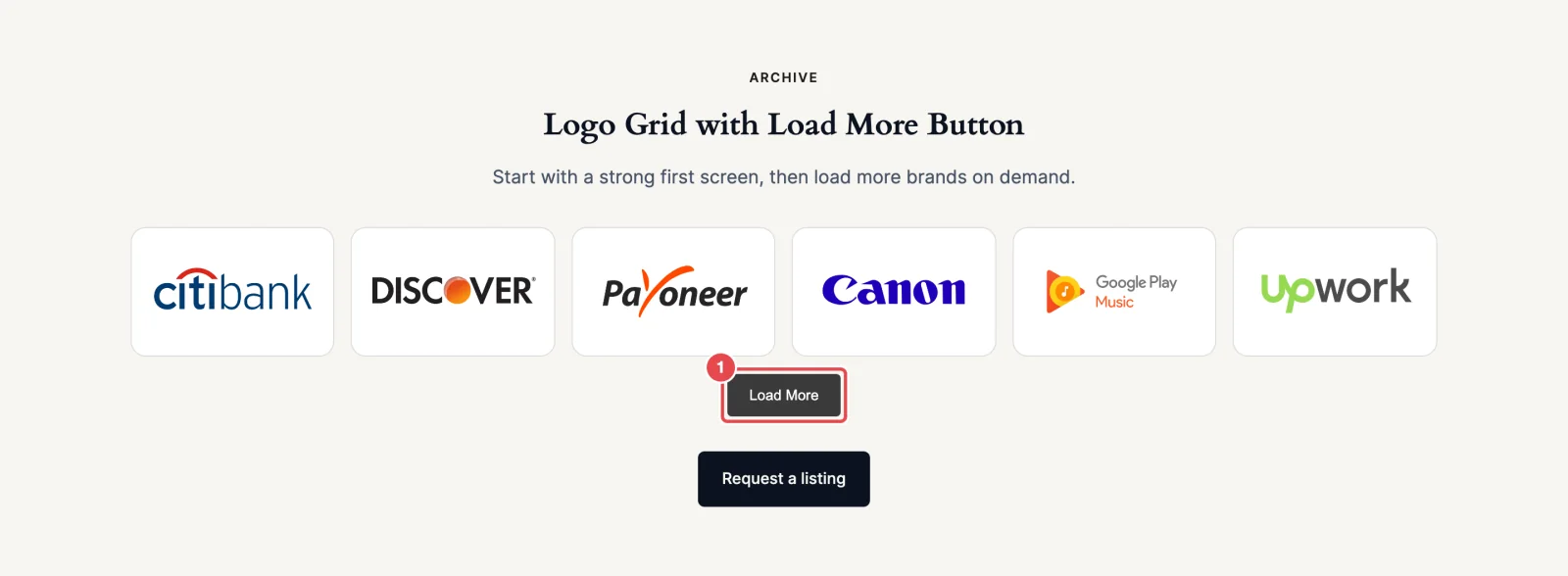
Pagination types
Pick one under Pagination Type on the panel's Settings tab.
| Type | What visitors get | Good for |
|---|---|---|
| Load More | A button under the logos. Each click adds the next batch below the ones already showing. The default. | Casual browsing, logo walls. |
| Load More + Load on Scroll | No button. The next batch appears by itself as the visitor scrolls near the bottom. | Long pages where you want an endless feel. |
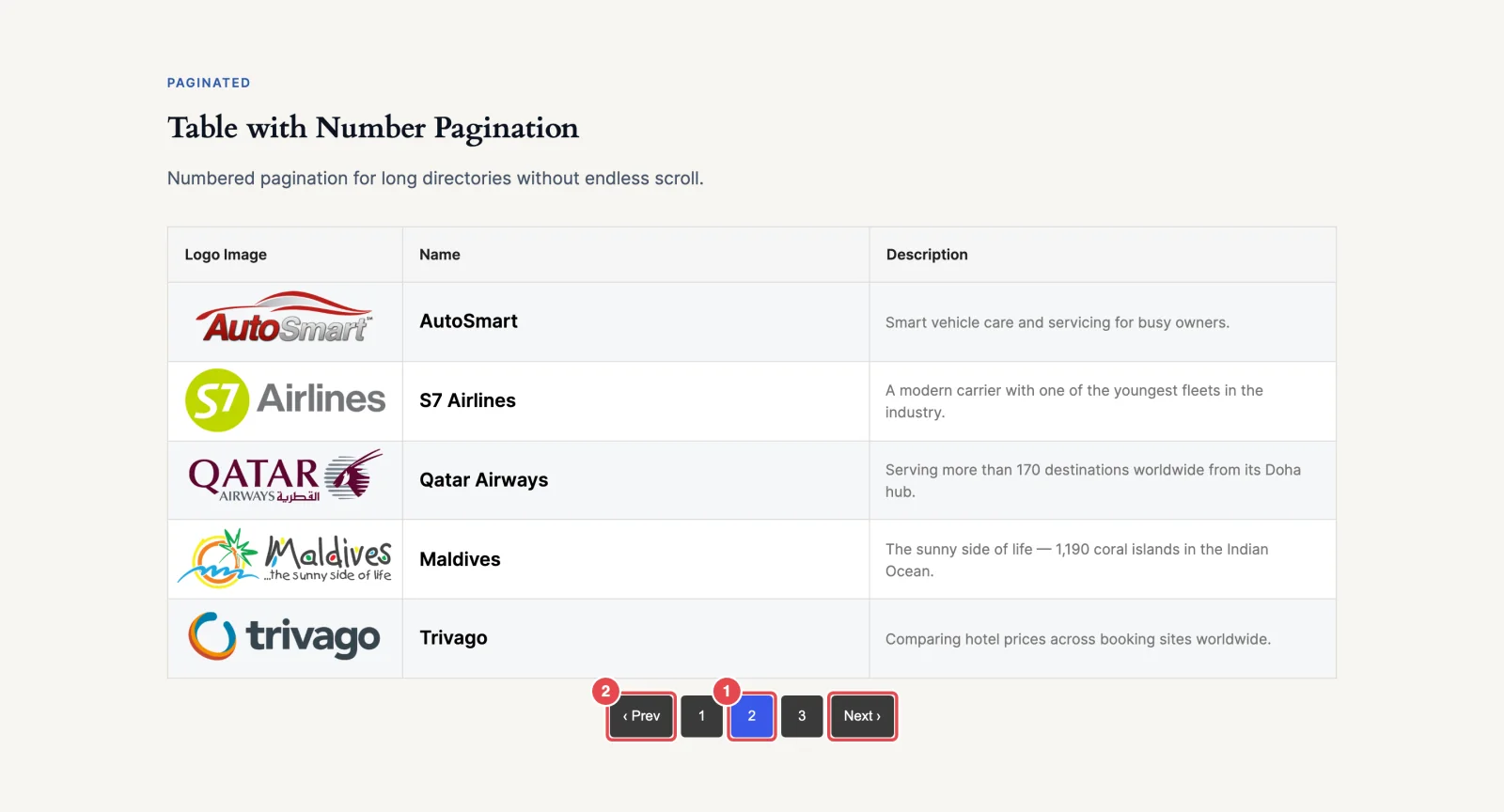
| Number | Numbered page buttons. Each page replaces the logos with the next set. | Directories people come back to and navigate on purpose. |
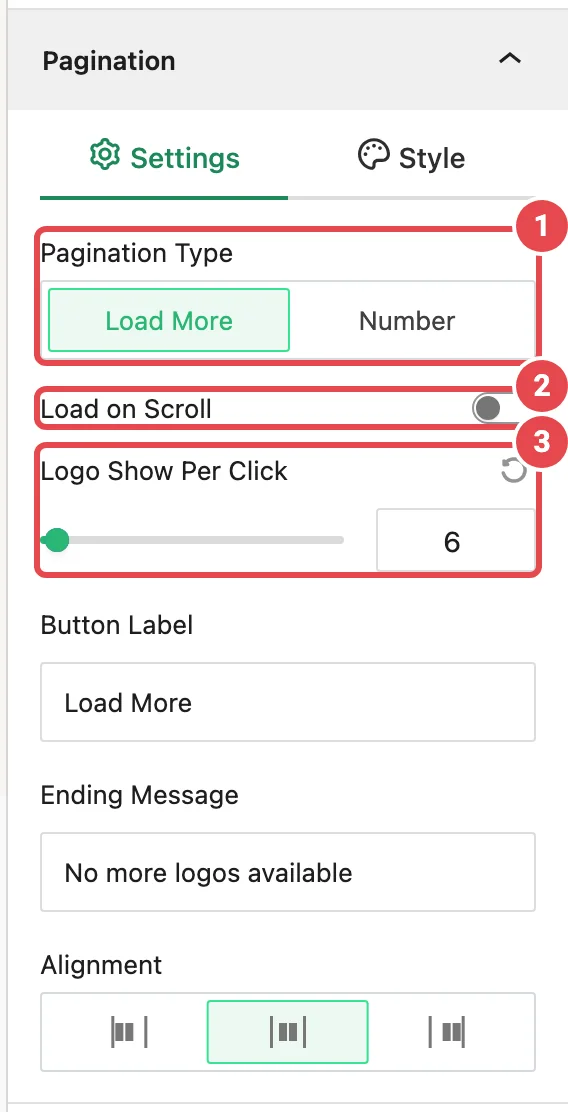
Settings tab
| Option | What it does | Default | Shown for |
|---|---|---|---|
| Pagination Type | Load More or Number. | Load More | Always |
| Load on Scroll | Loads the next batch automatically as the visitor scrolls, instead of waiting for a click. | Off | Load More |
| Logo Show Per Click | How many logos each batch holds. With Number, it's how many logos are on each page. 1–100. | 10 | Always |
| Button Label | The text on the button. | Load More | Load More, with Load on Scroll off |
| Ending Message | Shown once every logo is visible. | No more logos available | Load More |
| Select a Pagination Number Type | Number (just the numbers), Number + Arrow, or Number + Previous/Next with Arrow. | Number | Number |
| Gap Between Numbers | Space between the page buttons, per device. 0–100px. | 8px | Number |
| Alignment | Left, Center or Right. | Center | Always |
With Number, the arrow buttons are greyed out on the first and last pages, so visitors can't go past either end.
Style tab
Use the state switch at the top to style each state: Normal and Hover for the Load More button, or Normal and Hover & Active for page numbers (the current page shares the hover look).
| Option | What it does | Default |
|---|---|---|
| Typography | Font, size and weight of the button text. | — |
| Text Color | Per state. | White |
| Background (Load More) / Background Color (Number) | Per state. Load More can use a solid color or a gradient. | Dark grey. Load More hover is green; the active page is blue. |
| Border | Style, width and color. | — |
| Border Radius | Rounds the corners. | 4px |
| Inner Padding | Space inside each button. | — |
| Margin | Space between the logos and the pagination. | 16px on top |
Using it with filter and search
Pagination works with Ajax Live Filter and Ajax Search. When a visitor picks a category or types a search, the matching logos are paged again from the start. Page numbers and the Load More button only count the logos that match.
A note on page speed
Because every logo is already on the page, pagination doesn't reduce what the browser downloads up front. It keeps the layout tidy, but it isn't a loading trick. To keep big blocks fast, leave Lazy Load on in Logo Images (it's on by default), so images below the fold load only as visitors reach them. See Performance.
Troubleshooting
| Symptom | Likely cause | Fix |
|---|---|---|
| No button or page numbers appear | All your logos fit in one batch. | Lower Logo Show Per Click, or add more logos. |
| The Pagination switch is missing | You're on a Carousel or Marquee. | Pagination is for Grid, List and Table only. |
| The Pagination panel is missing | Pagination is off in the Layouts panel. | Turn it on in Layouts. |
| There's no Button Label field | Load on Scroll is on, so there's no button. | Turn Load on Scroll off to get the button back. |
| Page numbers changed after filtering | Results are paged again to count only the matches. | Nothing to fix. This is on purpose. |
Tips
- Match Logo Show Per Click to your Grid columns so the last row is full. With 5 columns, try 10 or 15.
- Load More is friendlier than Load on Scroll for most sites. It lets visitors reach your footer, and keyboard users get a real button to press.
- Use Number for directories that people search through on purpose.
- Write an Ending Message that fits your page, such as "That's all our partners!"