

Grid
Lay your logos out in a tidy, responsive grid, from plain rows to bordered strips and offset patterns.

The Grid block shows all your logos at once in rows and columns. Nothing slides, so visitors can take in every brand at a glance. Pick one of four grid styles, set the columns per device, and optionally add pagination, a category filter, or a search box for bigger collections.
When to use it
- A "Our clients" or "Partners" section where every logo should be visible without waiting.
- A sponsor wall with tiers, using a filter to switch between categories.
- A long partner directory, with Load More or numbered pages and a search box.
If you'd rather have logos move, use the Carousel or Marquee instead.
How to add it
- In the block editor, click + and search for Grid (it's in the Logo Carousel category).
- On the start screen, choose Use a Pattern, Build with AI, or Start Blank, then add your logos. It works exactly like the Carousel start screen, and Adding Logos has the full walkthrough.
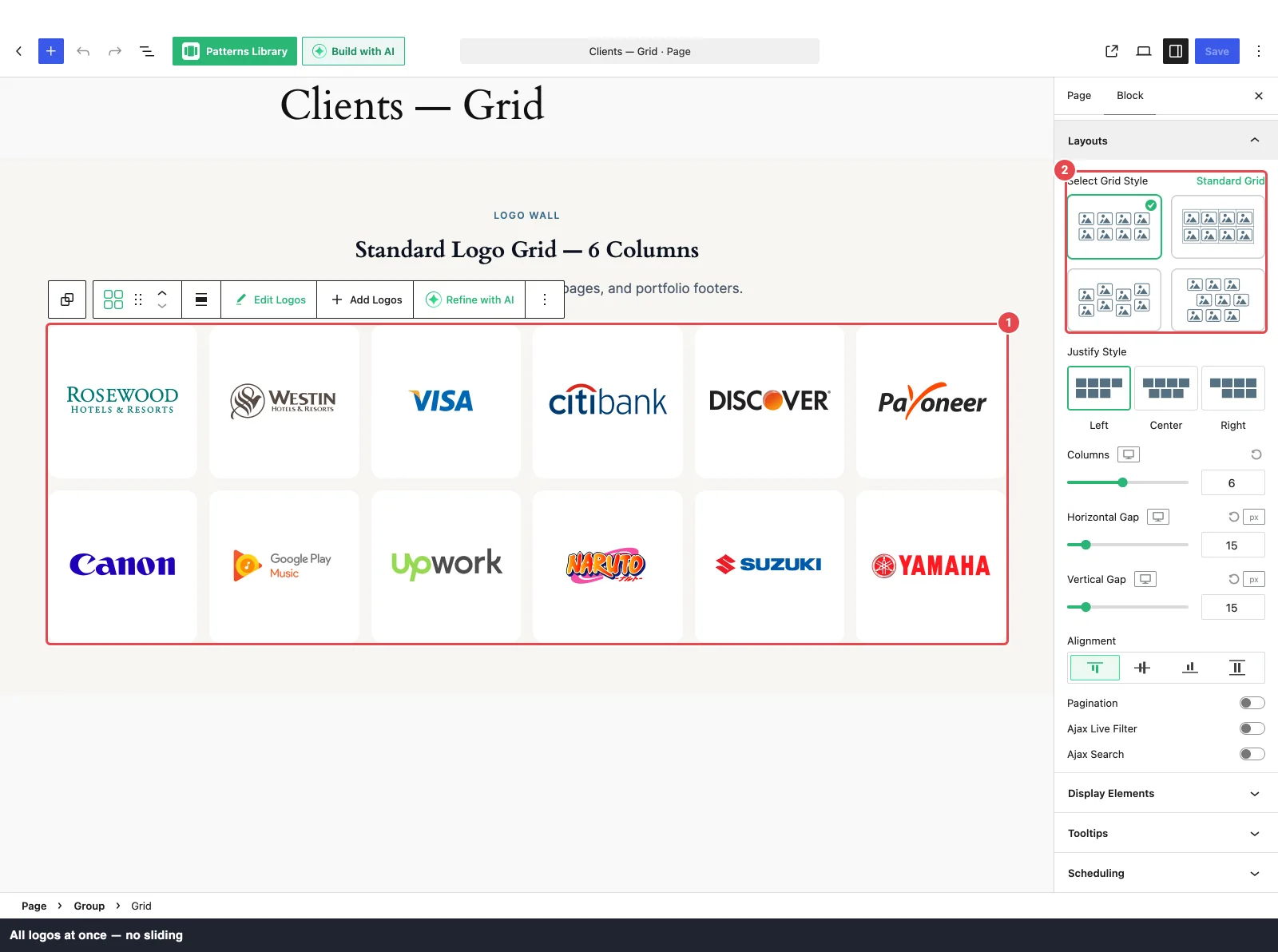
- Open Layouts to pick a grid style and set the columns.
Expected result
The canvas shows every logo in a grid: 6 columns on desktop, 4 on tablet, and 3 on mobile by default. There are no arrows, dots, or autoplay. Changing the style or columns rearranges the grid instantly.
Grid styles
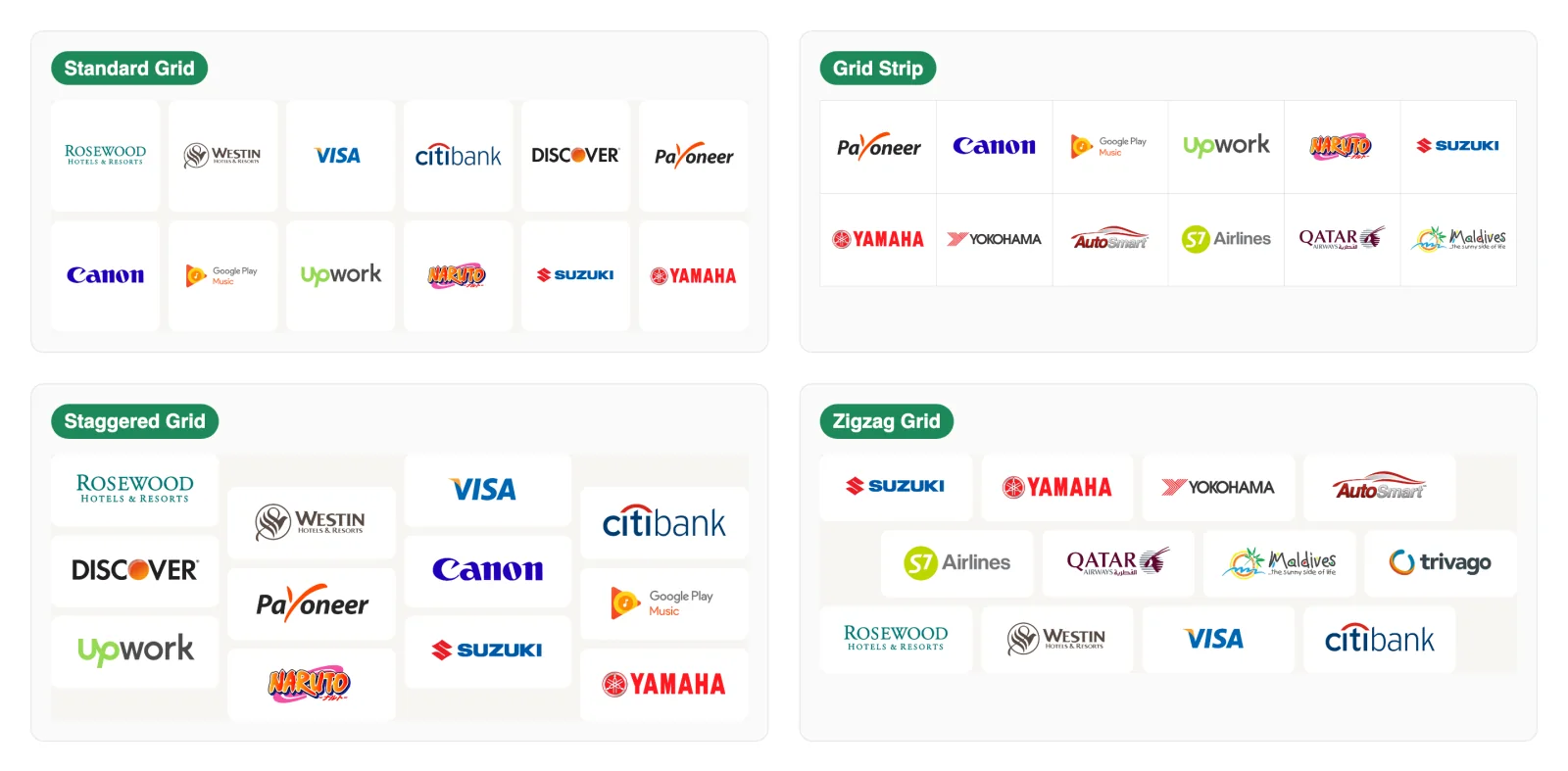
Select Grid Style at the top of the Layouts panel offers four styles. Hover over a card to see its name.
| Style | What it looks like |
|---|---|
| Standard Grid | Equal-sized logos in neat rows. The default, and the right choice most of the time. |
| Grid Strip Pro | Logos sit in bordered cells that touch each other, like a table with thin lines between the brands. There are no gaps; the cell padding gives each logo room. |
| Staggered Grid Pro | Every second column starts lower, giving a staggered, brick-like rhythm. |
| Zigzag Grid Pro | Every second row is shifted sideways, so the rows zigzag across the page. |
Layouts
Grid's Layouts panel has no tabs. Because the grid doesn't move, there's no Carousel tab, no autoplay, and no arrows or dots.
| Option | What it does | Default |
|---|---|---|
| Select Grid Style | Standard Grid, Grid Strip, Staggered Grid, or Zigzag Grid (see above). | Standard Grid |
| Justify Style | Where a part-filled last row sits: Left, Center Pro, or Right. Only shown for Standard Grid and Zigzag Grid. Strip and Staggered always line up on the left. | Left |
| Columns | How many logos per row, per device (1–12). | 6 / 4 / 3 |
| Preserve Layout Gaps | (Staggered and Zigzag only) How far the offset columns or rows are shifted, as a percentage of one logo. 0 gives you a plain grid. Each of the two styles keeps its own value. | 50% |
| Horizontal Gap | Space between columns, per device (px, %, or em). Not shown for Grid Strip. | 15px |
| Vertical Gap | Space between rows, per device. Not shown for Grid Strip. | 15px |
| Alignment | How logos of different heights line up within a row: Top, Middle, Bottom, or Stretch. | Top |
| Strip Style | (Grid Strip only) Click the pencil to style the cell lines. See below. | — |
| Pagination Pro | Shows only some of the logos at first, with a Load More button or page numbers. Opens the Pagination panel. | Off |
| Ajax Live Filter Pro | Adds a category filter above the grid and its panel. | Off |
| Ajax Search Pro | Adds a search box above the grid and its panel. | Off |
| Filter & Search Orientation | (Both on) Inline (side by side) or Stacked. | Inline |
| Filter & Search Gap | (Both on) Space between the filter and the search box, per device. | 15px |
| Justify Filter & Search | (Both on, Inline) Flex Start, Center, Flex End, Space Between, Space Around, or Space Evenly. | Flex Start |
Strip Style
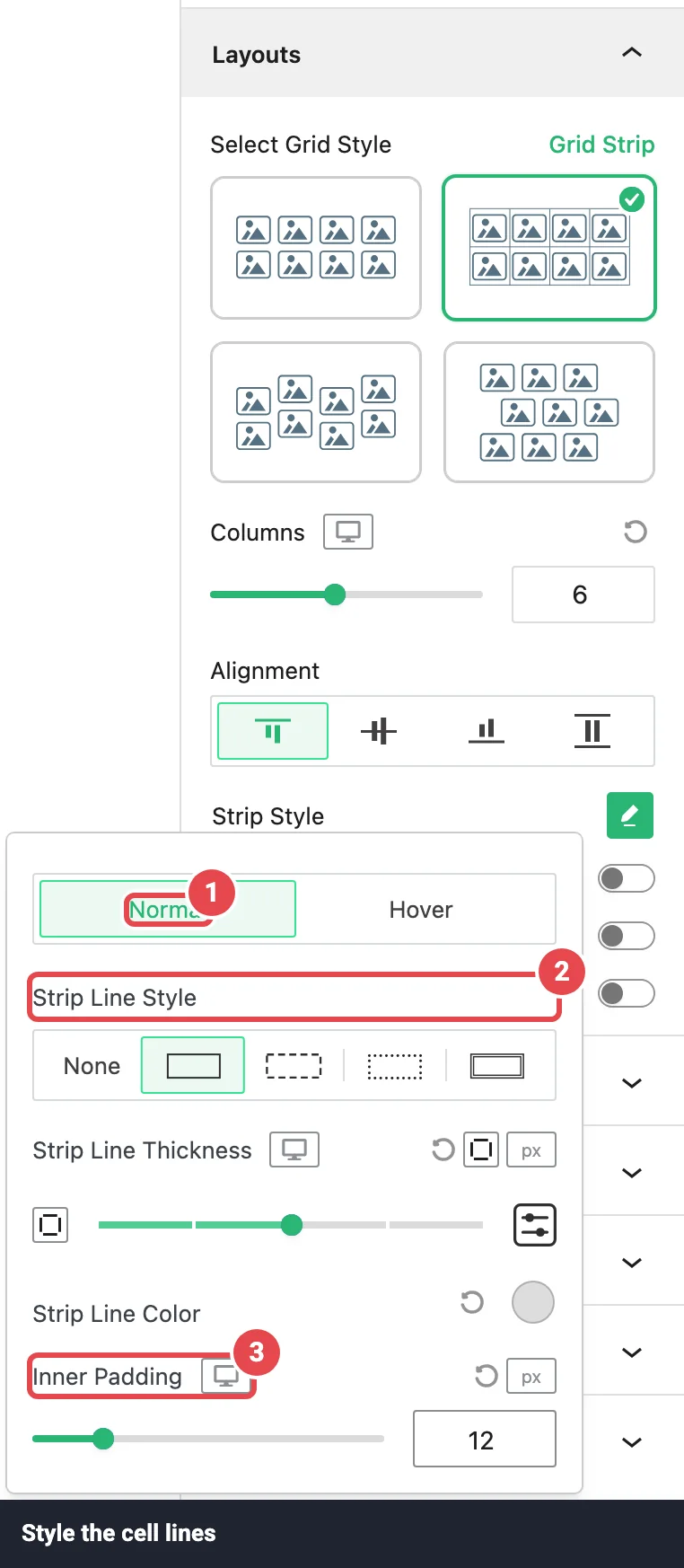
Only for Grid Strip. Use the Normal / Hover switch to give the cell lines a different look when a visitor hovers over a logo.
| Option | What it does | Default |
|---|---|---|
| Strip Line Style | None, solid, dashed, dotted, or double lines. | Solid |
| Strip Line Thickness | Line width in px. | 1px |
| Strip Line Color | Line colour. | #dddddd |
| Inner Padding | Space between each logo and its cell lines, per device (0–60px). | 12px |
Grid Strip hides some card settings
Because the strip draws its own cells, the Border, Border Radius, and Inner Padding controls in Display Elements are hidden while this style is selected.
Pagination Pro
Shown while Pagination is on in Layouts. It shows a set number of logos first and reveals the rest on demand. All logos are already on the page, so the next batch appears instantly without reloading anything.
| Option | What it does | Default |
|---|---|---|
| Pagination Type | Load More (a button that adds more logos below) or Number (page numbers). | Load More |
| Load on Scroll | (Load More) Loads the next batch automatically as the visitor scrolls down, instead of using a button. | Off |
| Logo Show Per Click | How many logos appear per batch, or per page with Number (1–100). | 10 |
| Button Label | (Load More, Load on Scroll off) The button text. | Load More |
| Ending Message | (Load More) Shown once every logo is visible. | No more logos available |
| Select a Pagination Number Type | (Number) Number, Number + Arrow, or Number + Previous/Next with Arrow. | Number |
| Gap Between Numbers | (Number) Space between page buttons, per device. | 8px |
| Alignment | Left, Center, or Right. | Center |
The Style tab covers typography, text and background colours (Normal and Hover, or Hover & Active for numbers), border, radius, padding, and margin.
If all your logos fit in one batch, no pagination controls are shown. The filter and search work with pagination: results are split into pages again. More on Pagination.
Match the batch to your columns
Set Logo Show Per Click to a multiple of Columns so every batch ends on a full row. With 6 columns, try 12 or 18.
Ajax Live Filter and Ajax Search Pro
These work the same as on the Carousel. The filter shows category buttons (or a dropdown) built from the categories on your logos; the search box matches logo titles, categories, and alt text as visitors type. Both sit above the grid, and both run in the browser, so results are instant. On a grid, filtered logos fade in briefly rather than jumping.
Turn them on in Layouts. See Ajax Live Filter and Ajax Search for every option, and the partner directory tutorial for a full worked example.
Shared panels
The rest of the Grid's inspector works exactly like the Carousel's. Panels appear in this order: Logo Images, Layouts, Ajax Live Filter, Ajax Search, Pagination, Display Elements, Tooltips, Scheduling, Motion Effects, Advanced Settings.
Logo Images
The same as the Carousel's Logo Images panel, with two differences in where things sit:
- Hover Animations is in the Settings tab, not the Style tab.
- Random order is an Order dropdown (Default or Random Pro) instead of the Random Display Order toggle.
Display Elements, Tooltips, Scheduling, Motion Effects, Advanced Settings
Titles, descriptions, and Read More; hover/click tooltips; date windows; scroll and entrance animations; and block background, spacing, per-device hiding, and CSS class/ID. See Display Elements, Tooltips, Scheduling, Motion Effects, and Advanced Settings on the Carousel reference.
The block toolbar's Edit Logos, Add Logos, and Refine with AI buttons work as described in The editor toolbar. To change a Grid into another block, see Switching to another block.
Troubleshooting
| Symptom | Likely cause | Fix |
|---|---|---|
| The last row isn't centred | Justify Style is Left (the default), or you're using Grid Strip or Staggered Grid, which always line up on the left. | Pick Center in Justify Style on a Standard or Zigzag grid. |
| The gap controls are missing | Grid Strip has no gaps; cells touch. | Use Inner Padding in Strip Style to space logos, or switch to Standard Grid. |
| Staggered or Zigzag looks like a plain grid | Preserve Layout Gaps is at 0, or there's only one column. | Raise Preserve Layout Gaps and use at least 2 columns. |
| Logos are cramped on phones | Mobile still has 3 columns. | Lower Columns for Mobile using the device switcher. |
| No Load More button | All logos already fit in one batch. | Lower Logo Show Per Click, or add more logos. |
Tips
- Start with Standard Grid and get the columns right per device, then try the other styles.
- Grid Strip looks best with logos of similar shape and a fixed Aspect Ratio in Logo Images, so the cells line up.
- Turn on Display Elements → Title to show company names under each logo in a directory.
- For big collections, combine Pagination, Ajax Live Filter, and Ajax Search.
Related
- Carousel: the full shared-panel reference
- Pagination · Ajax Live Filter · Ajax Search
- Partner directory tutorial
- List · Table · Marquee