

How to use Logo Carousel in Bricks
Place a logo showcase you built with Logo Carousel into any Bricks page, using the Logo Carousel element.
Bricks has its own editor, so Logo Carousel's blocks don't appear in it directly. Instead, you save your showcase as a Saved Template (a reusable copy of a logo showcase you designed in the block editor) and add it with Logo Carousel's Bricks element. It previews live, and it stays in sync: edit the template once and every Bricks page that uses it updates.
You can do this in 2 steps
- Get a Saved Template readyTurn on the Bricks integration and make sure you have a published template.
- Add it in BricksAdd the Logo Carousel element and pick the template.
Before you start
- Logo Carousel (free or Pro) is active, and Bricks is your active theme.
- The Saved Templates module is on. It is by default; see Modules.
- You have at least one published Saved Template. New to them? Create one first.
Part 1: Get a Saved Template ready
Step 1: Turn on the Bricks integration
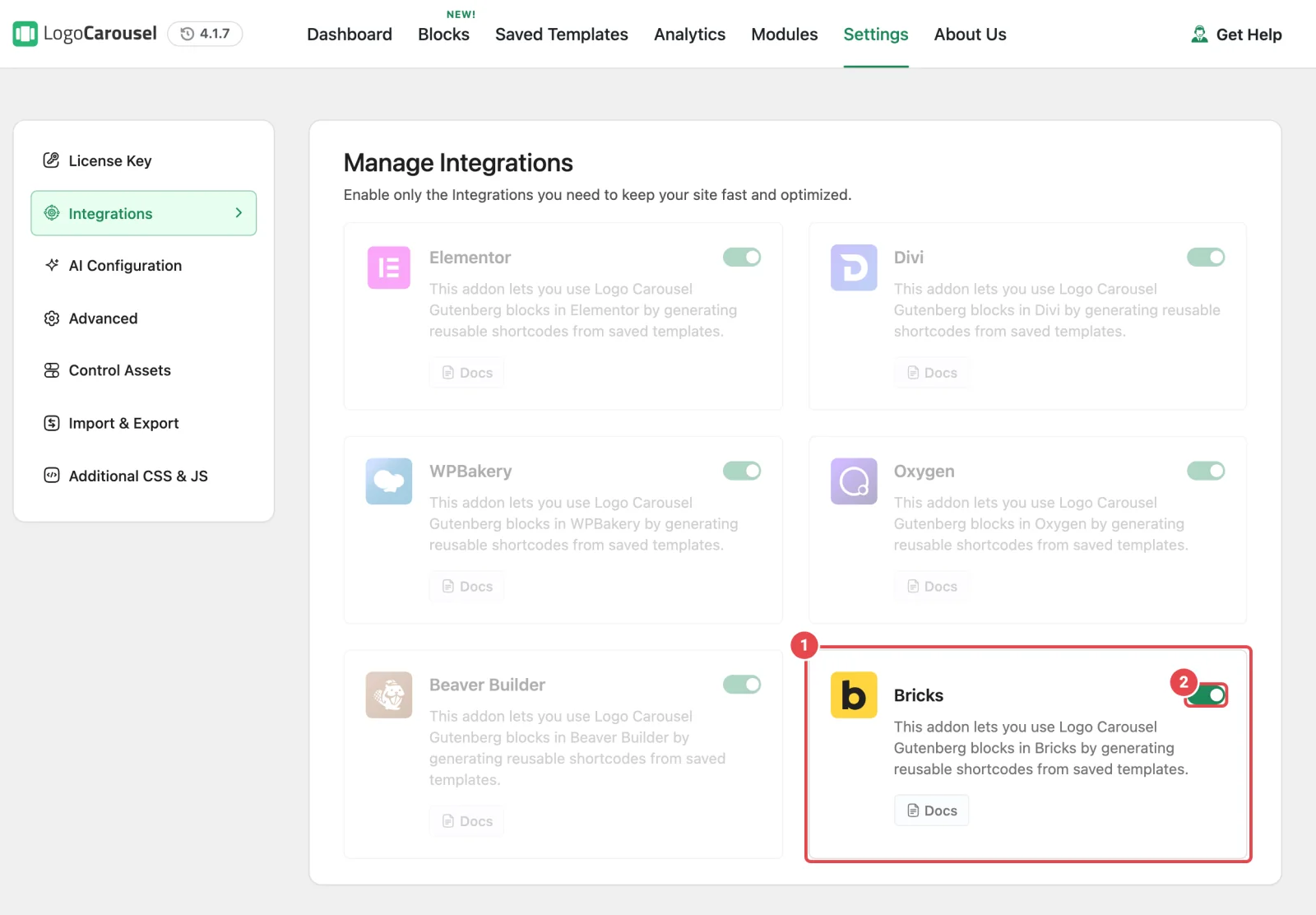
- In your WordPress dashboard, go to Logo Carousel → Settings.
- Click Integrations in the left-hand menu.
- Make sure the Bricks switch is on.
It's on by default, and it saves as soon as you flip it.
Step 2: Check your template
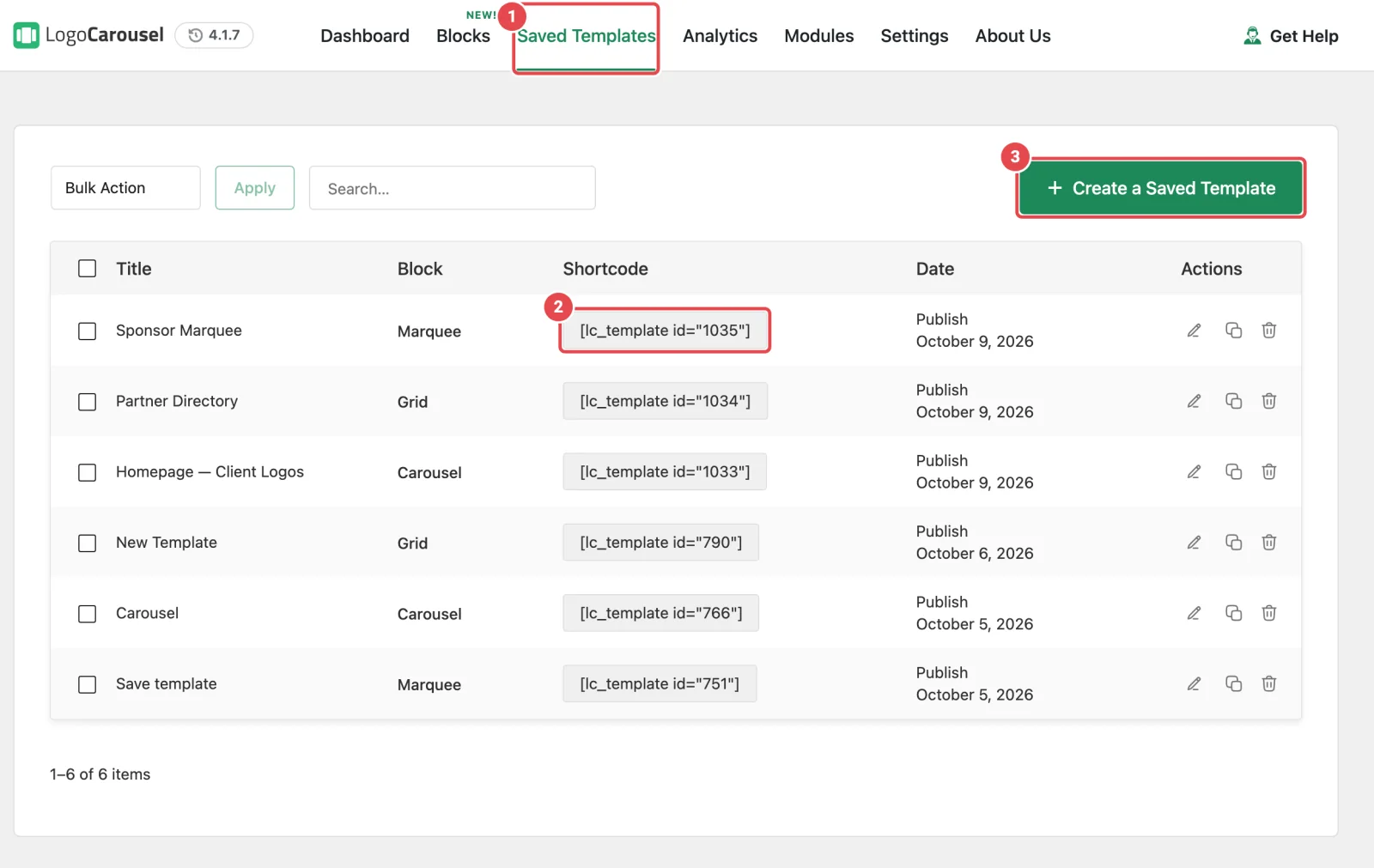
- Go to Logo Carousel → Getting Started and click the Saved Templates tab.
- Find the template you want to show. Only published templates appear in Bricks.
- Optional: click its shortcode to copy it, for the shortcode route.
Part 2: Add it in Bricks
Step 3: Open your page with Bricks
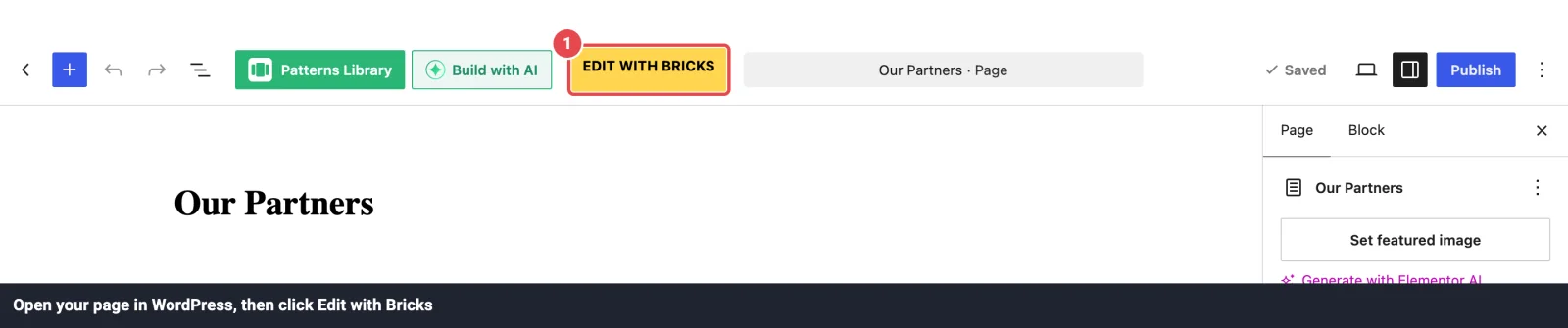
- Go to Pages and open the page you want the showcase on (or create a new one).
- Click Edit with Bricks in the top toolbar.
You can also hover the page in the Pages list and click Edit with Bricks there.
Step 4: Add the Logo Carousel element
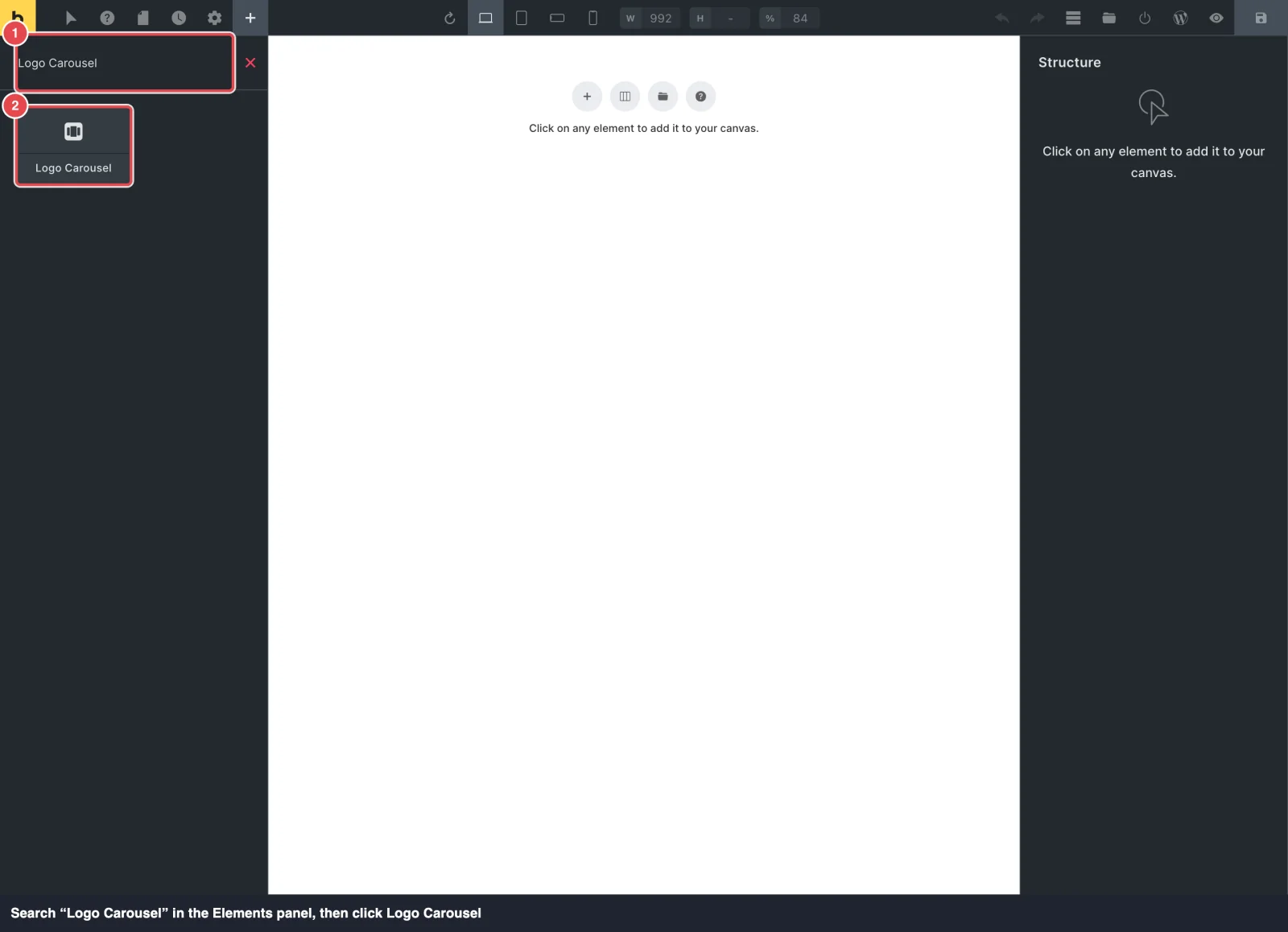
- In the Elements panel on the left, search for Logo Carousel. Without searching, you'll find it in the General group.
- Click Logo Carousel to add it to the page, or drag it where you want it.
Step 5: Pick your template and save
- Click the element on the canvas (or in the Structure panel) to open its settings.
- Choose your template in Saved Template. The showcase appears on the canvas.
- Click Save in the top bar.
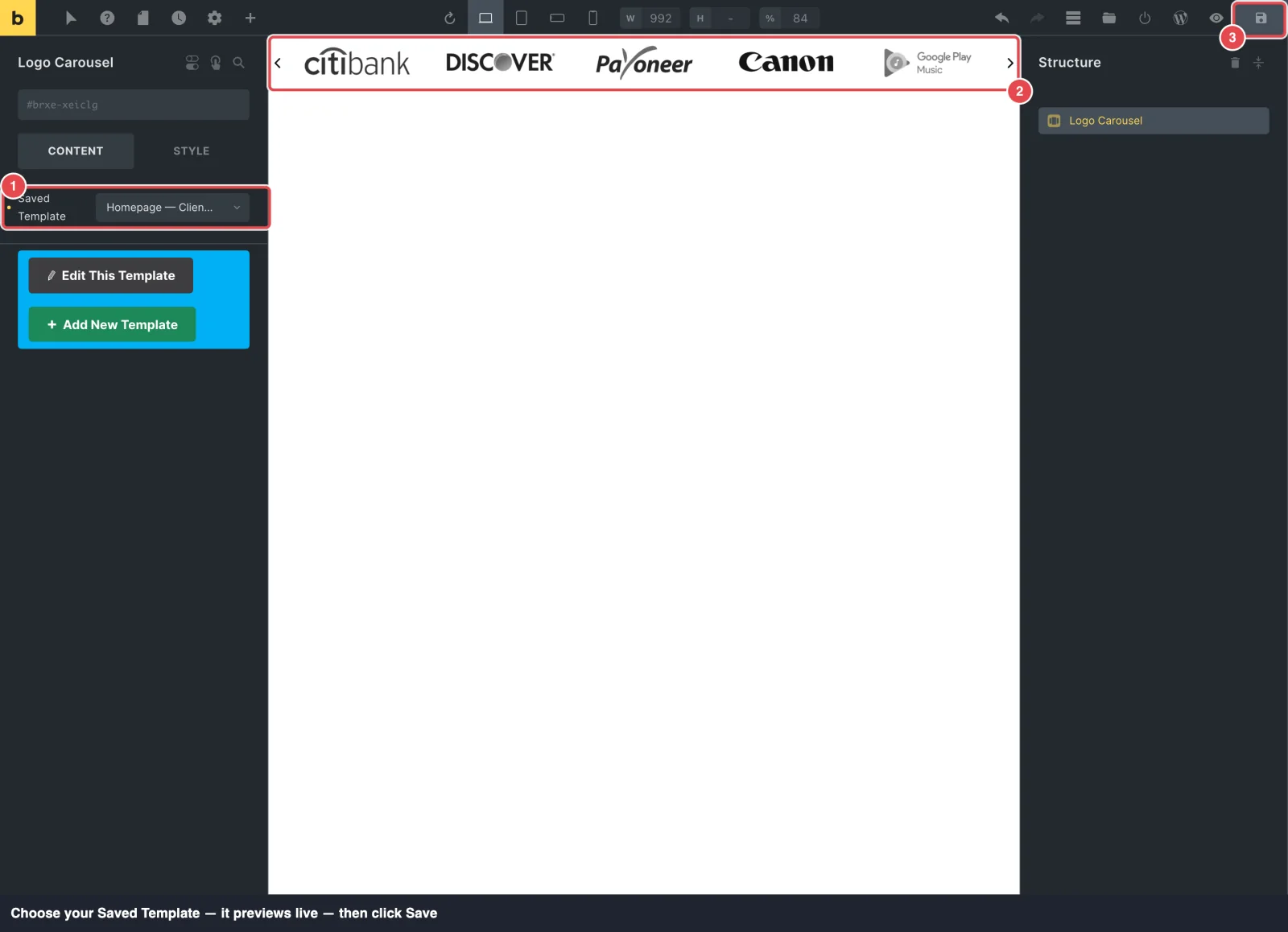
Below the dropdown, Bricks shows Edit This Template and Add New Template. With nothing picked yet, you'll see a "Please Select a Saved Template" note and just the Add New Template button.
The canvas can show fewer logos per row than your live page. Bricks shrinks its canvas to fit the editor, so the showcase may switch to its tablet layout while you edit.
Prefer a shortcode?
Bricks' own Shortcode element works just as well:
- Copy the template's shortcode from the Saved Templates tab (Step 2).
- Add a Shortcode element and paste the shortcode, for example
[lc_template id="123"]. - Save.
Good to know
- Template buttons open a new tab. Edit This Template opens the chosen template in the block editor, and Add New Template starts a new one, each in a new browser tab.
- Changes flow through. Edit the template in the block editor and every Bricks page using it updates. Clear your page cache if the change doesn't show.
- Removing the template breaks the spot. If a template is unpublished or deleted, the element shows "Template not found or not published." on the page.
Troubleshooting
| What you see | Likely cause | Fix |
|---|---|---|
| No Edit with Bricks button | Bricks isn't enabled for Pages. | In Bricks → Settings, allow Bricks to edit Pages, then save. |
| Logo Carousel isn't in the Elements panel | The Bricks switch is off. | Turn it on (Step 1), then reload the builder. |
| The Saved Template dropdown only shows "- Select Template -" | No published templates. | Publish a template on the Saved Templates tab. |
| "Please Select a Saved Template" on the canvas | No template chosen yet. | Select the element and pick one in Saved Template. |
| "Enable the Saved Templates module…" | The Saved Templates module is off. | Turn it on in Modules. |
More fixes: Integrations → Troubleshooting.


