

Installation & Activation
Get Logo Carousel installed (and, for Pro, licensed) — the one-time setup you do before building anything.
Logo Carousel installs like any other WordPress plugin. This page covers the things you only do once: installing the plugin, walking through the setup wizard, and — if you bought Pro — activating your license. When that's done, head to the Quick Start to build your first logo showcase.
Free or Pro?
The free plugin comes from WordPress.org and needs no license. Pro is a separate plugin you download from your ShapedPlugin account, and it includes everything the free version does — you don't need both. Not sure which you need? See Free vs Pro.
Installing the free plugin
- In your WordPress dashboard, go to Plugins → Add New Plugin.
- Search for Logo Carousel. Look for the one by ShapedPlugin LLC.
- Click Install Now, then Activate.
That's it — skip ahead to the setup wizard. There's no license step in the free version.
Installing Logo Carousel Pro
Before you start
Check that your site meets the Requirements, then sign in to your ShapedPlugin account. That's where you'll find the Pro plugin zip and your license key.
- In your ShapedPlugin account, find Logo Carousel Pro and click Download to get the plugin zip.
- In WordPress, go to Plugins → Add New Plugin and click Upload Plugin at the top.
- Click Choose File, select the zip you downloaded, and click Install Now.

- When the upload finishes, click Activate Plugin.
Expected result
A new Logo Carousel item appears in the left admin sidebar, and the setup wizard opens on its own. If it doesn't open (for example, because you activated several plugins at once), you can start it any time — see below.
Can't upload through the admin? Install via FTP instead
Some hosts cap upload sizes below the plugin's zip size. Unzip the file on your computer — it contains a folder called logo-carousel-pro — upload that folder to /wp-content/plugins/ with your FTP client or your host's file manager, then activate Logo Carousel Pro under Plugins → Installed Plugins.
Already running the free version?
You can install Pro right next to it. While Pro is active, the free plugin stands down and loads nothing, and Pro picks up your existing blocks, views, and settings. Upgrading walks through it.
The setup wizard
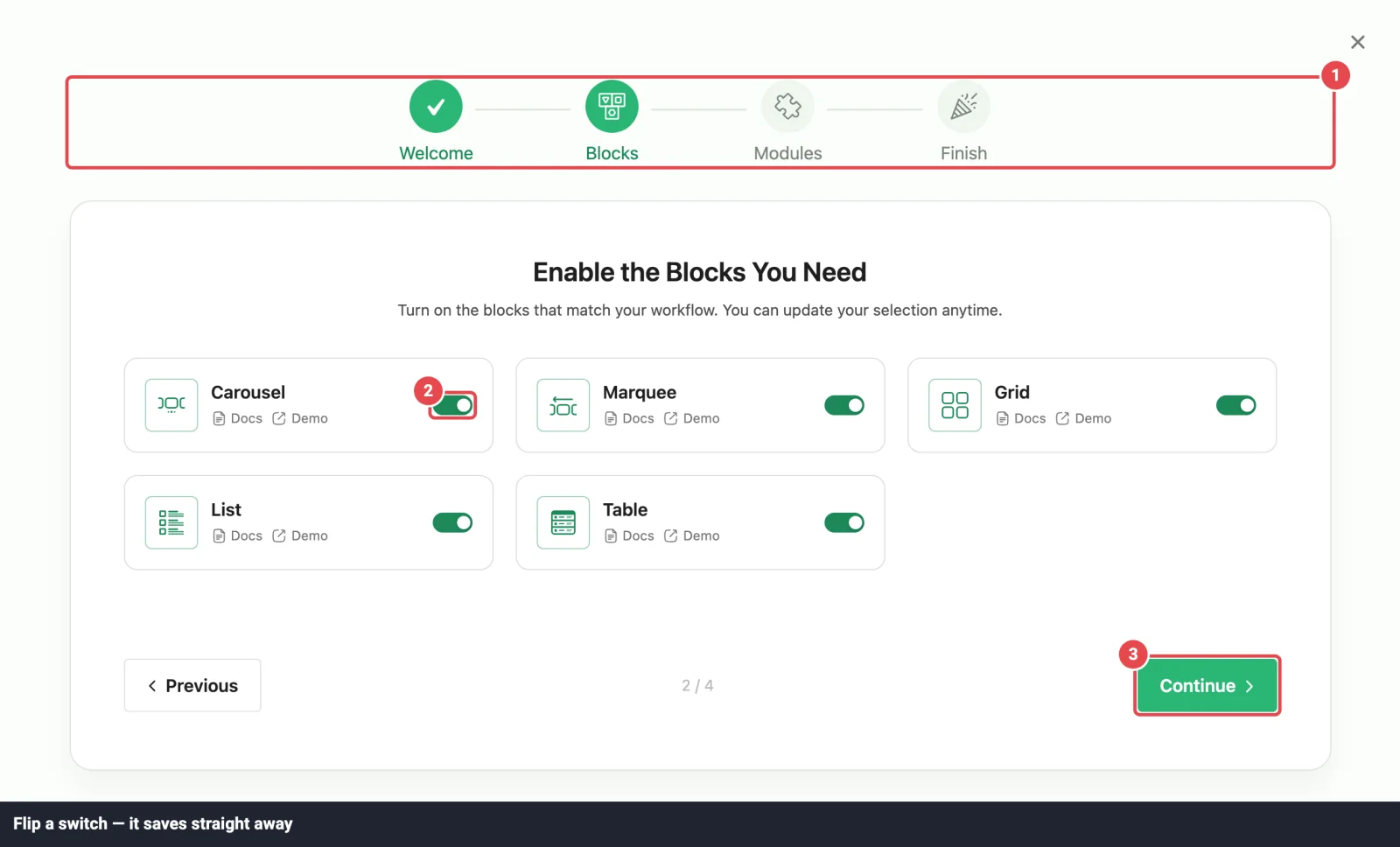
The first time you activate the plugin, Logo Carousel opens a short setup wizard that gets the essentials out of the way. Each step has Previous and Continue buttons, and you can leave at any point.
- Welcome — a quick hello, a list of what's included, and an intro video.
- Blocks — Enable the Blocks You Need. Switch off any block you know you won't use. Not sure yet? Leave everything on; you can change it later under Dashboard → Blocks.
- Modules — Enable the Modules You Need. Switch optional features on or off. You can change these later under Dashboard → Modules.
- License Pro — paste your key and activate it (details below). This step is skipped if the license is already active, and it doesn't exist in the free version.
- Finish — You're All Set. From here you can click Add Your First Logo View, which opens a new page with a Carousel block already in place, or Go to Dashboard.
Changes on the Blocks and Modules steps save the moment you flip a switch.
About the diagnostic-data checkbox
The Finish step has a checkbox asking whether you'll share non-sensitive diagnostic data with ShapedPlugin (your WordPress and PHP versions, active theme and plugins, general system details, and your admin email). It's ticked by default, so untick it before clicking Finish if you'd rather not share. The what we collect link opens the full list.
Skipped it, or closed it by accident? Nothing is lost. Open Logo Carousel → Getting Started, click Get Help in the top bar, and choose Setup Wizard. Every wizard choice also has a matching switch in the dashboard.
Activate your license
Pro This section is for Logo Carousel Pro only.Your license unlocks automatic updates and support — and on most sites, the front-end output itself. Don't skip it.
Without an active license, blocks don't show on your site
Until a license is active on the site, Logo Carousel blocks don't render for visitors. Logged-in administrators see a notice in their place; everyone else sees nothing at all. The editor keeps working normally, so you can build first and activate before you publish. What the notice looks like.
You can activate inside the setup wizard, or any time from the dashboard:
- Go to Logo Carousel → Settings. The dashboard opens on the License Key tab.
- In your ShapedPlugin account, find Logo Carousel Pro and copy the License Key. Copy and paste it rather than retyping it.
- Paste the key into the License key field and click Activate License.
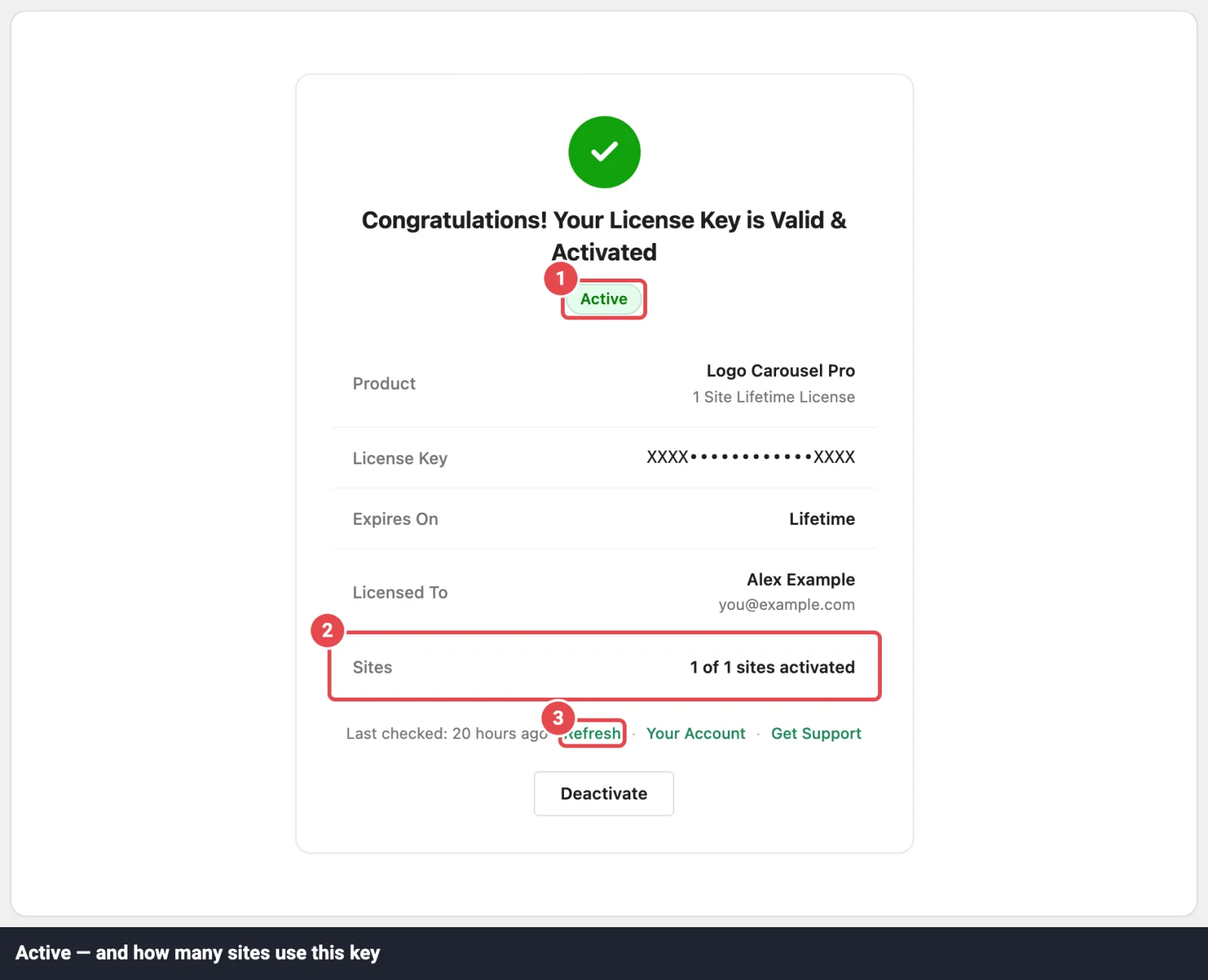
- Once it's active, the form is replaced by a status card with an Active badge and these details: Product, License Key (masked), Expires On (or Lifetime), Licensed To, and Sites — how many of your plan's sites are using the key.
Expected result
The card reads "Congratulations! Your License Key is Valid & Activated". Your blocks now render on the front end, and updates will arrive on the Plugins screen.
What the status card tells you
The card also has a Last checked time with a Refresh button (you can refresh once a minute), plus links to Your Account and Get Support. The plugin re-checks your license on its own once a week.
If something's off, the badge tells you what:
| Badge | What it means | What to do |
|---|---|---|
| Active | All good. | Nothing. |
| Expired | Your subscription has lapsed. Your logo showcases keep working, but updates and support stop. | Click Renew License. |
| Not Active Here | The key is valid, but not activated on this site. | Click Activate on This Site. |
| Limit Reached | Every site your plan allows is already using the key. | Free a seat with Manage Sites, or upgrade your plan. |
| Wrong Product | The key belongs to a different ShapedPlugin product. | Copy the Logo Carousel Pro key from your account. |
| Bundle Key | You pasted a bundle key, which can't be activated directly. | Use the individual Logo Carousel Pro key from your account. |
| Disabled | The key has been disabled or revoked. | Contact ShapedPlugin support. |
| Invalid | The key wasn't recognized. The form comes back so you can try again. | Check for typos or extra spaces. |
Moving a license to another site
One activation is tied to one site address. To move a license — from staging to live, or to a new domain — click Deactivate on the old site first. WordPress asks you to confirm, because that site keeps the plugin installed but loses Pro features, updates, and support until a key is activated again. Then activate the same key on the new site.
If the old site is already gone, free its seat from your ShapedPlugin account instead.
Activation not working?
- Check for typos. Copy and paste the key, with no spaces before or after.
- Check the license in your account. An expired license needs renewing; a full plan needs a free seat.
- Server can't reach the license service? Some hosts block outgoing connections. Ask your host to allow outbound HTTPS to
account.shapedplugin.com, which handles activation, deactivation, and update checks. - Blocks are blank on the live site but fine in the editor? That's the license gate — see below.
The "activate the license" notice
If your Pro license isn't active, you'll notice it in three places:
- On the front end, each Logo Carousel block is replaced by a notice — "Please activate the license key to get the output of the Logo Carousel Pro plugin." — but only administrators see it. Visitors see an empty space.
- In the admin, a banner reads "You must activate the license key to make the Logo Carousel Pro plugin work, get automatic updates & support." with an Activate button.
- On the Plugins screen, the plugin row shows a red Activate license link.
Activate the key (or click Activate on This Site) and reload the page — the blocks come back.
Classic shortcodes and older sites
Classic [logocarousel] shortcodes follow the same rule on sites that first installed the plugin after version 3.3.15. Long-standing sites from 3.3.15 or earlier keep their shortcode output without a license. Blocks don't have that exception.
An expired license still renders
Expired is not the same as inactive. When a license expires, everything on your site keeps showing — you just stop getting updates and support until you renew.
Still blank after activating? See Troubleshooting.
Updating the plugin
Free: updates arrive from WordPress.org like any other plugin.
Pro: with an active license, updates appear on Dashboard → Updates and the Plugins screen. Click Update Now when one shows up. Without an active license, the Plugins screen shows "Enter valid license key for automatic updates." instead. To see what changed, click the version number in the top bar of the Logo Carousel dashboard — it opens the latest changelog.
Your blocks, logos, views, and settings are kept across updates.
A safe update routine
- Back up your database and files — your host or a backup plugin can do this in a click.
- Update on a staging site first if you have one, especially for a major version.
- Update, then check one page for each block type you use.
- Clear your caching plugin and CDN. A stale cache is the most common cause of "the update broke my logos."
Rolling back
If an update causes a problem, restore your backup rather than deleting the plugin. Deleting can remove data if Clean-up Data on Deletion is switched on. See Uninstalling.
What "done" looks like
When setup is finished you should have:
- Logo Carousel in the admin sidebar, with Getting Started, All Logos, Manage Views, and Settings underneath.
- For Pro, an Active license on Settings → License Key — without it, blocks don't render for visitors.
- The Logo Carousel blocks in the page editor's + inserter, under the Logo Carousel category.
If any of those are missing, re-check activation and the Blocks switches.