

List Pro
Stack your logos one under another, each with its name and description beside it.
The List block shows one logo per row, with room for text next to it. Where a carousel or grid is mostly about the logos themselves, a list is about the companies behind them: their name, a short description, and maybe a link to read more. Think "Our partners" pages, member directories, or a list of integrations.

Pro block
List is part of Logo Carousel Pro. On the free plugin you'll see it in the inserter as a teaser. See Free vs Pro.
When to use it
- A partner or sponsor page where each logo needs a sentence or two of explanation.
- A member or vendor directory that visitors read through, rather than glance at.
- A list of tools or integrations, with the logo on one side and what it does on the other.
If you only need the logos, a Grid or Carousel will use the space better. If you want the details lined up in columns, try the Table.
How to add it
- In the block editor, click the + inserter and search for List. It's in the Logo Carousel category.
- Add your logos. See Adding logos.
- Give each logo a title and description in the logo editor (see Edit a logo). The List shows both by default.
- Open the Layouts panel and pick where the logo sits under Select List Style.
Expected result
Each logo appears on its own row with its title and description next to it. Logos without a description simply show the title.
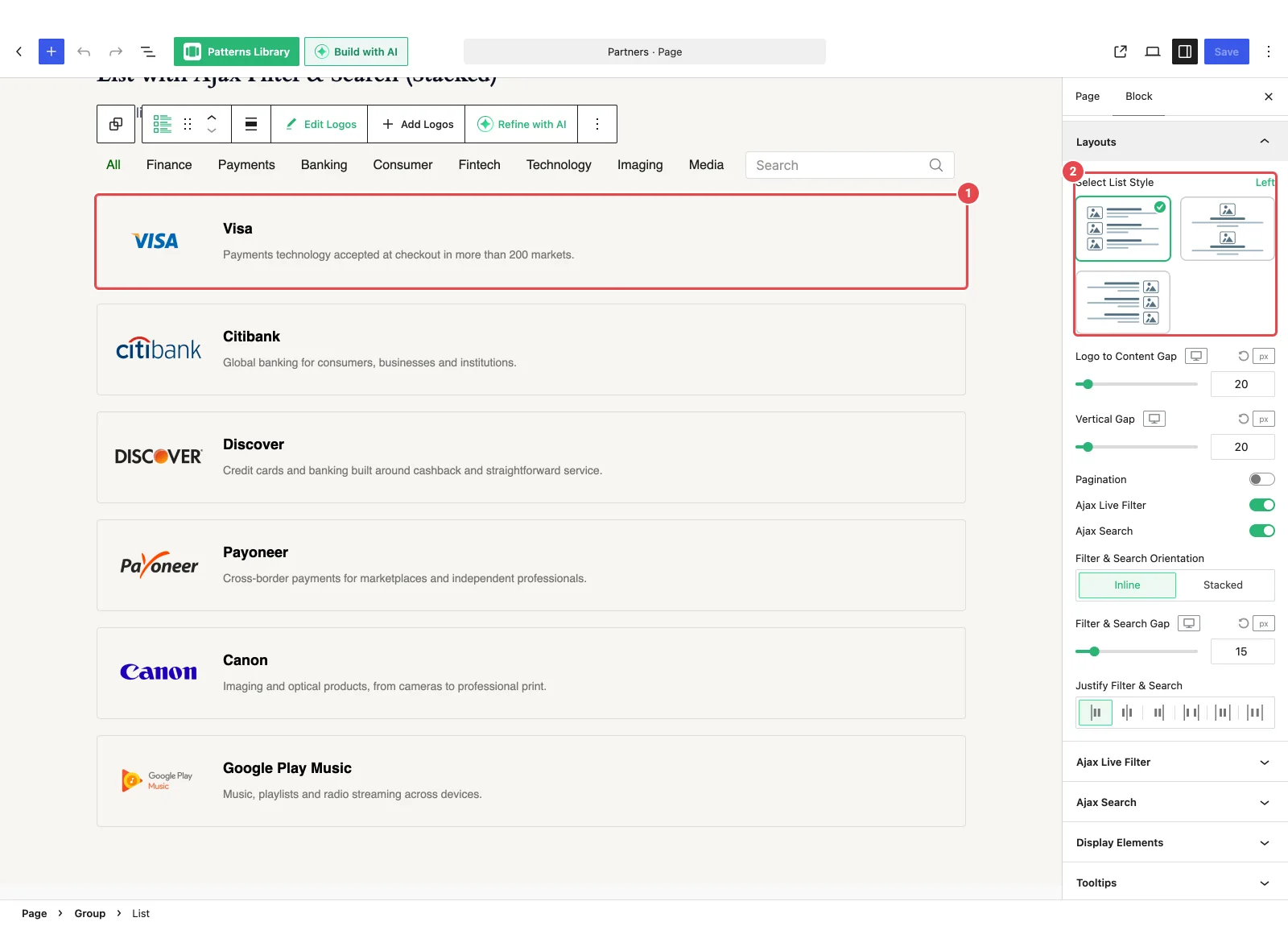
List styles
Choose a style with Select List Style at the top of the Layouts panel.
| Style | Layout | Good for |
|---|---|---|
| Left (Logo Left) | Logo on the left, text on the right. | Most lists. It's the default and reads naturally. |
| Center (Logo Center) | Logo on top, text centered below. | Narrow columns and mobile-first pages. |
| Right (Logo Right) | Text on the left, logo on the right. | Alternating sections or right-aligned designs. |
In the Left and Right styles, the logo takes about 30% of the row and the text takes the rest.
Picking a style also sets the text alignment in Display Elements to match (left, center or right). It only does this once, when you pick the style, so you can change the alignment afterwards and it stays put.
Layouts panel
| Option | What it does | Default |
|---|---|---|
| Select List Style | Left, Center or Right, as above. | Left |
| Logo to Content Gap | Space between the logo and its text, per device. 0–200px. | 20px |
| Vertical Gap | Space between rows, per device. 0–200px. | 20px |
| Pagination | Splits a long list into pages or a Load More button. Adds a Pagination panel. See Pagination. | Off |
| Ajax Live Filter | Adds category filter buttons above the list. See Ajax Live Filter. | Off |
| Ajax Search | Adds a search box above the list. See Ajax Search. | Off |
When both Ajax Live Filter and Ajax Search are on, three more controls appear: Filter & Search Orientation (Inline or Stacked), Filter & Search Gap, and Justify Filter & Search (Inline only).
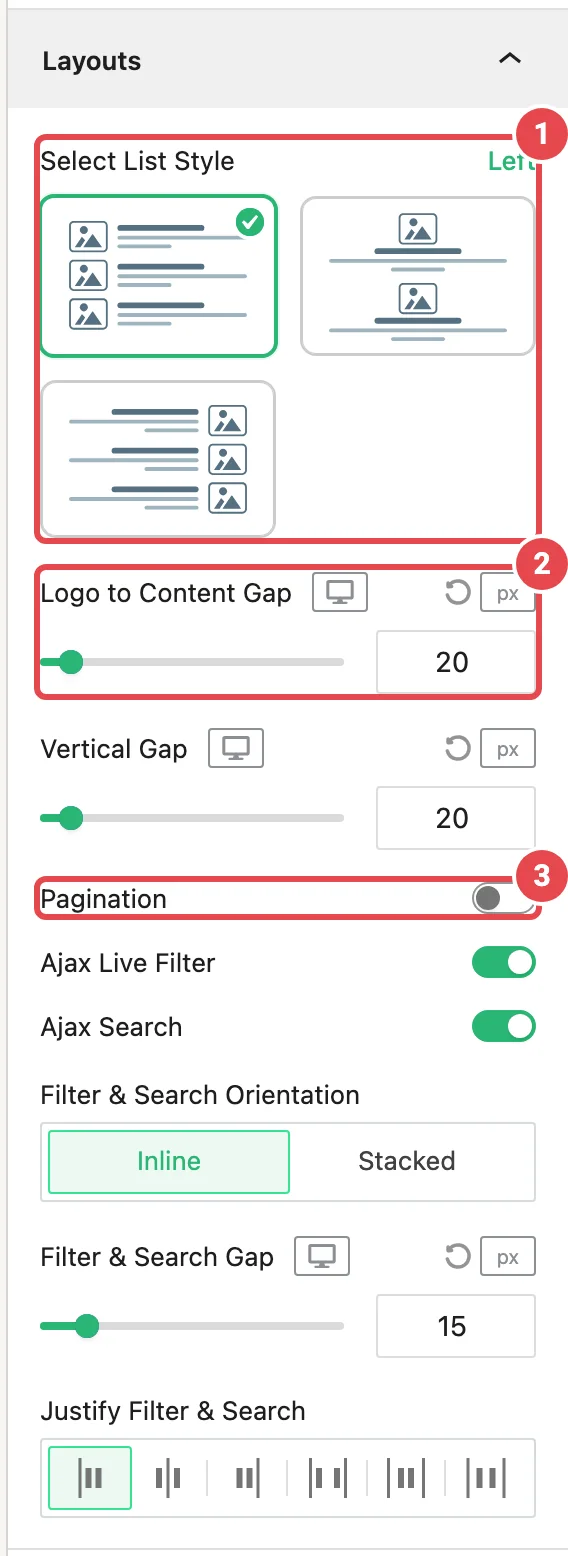
Which other panels apply
The rest of the inspector works just like it does on the Carousel, so it's documented there:
| Panel | Notes for List |
|---|---|
| Logo Images | Hover animations sit on the Settings tab, and random order is an Order dropdown (Default / Random). |
| Display Elements | Title and Description are on by default. |
| Tooltips | Same as Carousel. |
| Scheduling | Shown when the Scheduling module is on. |
| Motion Effects | Shown when the Motion Effects module is on. |
| Advanced Settings | Same as Carousel. |
List doesn't scroll, so there are no Navigation Arrows or Pagination Dots. To turn a List into another Logo Carousel block, see Block transforms.
Troubleshooting
| Symptom | Likely cause | Fix |
|---|---|---|
| Only the logos show, no text | Title and Description are switched off, or the logos have no text yet. | Turn them on in Display Elements, and add text in the logo editor. |
| Text alignment changed when I switched style | Picking a style sets a matching alignment. | Set the alignment again in Display Elements. It won't change until you pick another style. |
| The filter row has no buttons | None of your logos have categories. | Add categories in the logo editor. See Logo categories. |
| The list is very long | Every logo shows at once. | Turn on Pagination in Layouts. |
Tips
- Keep descriptions short, one or two sentences. Long paragraphs turn a list into a wall of text.
- Use logos with similar proportions so the rows line up neatly.
- Pair Ajax Search with a long directory so visitors can jump straight to a name.
- On mobile, the Center style often reads better than Left or Right.
Related
- Carousel — the full reference for shared panels
- Table — the same details, in columns
- Pagination
- Ajax Live Filter · Ajax Search
- Blocks overview