

Classic Version Overview
Add your logos once in the admin, build a "view" around them, and drop it anywhere with a shortcode. That's how Logo Carousel has always worked, and it still does.
Before the Gutenberg blocks arrived, Logo Carousel had one way of working, and it's still fully supported. We call it the classic version. It has three parts:
- Logos live in the admin as their own entries, under Logo Carousel → All Logos. Each logo has an image, an optional title, description and link, and can belong to categories.
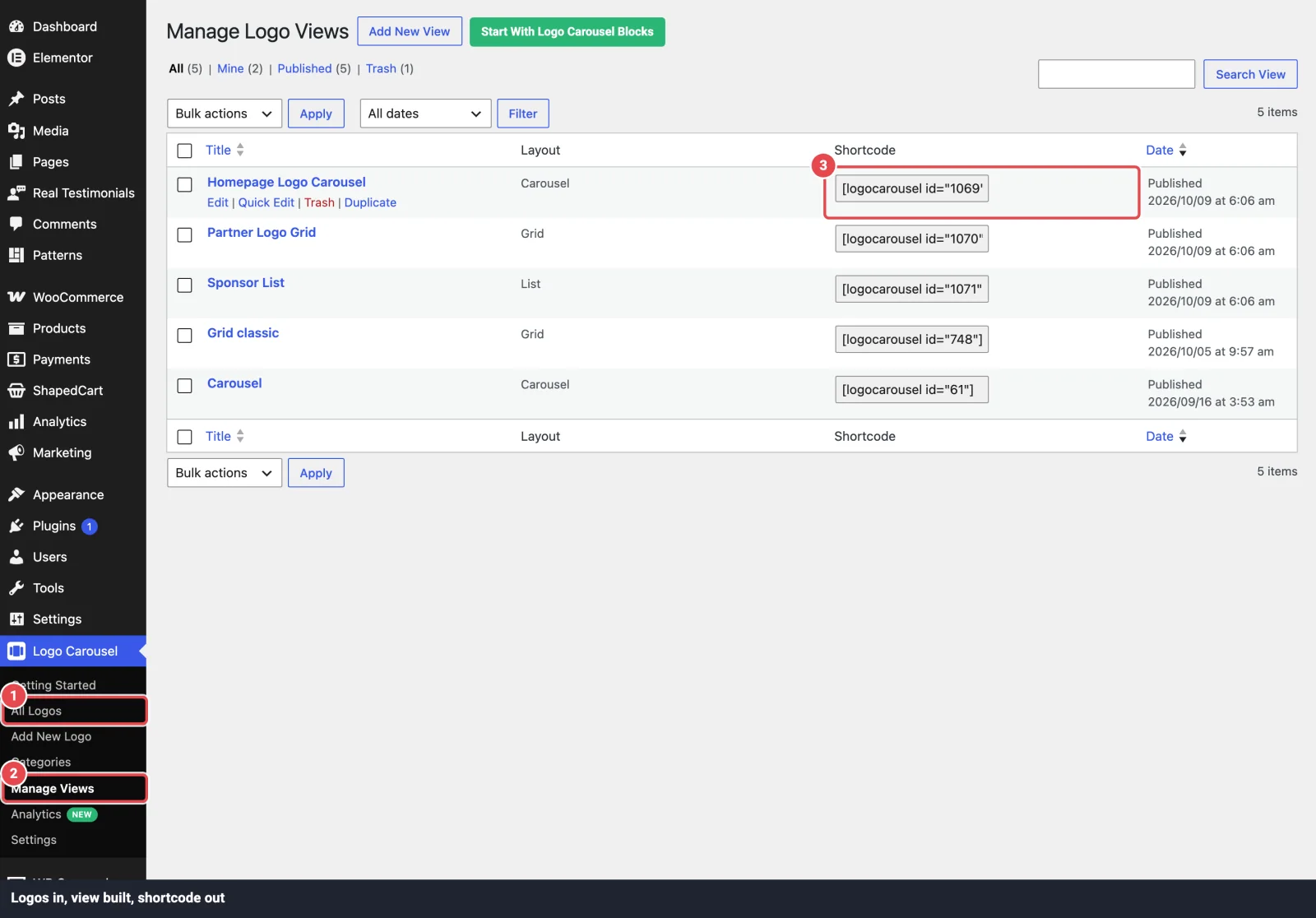
- Views are saved designs, built under Logo Carousel → Manage Views. A view decides which logos to show and how they look: carousel, grid, list, table and so on.
- A shortcode puts the view on a page. A shortcode is a short piece of text in square brackets, like
[logocarousel id="123"]. WordPress swaps it for the finished logo showcase when the page loads.
When to use classic, and when to use blocks
Both versions are in the same plugin, and you can use both on one site. Choose based on how you work.
Classic is the better fit when:
- You already have views on your site and they're doing their job. Nothing forces you to rebuild them.
- You want one logo library shared by many showcases. Add a new sponsor once, and every view that pulls from that category picks it up.
- You need a layout that only the classic builder has, such as Masonry or Inline.
- You place logos with a shortcode, a widget, or a page builder's shortcode element and don't open the block editor much.
Blocks are the better fit when:
- You edit pages in the block editor and want to design the showcase right there, with a live preview on the page.
- You want the newer features: Ready Patterns, Build with AI, Motion Effects, the Marquee block and more.
See the Blocks Overview for the block side of the plugin.
Blocks don't read your classic logos
The two systems keep their logos separately. Blocks take their images straight from the Media Library, and they never look at the logos under All Logos or at your saved views. So if you move a showcase from a shortcode to a block, you'll add the images to the block again. Your classic logos and views stay exactly as they are.
The five-minute workflow
- Open Logo Carousel → Add New Logo. Give the logo a title, set its Logo Image, and publish. Repeat for each logo. See Manage Logos.
- Open Logo Carousel → Manage Views and click Add New View.
- Name the view (for example "Homepage clients"), pick a Layout Preset, and adjust the Shortcode Options. Click Show Preview to check it.
- Click Publish.
- Copy the shortcode from the How To Use box and paste it into a page.
The full tour of the view screen is on Manage Views. Every option is listed on View Options.
The shortcode
[logocarousel id="123"]The number is the view's post ID. The shortcode takes no other attributes, because every setting is saved on the view itself. That's also why you can paste the same shortcode on ten pages and change all ten by editing one view.
The older form [logo_carousel_pro id="123"] still works too, so pages built years ago keep rendering.
Copy, don't type
Copy the shortcode from the How To Use box or the Shortcode column of the Manage Views list. Both copy it to your clipboard with a click, so there's no chance of a typo in the ID.
Ways to place a view
| Where | How |
|---|---|
| Block editor | Add the Classic Shortcode block, then choose your view from Select a carousel (shortcode). You can also paste the shortcode into WordPress's own Shortcode block. |
| Classic editor | Paste the shortcode into the content. |
| Widget area Pro | Add the Logo Carousel Pro widget, give it an optional Title:, and pick the view from Shortcode:. |
| Elementor | Search for the Logo Carousel Shortcode widget, then pick your view. |
| WPBakery Pro | Add the Logo Carousel Pro element (in the ShapedPlugin category) and pick the view from Shortcode:. |
| Other page builders | Paste the shortcode into the builder's shortcode or text module. |
| Theme template (PHP) | Call the template tag logocarousel() with the view ID, shown below. |
Inside a theme file
Some spots, like a site-wide footer, aren't editable from the admin. There you can print a view from PHP:
<?php logocarousel( 123 ); ?>It outputs exactly what the shortcode does. Put it in a child theme so a theme update doesn't wipe your change.
Page builders and Saved Templates
The Elementor widget and WPBakery element above place classic views. The plugin's newer page-builder integrations place block designs saved as Saved Templates instead. Both work side by side; the Integrations page covers the block route.
Classic vs blocks at a glance
| Classic | Blocks | |
|---|---|---|
| Where logos live | All Logos (one shared library) | Inside each block, picked from the Media Library |
| Where you design | Manage Views, with a Show Preview button | On the page, in the block inspector |
| Layouts | Carousel, Multi Rows, Grid, Masonry, Isotope, List, Inline, Table | Carousel, Grid, List, Marquee, Table |
| How you place it | [logocarousel id="…"], widget, PHP, Classic Shortcode block | The block itself, or a Saved Template shortcode |
| Site-wide settings | Dashboard → Settings | Dashboard → Settings |
The old Settings page now opens the dashboard
Earlier versions had a separate classic Settings screen. It's gone from the menu, and its old address now redirects to Logo Carousel → Settings in the new dashboard. All your saved values carried over.
Next steps
- Manage Logos: add logos, categories and links
- Manage Views: build and place a view
- View Options: every setting, tab by tab
- Blocks Overview: the block side of Logo Carousel