

Modules
Turn Logo Carousel's optional features on or off, so you only load and see what you actually use.
A module is an optional feature that works across the plugin, like Scheduling or Analytics. That's different from the Blocks tab, which controls whole layouts. Turning a module off removes its controls from the editor and stops it working on your site.
Open it
- Go to Logo Carousel → Getting Started.
- Click the Modules tab.
Direct link: …&page=lcpro_dashboard#modules.
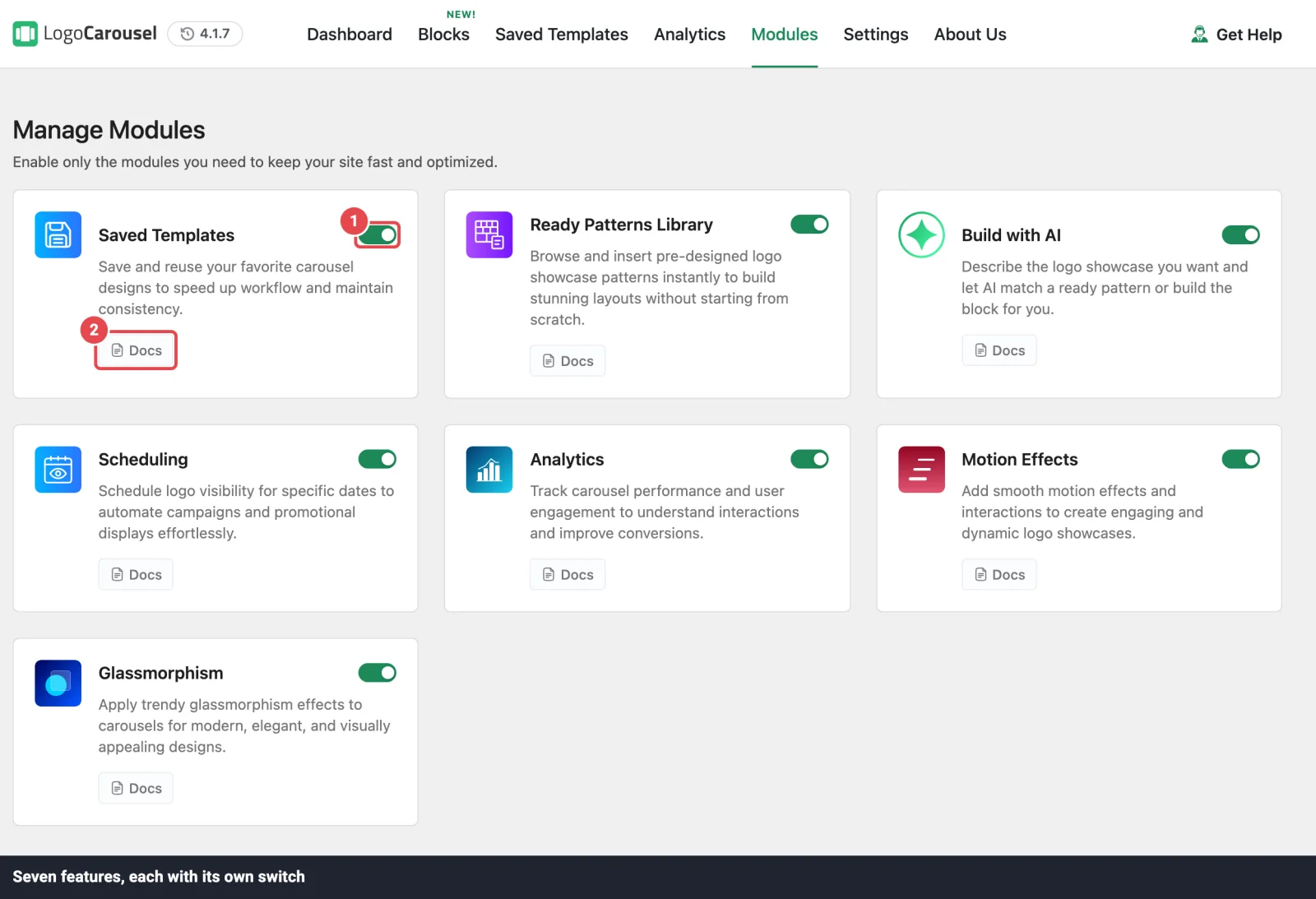
The tab is headed Manage Modules: "Enable only the modules you need to keep your site fast and optimized." Each card has a title, a short description, a Docs link and a switch. The switch saves straight away, with a "The module has been enabled" or "The module has been disabled" message.
The modules
All seven are on by default.
| Module | What it does | When it's off |
|---|---|---|
| Saved Templates | Save a block design and reuse it anywhere with a shortcode. See Saved Templates. | The Saved Templates tab disappears, [lc_template] shortcodes output nothing, and the page-builder integrations have nothing to show. |
| Ready Patterns Library | Browse and insert pre-designed logo showcases. See Ready Patterns. | The pattern library isn't available, and the dashboard's Use a Pattern button and the Blocks tab's Demo links are hidden. |
| Build with AI | Describe the showcase you want and let AI match a pattern or build the block. See AI Builder. | Build with AI is unavailable, and the AI Configuration settings tab is hidden. |
| Scheduling Pro | Show a block only between set dates. See Scheduling. | The Scheduling panel leaves the inspector, and blocks render as if scheduling were off. |
| Analytics Pro | Count logo impressions and clicks. See Analytics. | Tracking stops, the Analytics tab and menu item are hidden, and the Logo Analytics switch leaves Settings → Advanced. |
| Motion Effects Pro | Entrance and scroll animations for blocks. See Motion Effects. | The Motion Effects panel leaves the inspector, and blocks render without motion. |
| Glassmorphism Pro | A frosted-glass background style for logo cards (Display Elements) and tooltips. | The glass option leaves the background choices, and blocks that use it render without the glass effect. |
In the free version, the four Pro modules show a PRO badge instead of a working switch.
Your settings are safe
Turning a module off never changes your saved pages. A block saved with a schedule or a motion effect keeps those values; they're simply ignored while the module is off. Turn the module back on and everything works as before.
Modules and the classic version
These switches are for the block side of the plugin, with two exceptions: Analytics also covers classic shortcodes, and Saved Templates feeds the page-builder integrations. Classic views have their own scheduling setting, which isn't affected by the Scheduling module.
Which modules should I turn off?
- Keep on whatever you use. A module you don't use costs little, so there's no rush.
- Turn off Analytics if you don't want any visitor data stored. Note that tracking also needs a second switch; see Analytics.
- Turn off Build with AI if you don't want editors sending prompts to an AI provider.
- Turn off Ready Patterns Library on a locked-down site where everyone should start from your own Saved Templates.
Troubleshooting
| Symptom | Likely cause | Fix |
|---|---|---|
| The Scheduling or Motion Effects panel is missing in the editor | The module is off. | Turn it on, then reload the editor. |
| A schedule or animation stopped working | Its module was turned off. | Turn it back on. Your settings are still there. |
[lc_template] shows nothing | The Saved Templates module is off. | Turn it on. |
| No Analytics tab | The Analytics module is off. | Turn it on. |
| The glass background option is missing | The Glassmorphism module is off. | Turn it on. |
Related
- Blocks: turn whole blocks on or off
- Settings: license, integrations, AI and advanced options
- Admin Dashboard