

AI Builder
Describe the logo showcase you want in a sentence, and Logo Carousel builds the block for you. Then refine it with another sentence.
Most of this guide tells you which panel to open and which switch to flip. Build with AI is the shortcut. You type something like "a continuous logo marquee with evenly spaced client logos", and a configured block lands on the page.
Treat it as a fast first draft, not a replacement for the inspector (the settings sidebar on the right of the editor). You'll usually still open a panel or two afterwards. But it gets you past the empty block, which is often the slowest part.
You bring your own AI key
Logo Carousel doesn't ship with an AI service. You pick a provider (OpenAI, Anthropic, Google Gemini or Groq), save your own API key, and your WordPress server talks to that provider directly. Whatever the provider charges for those requests is between you and them.
Free and Pro
Build with AI is in both editions.
See Free vs Pro for the full comparison.
Before you start
- The Build with AI module is on. It's on by default. If you've switched it off, turn it back on under Logo Carousel → Getting Started → Modules (see Modules). While it's off, every AI button disappears from the editor and the AI Configuration settings tab is hidden.
- An API key from one of the four supported providers, or a provider already connected in WordPress Connectors (more on that below).
- Your server can reach the provider. Requests go out from your WordPress server, not from your browser, so a host that blocks outbound HTTPS blocks this too.
- You can edit posts. Anyone with the
edit_postscapability (Contributors and up) can generate. Only administrators can manage the keys.
Step 1: Connect a provider
- In your WordPress admin, go to Logo Carousel → Settings.
- Open the AI Configuration tab.
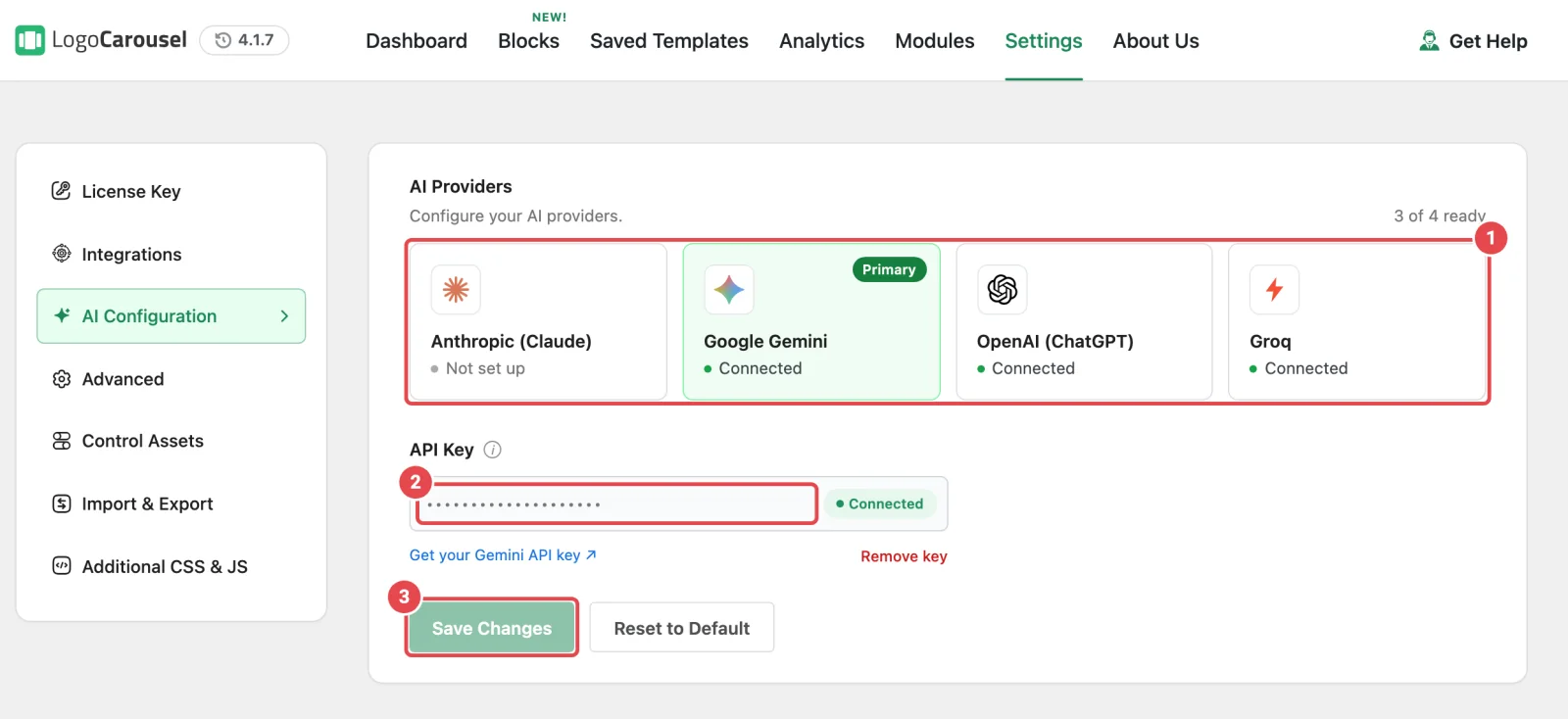
- Under AI Providers, click the card for the provider you want: Anthropic (Claude), Google Gemini, OpenAI (ChatGPT) or Groq. Clicking a card just picks which provider you're editing.
- Paste your key into the API Key field. If you don't have one yet, the Get your … API key ↗ link opens the right page on the provider's site.
- Click Save Changes.
Logo Carousel checks the key with the provider before saving it. A key the provider rejects isn't stored, and you'll see why (for example, "This is too short to be a Groq API key. Paste the full key."). Once it's accepted, the card shows Connected.
| Provider | Models offered in the builder | Where the key comes from |
|---|---|---|
| OpenAI (ChatGPT) | GPT-5.6 Terra (Recommended), GPT-5.6 Sol, GPT-5.6 Luna | platform.openai.com/api-keys |
| Anthropic (Claude) | Claude Haiku 4.5 (Recommended), Claude Sonnet 5 | console.anthropic.com/settings/keys |
| Google Gemini | Gemini 3.6 Flash (Recommended), Gemini Pro | aistudio.google.com/apikey |
| Groq | GPT-OSS 120B (Recommended), GPT-OSS 20B, Qwen3.8 27B | console.groq.com/keys |
There's no model setting on this screen. You pick the model in the builder itself, per request, and your browser remembers the last model you used for each provider.
More than one provider, and the Primary
You can save a key for every provider. Each one keeps its own key, and saving one never touches another.
- The first key you save becomes the Primary. The builder always opens on the Primary.
- Click Make primary on another card to change it.
- If the Primary's key is removed or rejected, the next ready provider takes over.
With only one provider set up, you'll see a hint suggesting a backup: "Add a backup provider so building keeps working if … reaches its limit." It's worth doing. If a request fails because one provider ran out of credit, the builder offers to Continue with another.
Changing or removing a key
Saved keys are stored encrypted and only ever shown masked (the first and last four characters). You can't edit a saved key in place:
- To replace it, click Remove key, confirm, then paste the new one and Save Changes.
- Check again re-verifies a saved key with the provider.
Keys are tied to your site's security keys
Keys are encrypted with your site's WordPress security salts. If those salts change (some security plugins and migrations rotate them), saved keys can no longer be read, and you'll be asked to paste them again.
WordPress Connectors
On WordPress 7.0 and later, a site owner can connect AI providers once, under Settings → Connectors, for every plugin to share. If OpenAI, Anthropic or Google Gemini is already connected there, Logo Carousel uses that connection. You don't need to enter the key twice.
A provider connected this way shows Connected via WordPress and has no key field. Click Manage in WordPress Connectors ↗ to change it there. If you'd also saved a key in Logo Carousel, that key stays as a fallback for when the connection isn't available.
Groq isn't available through Connectors, so it always uses a key saved in Logo Carousel.
If AI is switched off for the whole site
WordPress lets a site turn AI features off globally. When that's the case, the AI Configuration tab shows "AI features are disabled on this site, so generation will not run." and the builder won't generate until it's turned back on.
Step 2: Build something
There are four ways in. They all open the same window.
From the editor header
Open any page or post in the block editor. A Build with AI button sits in the top toolbar. Click it, describe what you want, and a new block is inserted.
There's no "which block?" picker, on purpose. The wording of your prompt picks the block:
| Words like… | Build |
|---|---|
| ticker, scrolling, continuous, endless, ribbon, wave | Marquee |
| wall, bento, masonry, staggered, zigzag | Grid |
| directory, roster, index | List |
| comparison, compare, spec sheet, matrix, header row | Table |
Generic words such as carousel, slider and logos don't change the block, so a prompt that names none of the above gets a Carousel. Blocks you've switched off in Dashboard → Blocks are never chosen.
From a new block
Insert any Logo Carousel block. Its first screen, Create Your Logo Showcase, offers Use a Pattern, Build with AI and Start Blank. Choose Build with AI and the block you just inserted is the one that gets configured. Its type stays fixed.
Refining a block you've already set up
Once a block has logos, a Refine with AI button appears in its block toolbar (the small bar above the block). Use it for follow-up changes: "make the logos grayscale", "6 per row", "slow the autoplay down".
Refining keeps what you've already set. Only the settings your sentence asks about change, and your logos are never touched.
From the dashboard
On Logo Carousel → Getting Started, the Build with AI button opens a new page in a new tab with the builder already open.
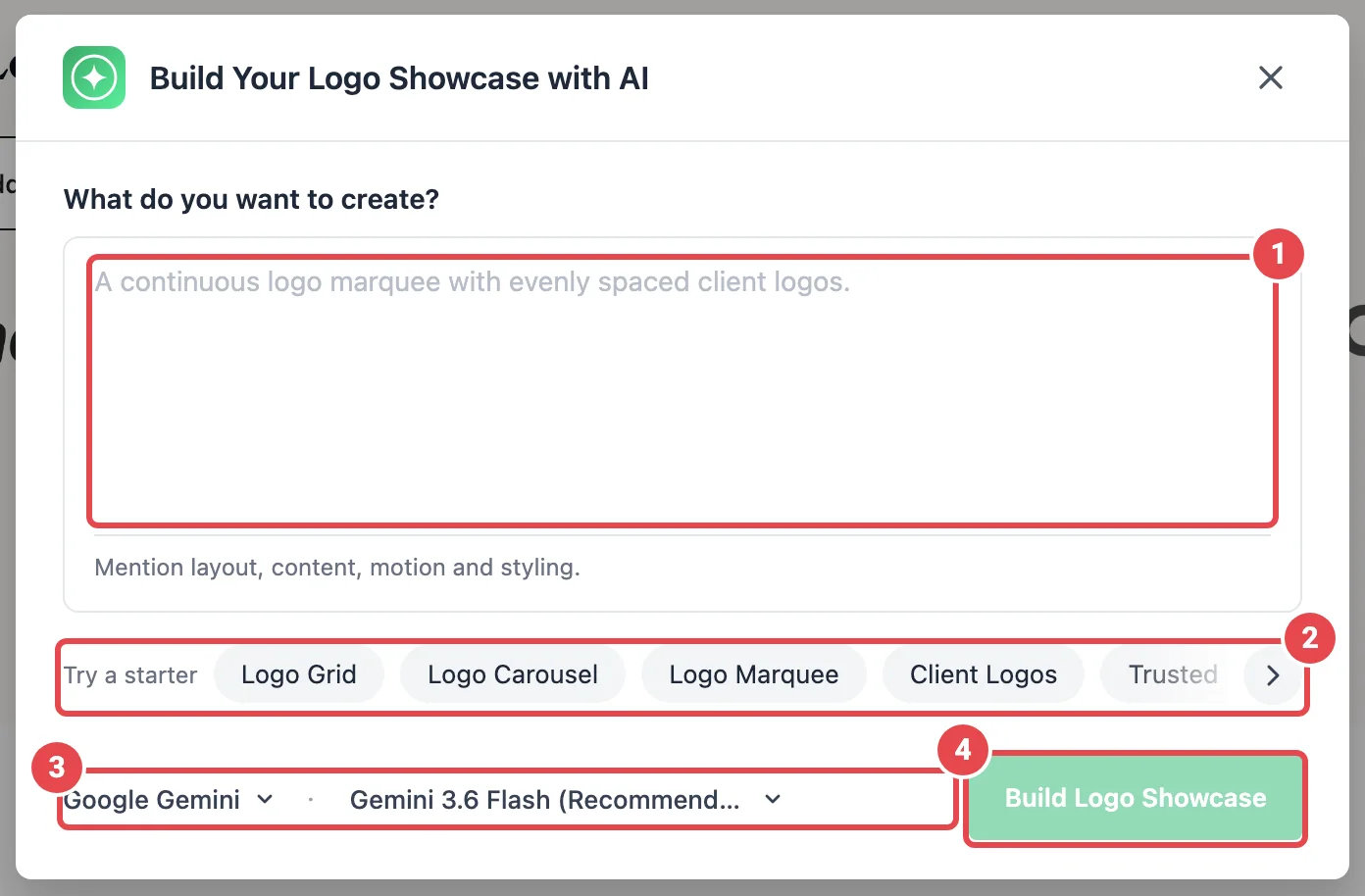
The builder window
| Part | What it does |
|---|---|
| What do you want to create? | Your prompt, up to 1,000 characters. When refining, the label reads What should change? |
| Try a starter | Ready-made prompts (see below). Hidden when refining. |
| Provider and model | Shown in the footer. When you have more than one provider or model ready, they're dropdowns. A provider you pick here applies to this build only. |
| Build Logo Showcase | Starts the build. It reads Update with AI when it's changing an existing block. |
| Stop | Cancels the request while it's running. |
While it works, the button cycles through messages like "Choosing a layout…" and "Arranging the logos…". They're there to show it's busy, not real progress steps.
Starter prompts
Click a pill to fill the prompt with a full, well-written brief. As long as you don't edit the text, the build targets the pill's block.
| Starter | Builds |
|---|---|
| Logo Grid | Grid |
| Logo Carousel | Carousel |
| Logo Marquee | Marquee |
| Client Logos | Grid |
| Trusted By | Marquee |
| Partner Logos | Grid |
| Featured Brands | Carousel |
| Logo Wall | Grid |
| Logo Cards | Grid |
| Monochrome Logos | Carousel |
Starters for a block you've switched off are hidden. List and Table have no starter, so describe those in your own words. In the free edition there's no Logo Marquee starter, and Trusted By builds a Carousel.
Writing a prompt that works
The window's own hint is the best advice: mention layout, content, motion and styling. Short and concrete beats long and hedged.
- "A continuous logo marquee with evenly spaced client logos, pause on hover."
- "A partner logo grid, 4 per row, with rounded cards and a subtle fade-in."
- "A monochrome carousel, 5 logos visible, that returns to color on hover."
- "A sponsor directory list with names and descriptions."
Say the number if the number matters
A column count in your prompt is enforced on the result: "6 columns", "5 logos per row", "4 logos visible" and similar phrasings all work (1 to 12). It sets the Desktop value only, so your Tablet and Mobile values stay as they were. List and Table have no column setting, so a number there is ignored.
The AI can change these groups of settings: layout, the section background and spacing (Advanced Settings), logo image settings and style, Display Elements, Tooltips and Motion Effects. On a Carousel it can also change navigation arrows and pagination dots, and on Grid, List and Table the page pagination. It never picks a font, so your theme's typography stays in charge.
What happens when you click Build
One of two things happens, and a notice tells you which.
- A Ready Pattern matched your prompt. For a fresh build, the builder first checks the Ready Patterns library for a design that already answers your request. If one fits well, it's inserted, and you'll see "AI matched a ready-made layout: …". You get a designed layout rather than a settings guess.
- No pattern fit, so settings were generated. The AI configures one block setting by setting instead, and you'll see "Logo showcase built with AI." (or "…updated with AI.").
If your prompt asked for more than a single pattern covers, you may see "No single ready-made layout covered everything you asked for…, so this block was built from generic settings instead." That's expected, not an error.
A refine never swaps in a pattern
Refine with AI always goes through settings generation, because inserting a pattern would replace the block you're trying to adjust. Pattern matching is also skipped for any block that already holds your own logos.
Demo logos, and replacing them
The AI never chooses or writes your logos. When a fresh build has no logos yet, Logo Carousel borrows the sample logos from a matching Ready Pattern so you can see the layout working straight away.
They're placeholders. Replace them before you publish. Select the block and click Edit Logos in its block toolbar. Because the block knows these are demo logos, the logos you pick replace the whole demo set instead of being added alongside. See Adding logos.
If the Ready Patterns module is off, or the pattern library can't be reached, there's nothing to borrow from, so the block arrives with no logos and you add your own.
What it can't do
- One block per prompt. It configures a single block. A prompt describing a whole page can only ever produce one block.
- It won't add your logos or write your copy. Logos, titles, descriptions and links stay yours to add.
- It won't change everything. It only touches the setting groups listed above. Scheduling, visibility, custom CSS classes and fonts are left alone.
- It won't use a block your site doesn't have. Blocks switched off in Dashboard → Blocks are never targeted.
- It isn't deterministic. The same prompt twice can give slightly different results. If you like one, save it as a Saved Template.
Privacy: what gets sent
Requests go from your WordPress server to the provider you chose, over HTTPS. Here's exactly what's in them:
| Sent to the AI provider | Not sent |
|---|---|
| Your prompt (up to 1,000 characters, plain text) | Your logos: images, image URLs, titles, descriptions or links |
| The name of the target block | Your scheduling, visibility or advanced settings |
| A shortlist of up to 24 Ready Pattern names and descriptions, when pattern matching runs | Images or files of any kind |
| When updating or refining: the block's current values for the setting groups the AI may change | Your site name, site URL or user details |
Two things worth knowing:
- Those "current values" include any text you've typed into those settings, such as a custom Read More label.
- The API key itself travels to the provider with each request, as the provider requires. For Google Gemini, that's part of the request address. When a provider is connected through WordPress Connectors, Logo Carousel never handles the key at all.
The provider's own data-retention policy applies to anything you send. Read it if your prompts might describe unreleased products or clients.
Troubleshooting
| Symptom | Likely cause | Fix |
|---|---|---|
| No Build with AI button anywhere | The Build with AI module is off, or AI is disabled site-wide. | Turn the module on in Modules and reload the editor. |
| "Connect an AI provider to start building." | No provider has a working key or connection. | Add a key in Settings → AI Configuration, or connect one in WordPress Connectors. |
| "The saved AI API key was rejected by the provider." | The key was revoked, expired or mistyped. | Remove it in AI Configuration and paste a valid one. |
| "… reached its limit before finishing. Continue with …" | That provider is out of credit or rate-limited. | Click Continue to retry with your next provider, or top up with the provider. |
| "… took too long to respond." | The request timed out (each call waits up to 30 seconds). | Try again, try a faster model, or check whether your host throttles outbound requests. |
| "The AI provider replied, but not with a usable configuration." | The model returned something Logo Carousel couldn't use. | Try again, shorten the prompt, or pick a larger model. |
| The block arrived with no logos | Ready Patterns is off or the library couldn't be reached, so there were no demo logos to borrow. | Add your own logos. That's the end goal anyway. |
| The Refine with AI button is missing | The block has no logos yet, or you're inside the Edit Logos panel. | Add logos first, or close the logo editor. |
For more fixes, see Troubleshooting → AI errors.
Related
- Ready Patterns: the library the builder checks first
- Dashboard → Settings: where providers and keys live
- Modules: turn the feature on or off
- Carousel: every setting the builder can change, explained
- REST API: the endpoint behind the builder