

Ready Patterns
Start from a designed logo showcase instead of an empty block, then swap in your own logos.
A pattern is a pre-designed Logo Carousel block you insert in one click. The layout, spacing, colors and motion are already chosen. You replace the sample logos with yours and adjust anything you like.
It's the quickest way to a good-looking result, especially if you're not sure which block or style you want yet. Browse, preview at phone width, insert, replace the logos. Done.
Free and Pro
The library is in both editions, and every pattern is listed in both.
- Patterns tagged Free insert in either edition.
- Patterns tagged Pro Pro use a Pro block (List, Marquee or Table) or a Pro feature (such as Motion Effects, Scheduling, Glassmorphism or the logo details popup). In the free edition you can still preview them, but the Insert button becomes a Pro upgrade link.
See Free vs Pro.
Turn the library on or off
The library is controlled by the Ready Patterns Library module, which is on by default.
- Go to Logo Carousel → Getting Started, then open the Modules tab.
- Find Ready Patterns Library and switch it on (or off).
- Reload the block editor.
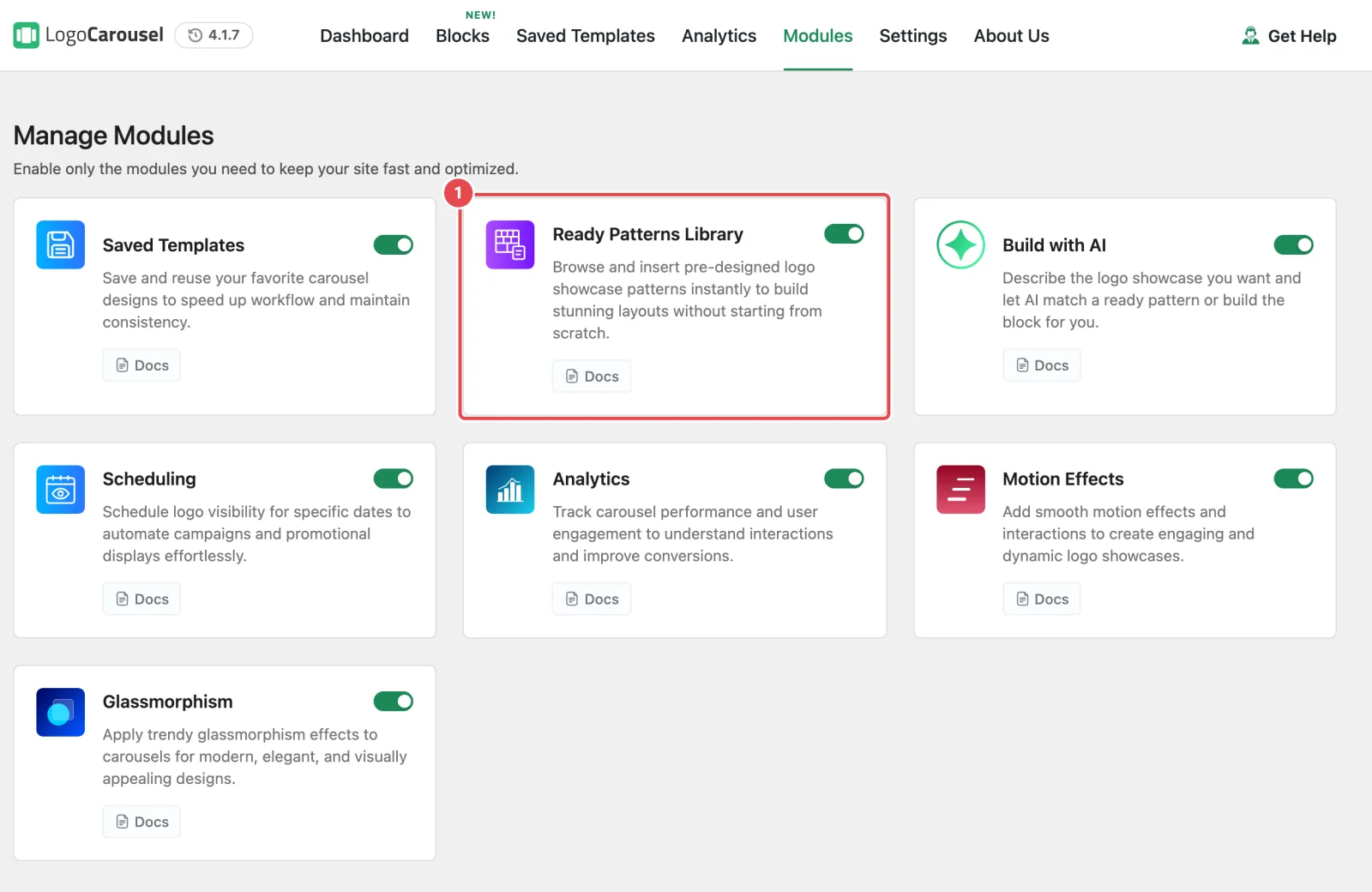
When the module is off, the library is gone everywhere: the editor toolbar button, the Use a Pattern button on new blocks and the dashboard shortcuts all disappear. It also stops Build with AI from matching patterns or borrowing their demo logos. See Modules.
Patterns come from an online library
Patterns aren't bundled inside the plugin. Your site fetches the list (and each pattern when you insert it) from Logo Carousel's online pattern library, so your server needs outbound HTTPS. If the library can't be reached, the window simply shows no patterns. Nothing already on your pages is affected. Developers can turn remote fetching off or point it elsewhere with a filter; see Hooks.
Opening the library
There are three ways in:
- From the editor header. A Patterns Library button, with the Logo Carousel mark, sits in the editor's top toolbar.
- From a new block. Insert any Logo Carousel block. Its first screen, Create Your Logo Showcase, offers Use a Pattern. The library opens already filtered to that block type, and the pattern you choose goes into that block.
- From the dashboard. On Logo Carousel → Getting Started, Use a Pattern opens a new page with the library already showing. On the Blocks tab, each block card's Demo link does the same, filtered to that block.
Patterns don't appear in WordPress's own block inserter. Use one of the doors above.
Finding the right pattern
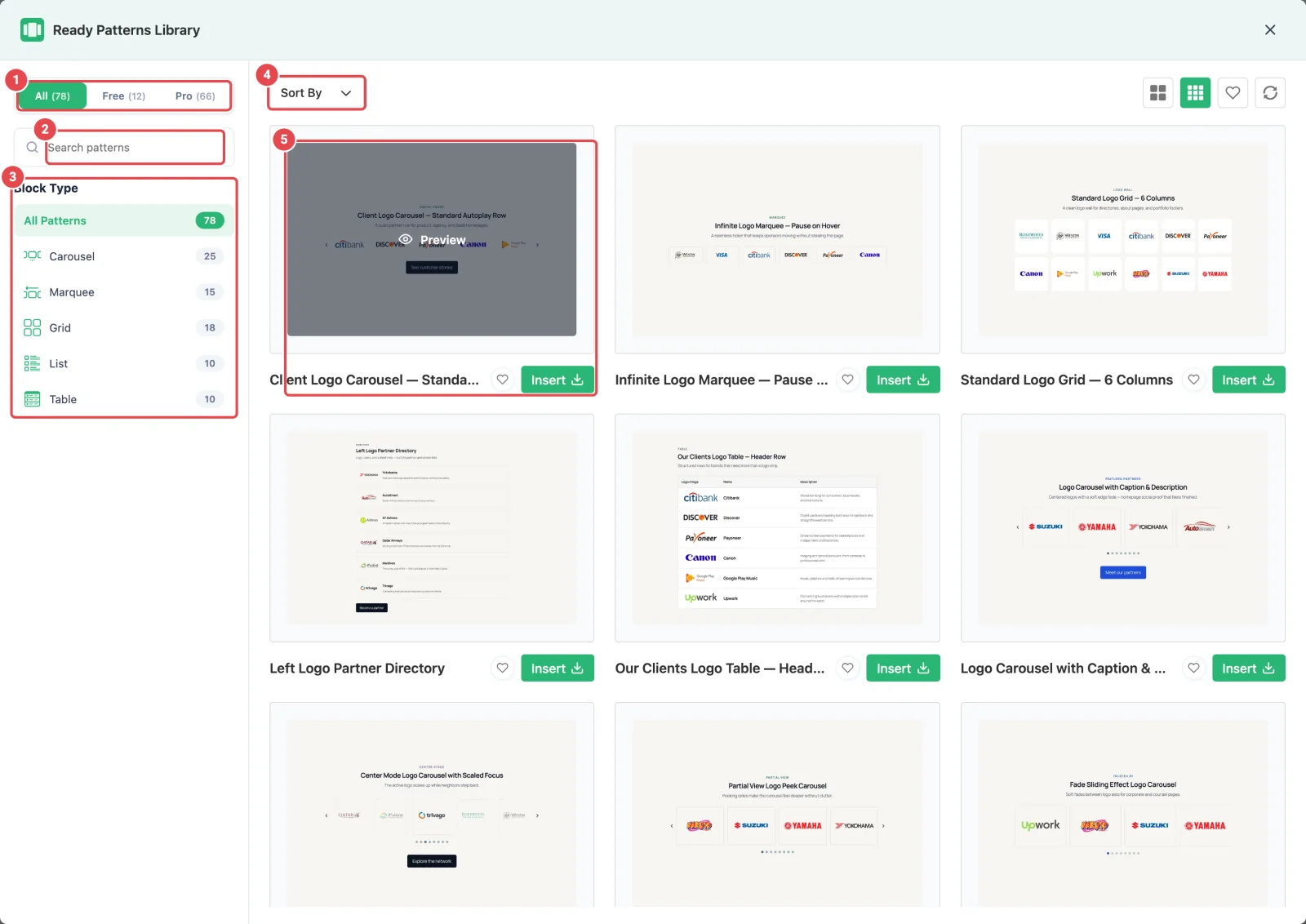
The library opens with filters on the left and the patterns on the right.
Down the left side:
| Control | What it does |
|---|---|
| All / Free / Pro | Shows all patterns or one tier, with a count on each tab. |
| Search patterns | Matches names, descriptions, tags and keywords as you type. |
| Block Type | All Patterns, Carousel, Marquee, Grid, List or Table, each with a count. |
Across the top:
- Sort By: Default, Popular or Latest.
- 2 columns / 3 columns: how large the cards are.
- Favorite (the heart): show only the patterns you've favorited. The badge shows how many you have.
- Sync: fetch a fresh copy of the library. Use it if a new pattern you expect isn't there yet.
Filters reset each time you close the window.
Favorites
Click the heart on any card to save it as a favorite, and click it again to remove it. Favorites are saved per WordPress user, so your list isn't your colleague's, and it follows you to any computer you log in from.
Previewing before you commit
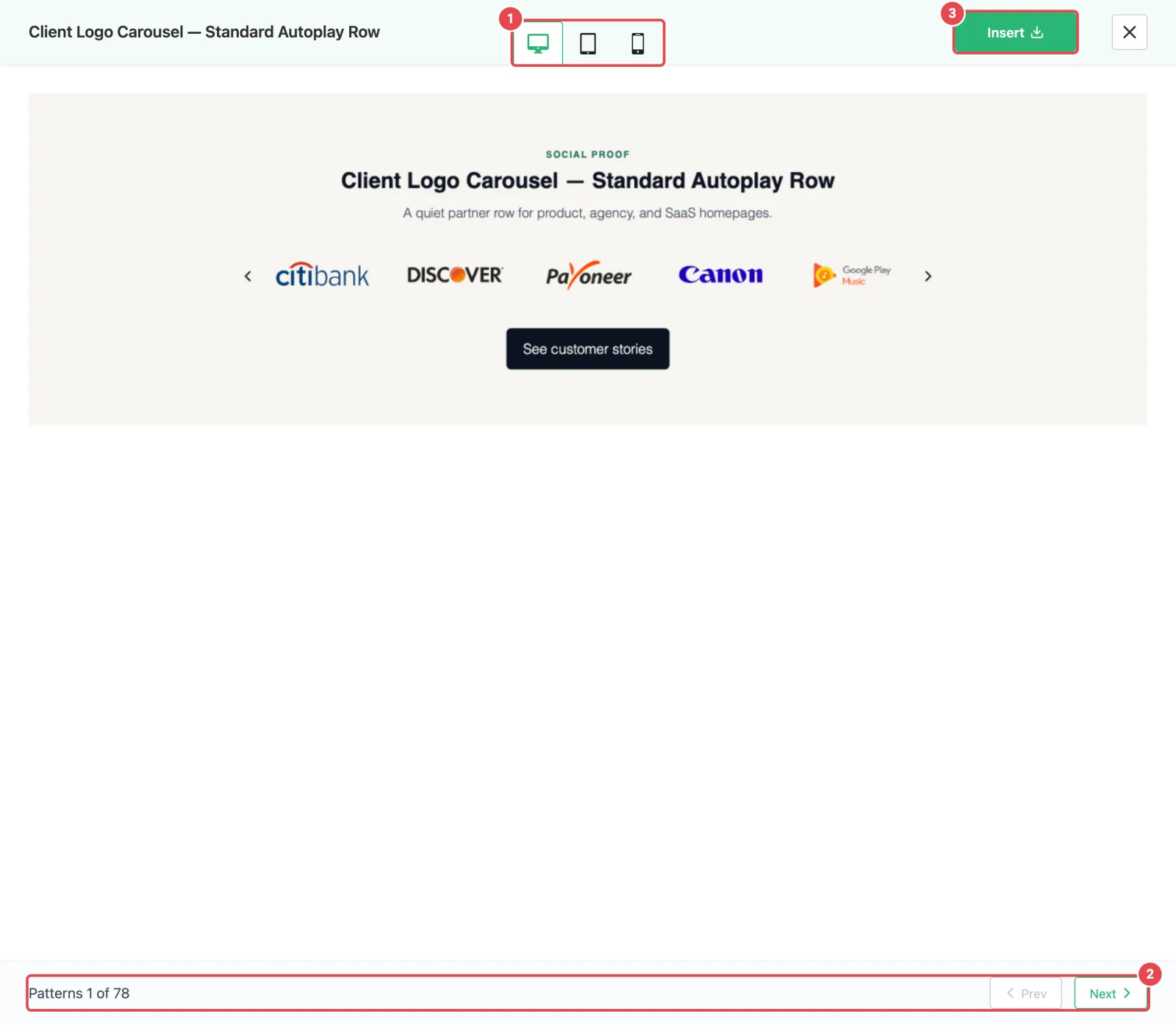
Hover a card and click Preview. A drawer opens with the pattern rendered live.
- Switch between Desktop, Tablet and Mobile widths to check the design works on a phone.
- Prev and Next at the bottom step through the rest of your current results, with a Patterns 3 of 20 style counter.
- Insert, at the top, puts the pattern on the page from here.
- Press Esc or click outside the drawer to go back to the grid.
Inserting, and what happens next
- Click Insert on a card or in the preview drawer.
- If the pattern needs something your site doesn't have, a dialog appears first: This pattern needs a little more. It lists what's missing, such as a module that's switched off ("Motion Effects module must be on") or a newer plugin version. Choose Open module settings, Cancel, or Insert anyway and accept that part of the design won't show until you fix it. A card that needs setup also shows a Setup needed badge.
- The pattern lands on the page and is selected.
Where it goes depends on how you opened the library:
| Situation | Result |
|---|---|
| You opened it from a block, and the pattern is the same block type | That block's settings are replaced in place. One undo puts it back. |
| You opened it from a block, but the pattern is a different block type | Your block is replaced by the pattern. |
| No Logo Carousel block was selected | The pattern is inserted where your cursor is in the editor. |
Replace the sample logos
Inserted patterns come with sample logos so you can see the design working. They're marked as demo logos.
- Select the block.
- Click Edit Logos in the block toolbar.
- Pick your own logos in the media library.
Because the block knows the current logos are demos, your selection replaces the whole demo set rather than being added to it. See Adding logos.
Patterns and AI work together
Build with AI searches this same library first. If your description matches a pattern, you get the designed layout rather than a settings guess, which is usually the better result.
Patterns vs Saved Templates
| Ready Pattern | Saved Template | |
|---|---|---|
| Who makes it | The Logo Carousel team | You |
| What it's for | A fast starting point | Reusing your finished design |
| Shortcode | No | Yes, [lc_template id="…"] |
A common workflow: insert a pattern, replace the logos and adjust it, then copy the block into a new Saved Template so you can drop it into Elementor, Divi or another builder.
Troubleshooting
| Symptom | Likely cause | Fix |
|---|---|---|
| No Patterns Library button and no Use a Pattern button | The Ready Patterns Library module is off, or a developer disabled patterns in code. | Turn the module on in Modules, then reload the editor. |
| "Unable to load patterns. Please try again." | Your server couldn't reach the pattern library. | Click Retry. If it keeps failing, ask your host whether outbound HTTPS is blocked. See Requirements. |
| "No patterns match your filters." with no filters set | The library came back empty, usually because it couldn't be reached. | Click Sync. If that doesn't help, check outbound connections as above. |
| This pattern needs a little more | The pattern uses a module that's off, or needs a newer plugin version. | Click Open module settings and switch the module on, or update the plugin. |
| "Could not insert … the pattern contains too many blocks." (or another Could not insert message) | The pattern couldn't be validated on your site. | Try another pattern, or click Sync and try again. |
| My favorites disappeared | Favorites are saved per user. | Check you're logged in as the same user. |
| Sample logos are still on the live page | The demo logos were never replaced. | Select the block, click Edit Logos, and pick your own. |
Related
- AI Builder: describe a layout instead of browsing for one
- Modules
- Saved Templates
- Blocks overview
- Hooks: developer filters for the pattern library