

Manage Logos
Build the shared logo library that every classic view pulls from: add logos, give them links and categories, and set their order.
In the classic version, every logo is its own entry in the admin, a bit like a post. You add a logo once, and any number of views can show it. When a client changes their branding, you update one logo and every showcase on the site follows.
Using blocks?
This page is about the classic logo library. Blocks keep their logos inside the block itself; see Adding Logos for that workflow. Blocks don't read the logos you add here.
The All Logos list
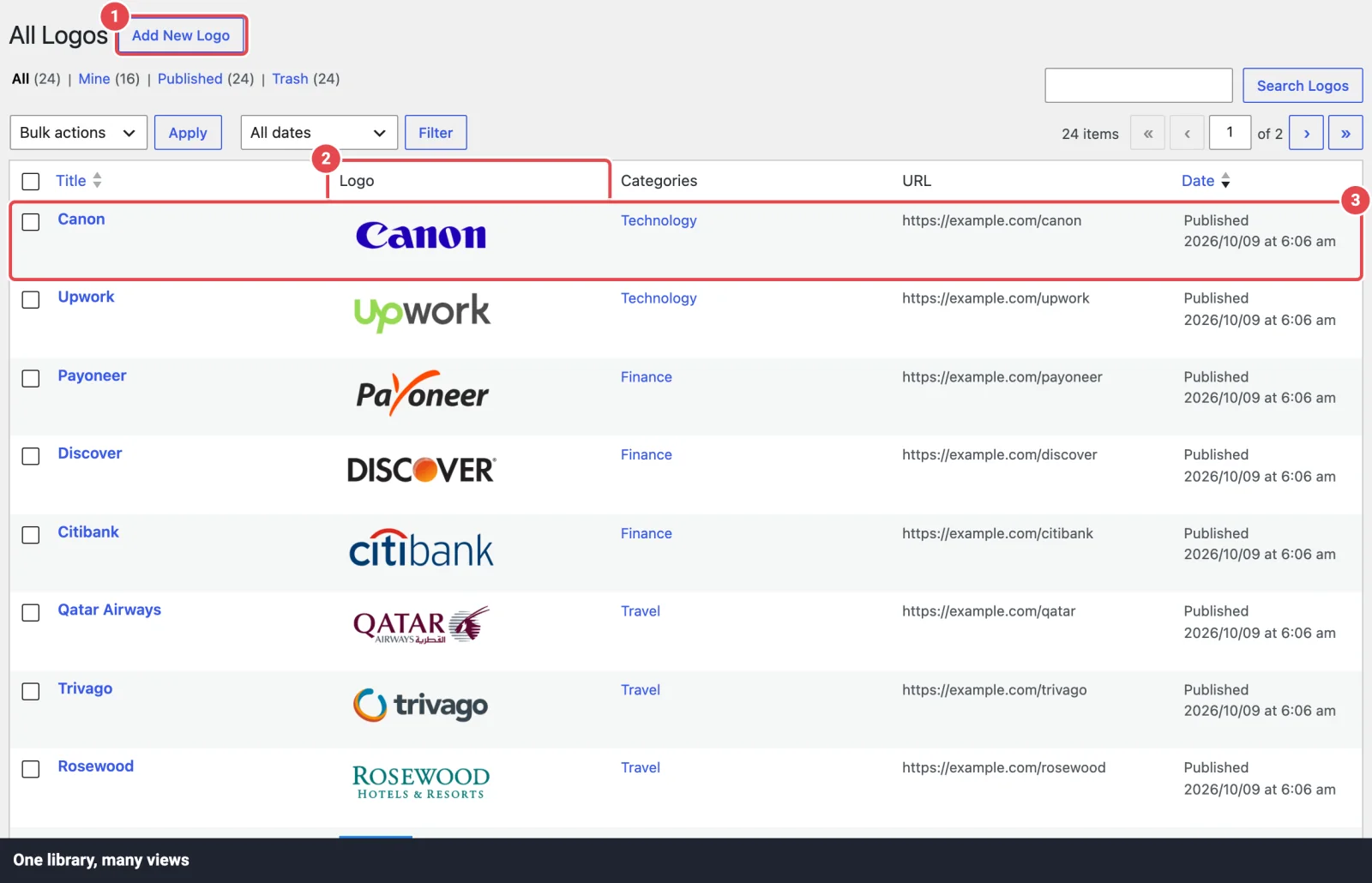
Open Logo Carousel → All Logos. It's a standard WordPress list with these columns:
| Column | Shows |
|---|---|
| Title | The logo's name. Click it to edit. |
| Logo | A thumbnail of the logo image. |
| Categories | The logo categories it belongs to. |
| URL | The link set in Custom URL, if any. |
| Date | When it was published. |
Add a logo
- Go to Logo Carousel → Add New Logo.
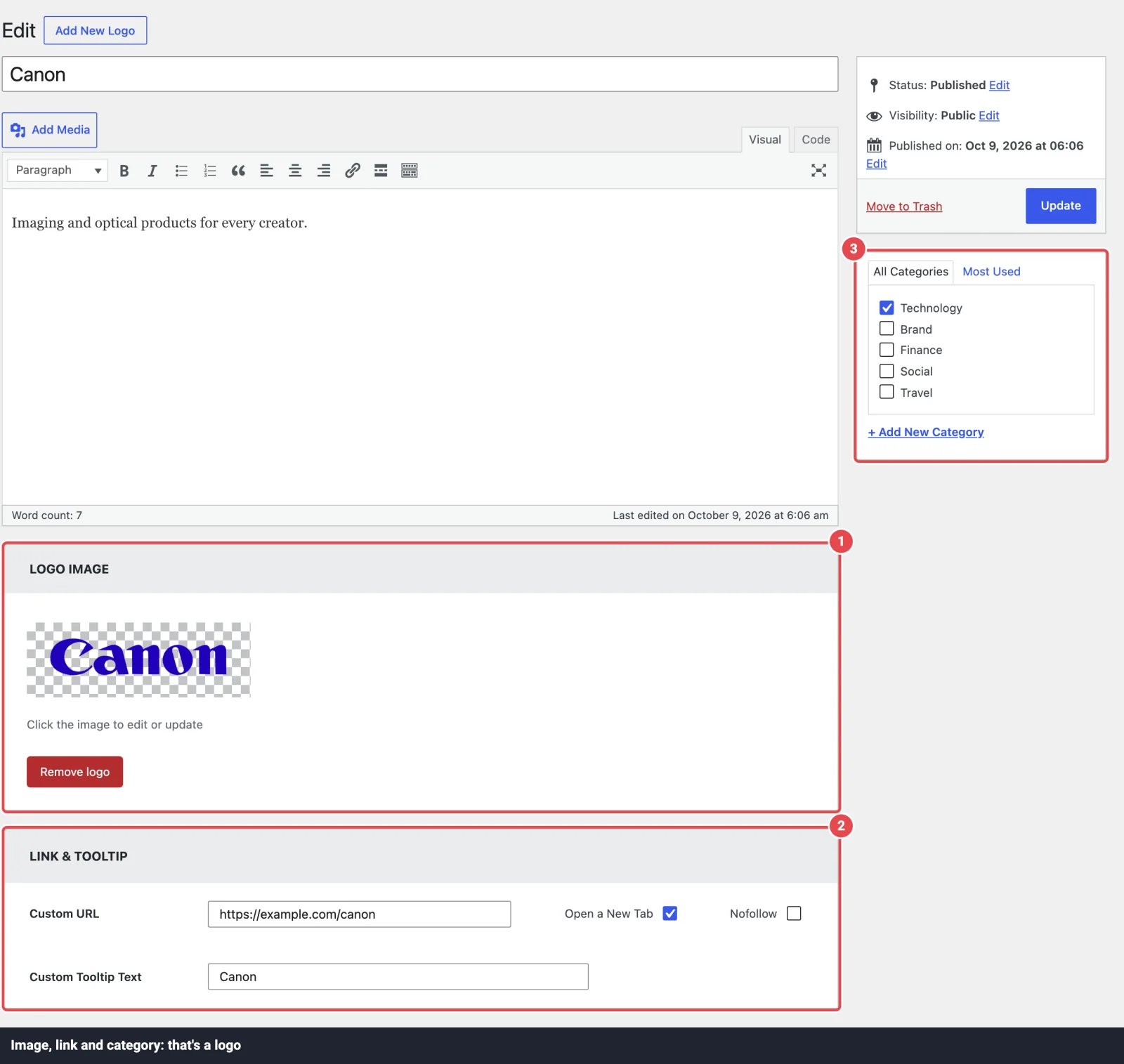
- Type a title, for example the company name. Visitors see it only if a view shows Logo Title or uses it in a tooltip or popup, but it's also the image's fallback alt text, so make it meaningful.
- In the Logo Image box, click Upload Logo and choose or upload the image.
- Optional: write a description in the content editor. Views can show it under the logo, in a tooltip, or in a details popup.
- Optional: tick one or more Logo Categories in the sidebar.
- Optional: fill in the Logo Link URL box (below).
- Click Publish.
Use transparent PNG or SVG files
Logos look best on a transparent background, trimmed close to the artwork. A logo with a big white box around it will look smaller than its neighbours and clash with any background colour you set in the view.
What each part is used for
| Part of the screen | Where it shows up |
|---|---|
| Title | The logo title (when Logo Title is on), the default tooltip text, the popup heading, and the A–Z live filter. Also the alt text if the image has none. |
| Content editor | The description (when Description is on), the popup body, and the tooltip when Tooltip Content Source is Description. |
| Logo Image | The logo itself. Its alt text comes from the image's Alternative Text in the Media Library. |
| Logo Categories | Category filtering in views, the Isotope filter buttons, and the Ajax live filter. |
| Logo Link URL | Where a click on the logo goes. |
The Logo Link URL box
The box is headed Link & Tooltip and has four fields:
| Field | What it does | Default |
|---|---|---|
| Custom URL Pro | The address the logo links to, for example https://example.com. Leave it empty for a logo that isn't a link. | Empty |
| Open a New Tab | Opens this logo's link in a new tab, whatever the view says. | Off |
| Nofollow | Adds rel="nofollow" to the link, so search engines don't follow it. Useful for paid sponsor links. | Off |
| Custom Tooltip Text Pro | Your own tooltip text for this logo. It's used when the view's Tooltip Content Source is Custom Tooltip Text. | Empty |
The view decides what a click does
A link only works if the view's Click Action Type is Link. If the view is set to Popup or Disabled, the URL is ignored for that view. See View Options.
Logo categories
Categories let one library serve many showcases. Tag your logos "Clients", "Partners" and "Sponsors", and each view can show just one group.
To manage them, open Logo Carousel → Categories. It's the standard WordPress category screen: add a name, an optional slug and an optional parent, then click Add New Category. You can also tick or add categories straight from the logo edit screen.
Categories are used by:
- Filter Logos → Category in a view, to show only certain categories. Pro
- The Isotope layout, which turns your categories into filter buttons. A logo with no category won't appear under any Isotope filter. Pro
- Ajax Logo Live Filters, when Live Filter Type includes Category. Pro
Reorder logos with drag and drop Pro
- Open Logo Carousel → All Logos.
- Drag a row up or down to where you want it. The new order saves automatically.
- In each view that should follow this order, set Order By to Drag & Drop.
The order applies to views that use Order By: Drag & Drop, which is the default in Logo Carousel Pro. Views set to Date or Title ignore it, and so does Random Order.
Moving a logo across pages of the list
Dragging only reorders the logos on the page of the list you're looking at. If you have more logos than fit on one page, open Screen Options at the top right, raise Number of items per page so all your logos fit, then drag.
Specific logos follow their own order
When a view uses Filter Logos → Specific, it shows the logos in the order you arranged them in Choose Specific Logos, not the drag-and-drop order.
Edit, trash and restore
- Edit a logo from the list, change it, then click Update. Every view that includes it updates straight away.
- Trash removes a logo from every view. You can restore it from the Trash link within 30 days (WordPress's default).
- Deleting a logo doesn't delete its image from the Media Library.
Move logos between sites
You can export your logos (all or a selection) to a JSON or CSV file and import them on another site. Imported logos re-download their images into the Media Library and recreate any missing categories. The tool lives in Dashboard → Settings → Import & Export.
Troubleshooting
| Symptom | Likely cause | Fix |
|---|---|---|
| A logo doesn't appear in a view | The view filters by category, excludes it, or hits its Limit. | Check Filter Logos, Exclude Logos and Limit in the view. |
| A logo shows an empty box | It has no Logo Image, or the image was deleted from the Media Library. | Edit the logo and set the image again. |
| The logo isn't clickable | No Custom URL, or the view's Click Action Type isn't Link. | Add the URL, then check the view. |
| Drag-and-drop order is ignored | The view's Order By isn't Drag & Drop, or Random Order is on. | Change it in the view's General Settings. |
| A logo is missing from Isotope filters | It has no category. | Give it a category. |
Related
- Manage Views: build a showcase from these logos
- View Options: every setting in a view
- Classic Version Overview
- Adding Logos: the block workflow