

Logo Details Popup Pro
Let visitors click a logo to open a details window with the full logo, its name, description, categories and a link to the company.
Sometimes a logo isn't enough. On a sponsor page or a partner directory, visitors want to know who each company is before they click away to its website. The Logo Details popup answers that without sending them off the page. One click opens a focused window, and arrows let them browse from logo to logo.
Pro feature
Click actions (Logo URL and Popup) are part of Logo Carousel Pro. In the free edition logos aren't clickable. See Free vs Pro.
Which blocks support it
All five blocks: Carousel, Grid, List, Marquee and Table. No module needs switching on.
On a Marquee the logos keep moving, so they're harder to click. Turning on Pause on Hover in the Marquee's settings makes the popup much easier to use.
Two ways to open the popup
You can make the logo image open the popup, the title and Read More button open it, or both.
Make the logo image open it
- Select the block.
- Open the Logo Images panel, Settings tab.
- Set Click Actions to Popup.
Make the title and Read More open it
- Open the Display Elements panel.
- Turn on Title, Read More, or both.
- Set Click Actions to Popup.
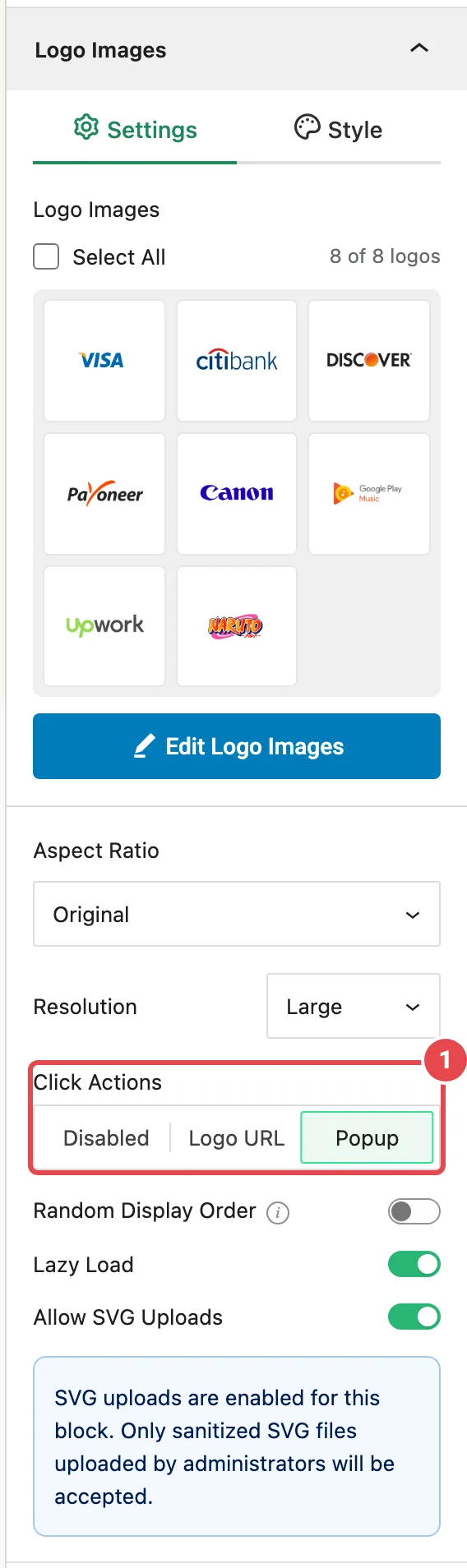
Two separate switches
The logo image and the Display Elements text each have their own Click Actions setting. You can, for example, have the image link straight to the company site (Logo URL) while Read More opens the popup.
The popup doesn't open in the editor. Preview or publish the page and click a logo to try it.
What's in the popup
The window is titled Logo Details. It only shows the parts each logo actually has, so a logo with no description simply has no description section.
| Part | Comes from |
|---|---|
| Logo image | The logo's image |
| File type, File size, Dimensions | Read from the image file |
| Title | The logo's title |
| Category chips | The logo's categories |
| Caption, Image Alt Text, URL | The logo's caption, alt text and link |
| Logo / Company Description | The logo's description |
| Visit Link button | Shown when the logo has a URL. Opens the site in a new tab. |
Fill these in from the logo editor; see Edit a logo. The more complete your logos are, the more useful the popup is.
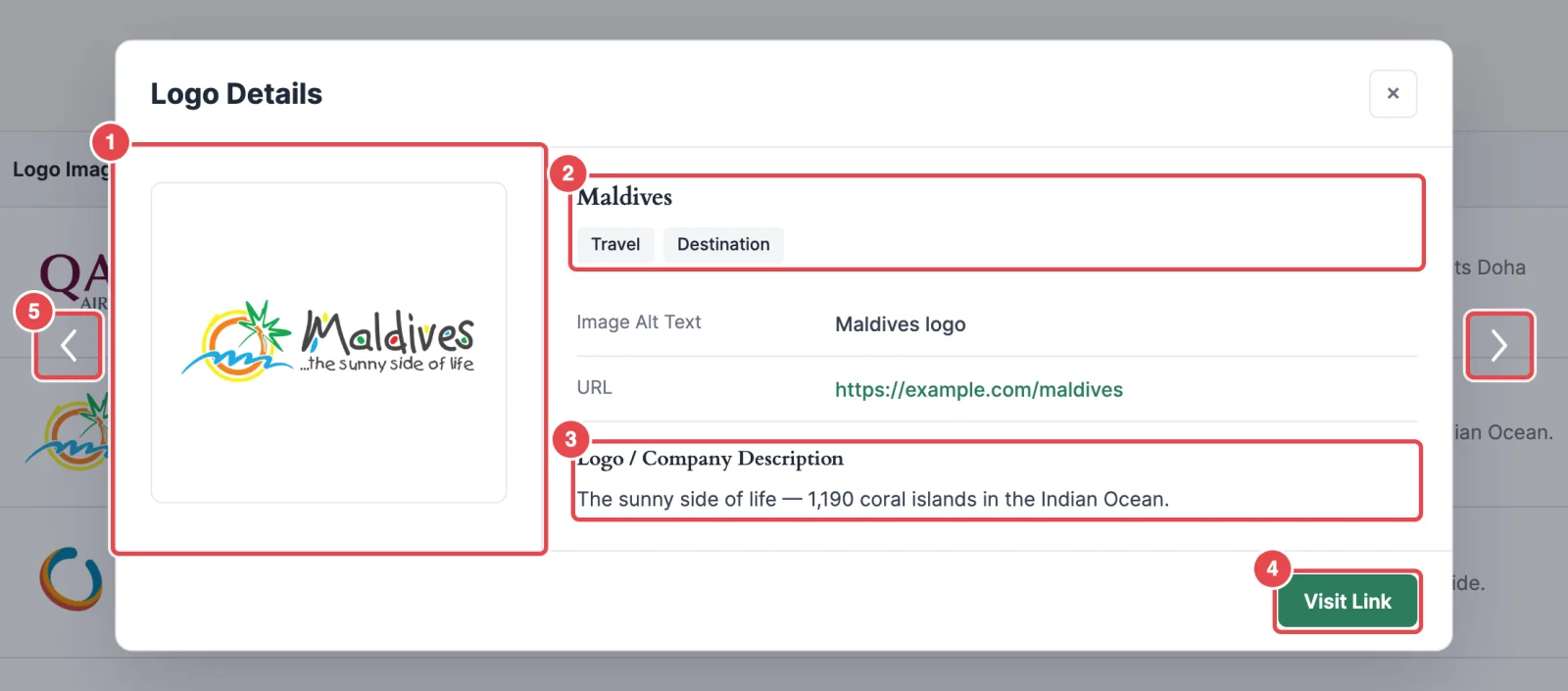
Browsing between logos
When the block has two or more logos, previous and next arrows sit on either side of the window. They loop: after the last logo comes the first. Visitors can read through every company without closing and reopening.
To close the popup, click the × in the corner.
Speed and motion
- The popup's code only loads on pages where a block actually uses the Popup click action. Other pages don't pay for it.
- It fades in and up gently when opening. Visitors who have asked their device to reduce motion get no animation.
Troubleshooting
| Symptom | Likely cause | Fix |
|---|---|---|
| Clicking a logo does nothing | Click Actions is Disabled (the default). | Set it to Popup in the Logo Images panel. |
| Clicking a logo opens the company's website instead | Click Actions is Logo URL. | Switch it to Popup. |
| The title isn't clickable | Display Elements Click Actions is Disabled. | Set it to Popup in the Display Elements panel. |
| Read More doesn't appear | Read More only shows when Display Elements Click Actions is set to Logo URL or Popup. | Pick one of those. |
| The popup is nearly empty | The logo has little information. | Add a title, description, categories and URL in the logo editor. |
| No Visit Link button | The logo has no URL. | Add one in the logo editor. |
| A logo with a missing image can't be clicked | Logos whose image is missing are never clickable. | Re-attach the image. See Missing images. |
| Nothing happens when I click in the editor | The popup only runs on the live page. | Preview or view the published page. |
Related
- Carousel → Logo Images
- Carousel → Display Elements
- Tooltips: a lighter way to show a logo's name
- Edit a logo
- Accessibility