

Scheduling Pro
Show a logo block only between two dates, so event sponsors, seasonal partners and campaign logos appear and disappear on their own.
You've got sponsors for a conference that runs for one week, or a "featured partners" row for a spring campaign. You don't want to remember to unpublish it at midnight. Scheduling lets you set a start and an end once, and the block shows itself only inside that window.
Pro feature
Scheduling is part of Logo Carousel Pro. See Free vs Pro.
Before you start
The Scheduling module must be on. It's on by default. If your block has no Scheduling panel, go to Logo Carousel → Getting Started → Modules, switch on Scheduling (see Modules), and reload the editor.
Every block supports it: Carousel, Grid, List, Marquee and Table. Scheduling works per block, so one page can hold a permanent logo row and a scheduled one side by side.
Set a schedule
- Select the block.
- Open the Scheduling panel in the inspector.
- Switch on Scheduling.
- Set Start Date & Time: type the date (DD/MM/YYYY) or click the calendar icon, then set the time and choose AM or PM.
- Set End Date & Time the same way.
- Update or publish the page.
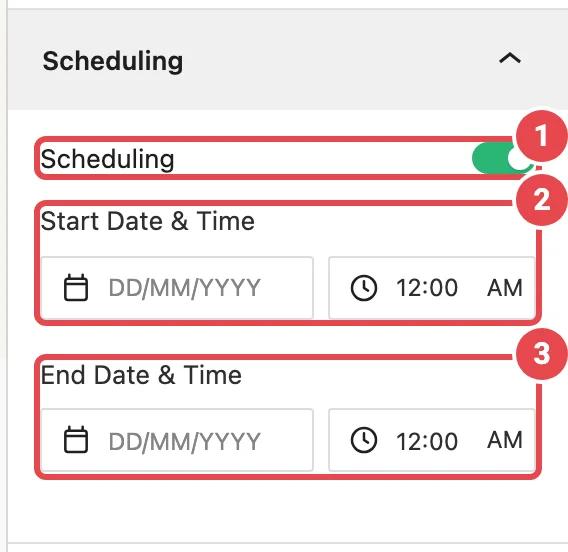
| Option | What it does | Default |
|---|---|---|
| Scheduling | Turns the date window on for this block. | Off |
| Start Date & Time | When the block starts showing. Leave it empty to show it from now on. | Empty |
| End Date & Time | When the block stops showing. Leave it empty to show it with no end date. | Empty |
Each date field has a Clear date button if you want to remove a bound.
How it behaves
Worth knowing precisely, because "why is my logo carousel missing?" is usually one of these:
- Frontend only. The editor always shows the block, whatever the dates say, so you can keep working on a block that isn't live yet.
- Your site's timezone. Dates are read against Settings → General → Timezone in WordPress, not the visitor's clock. Check that setting before scheduling anything that must go live at a specific hour.
- Either bound can be empty. Start only means "from then on". End only means "until then".
- Outside the window, the block outputs nothing. Not an empty box, not a placeholder. The page closes up around it, and none of the block's styles or scripts load.
- Start after end? The panel warns you: "Start date is after the end date. Frontend scheduling will be ignored until the range is corrected." Until you fix it, the block shows normally rather than disappearing.
- A broken date is ignored rather than hiding the block.
Page caching
Page caching plugins save a copy of each page and serve that copy to visitors. That's great for speed, but a cached copy taken before your start date would keep hiding the block after it should appear.
To prevent that, any page with a scheduled block is excluded from page caching. Logo Carousel tells caching plugins not to store it (it sets the standard DONOTCACHEPAGE flag and sends no-cache headers), so every visitor sees the schedule's current state.
Two things follow from that:
- That page is built fresh for every visitor, so it can be a little slower than your cached pages. If the campaign is over, switch Scheduling off (or remove the block) so the page can be cached again.
- Some server-level and CDN caches ignore the flag. If your block appears or disappears late, purge that cache at the changeover time or add a cache exclusion for the page.
If the module is turned off
Turning the Scheduling module off makes every scheduled block show all the time. Your dates are kept, so switching the module back on restores the schedules exactly as they were.
Tips
- Set both dates now and forget it. A seasonal row can be set up weeks ahead, with no need to come back and unpublish anything.
- Schedule the whole showcase, not individual logos. Scheduling applies to a block. To rotate sponsors, use one block per sponsor group, each with its own window.
- Check the timezone once. Most "it went live an hour late" reports are a site timezone set to UTC.
Troubleshooting
| Symptom | Likely cause | Fix |
|---|---|---|
| No Scheduling panel | The module is off. | Turn it on in Modules and reload the editor. |
| The block shows in the editor but not on the page | You're outside the date window. | Check the dates against your site's timezone. |
| The block still shows after the end date | A server or CDN cache is serving an older copy. | Purge that cache. |
| The block shows even though it's before the start date | Start is after end (look for the warning in the panel), or a date is invalid. | Correct the dates. |
| The page is slower than others | Pages with a scheduled block aren't cached. | Switch Scheduling off once the campaign ends. |