

Motion Effects Pro
Make logos animate in as visitors scroll to them, add a gentle scroll parallax, or keep a logo band stuck to the top of the screen.
Motion effects add movement tied to the page rather than to the logos themselves. Your logos can fade or slide into place as a visitor reaches them, drift slightly as the page scrolls, or stay pinned while the rest of the page moves.
Used lightly, motion makes a page feel finished. Overdo it and the page feels slow and fidgety. This page covers both sides.
The short version
Set Entrance Animation to Fade In Up, leave everything else alone, and preview. That covers most real use.
Pro feature
Motion Effects is part of Logo Carousel Pro. See Free vs Pro.
Before you start
The Motion Effects module must be on. It's on by default. If your block has no Motion Effects panel, go to Logo Carousel → Getting Started → Modules, switch on Motion Effects (see Modules), and reload the editor.
Switching the module off later doesn't lose anything. Your settings stay saved on each block and are simply ignored until you turn it back on.
Every block supports it: Carousel, Grid, List, Marquee and Table.
The panel
Select the block and open Motion Effects in the inspector. It has three rows: Scroll, Sticky and Entrance Animation.
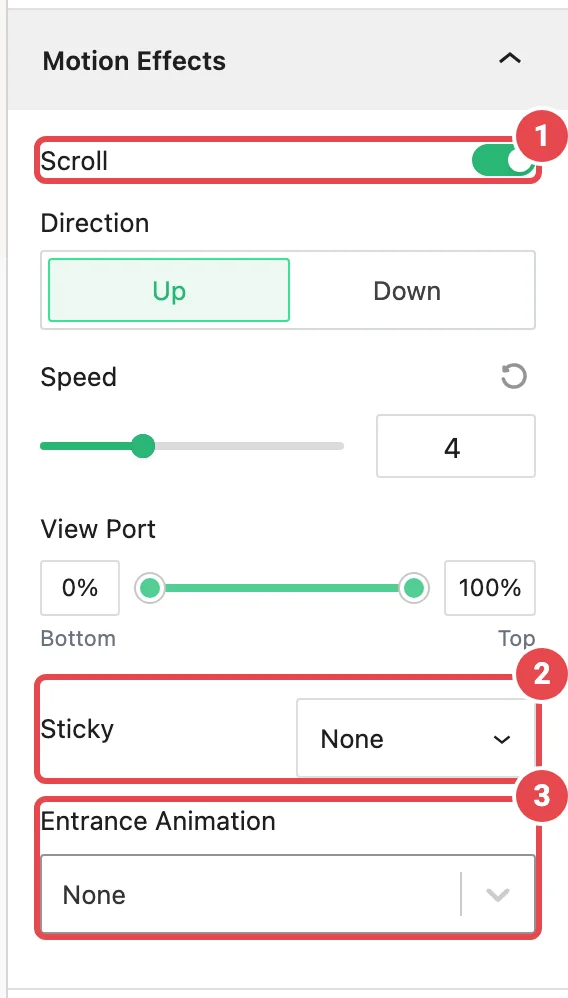
Entrance Animation
The logos animate into place the first time the block comes into view. It plays once.
- Click the Entrance Animation field. It's searchable: type fade, zoom or slide to narrow the list.
- Pick an animation. The editor preview plays it so you can judge it straight away.
- Adjust Animation Speed and Animation Delay if needed.
| Option | What it does | Range | Default |
|---|---|---|---|
| Entrance Animation | Which animation to play. | 41 effects, or None | None |
| Animation Speed | How long each logo's animation takes. | 100–3000 ms | 1000 ms |
| Animation Delay | How long to wait before starting. | 0–3000 ms | 0 ms |
Speed and Delay only appear once you've picked an animation.
The animations
| Family | Effects |
|---|---|
| Fading | Fade In, Fade In Down, Fade In Left, Fade In Right, Fade In Up |
| Zooming | Zoom In, Zoom In Down, Zoom In Left, Zoom In Right, Zoom In Up |
| Bouncing | Bounce In, Bounce In Down, Bounce In Left, Bounce In Up |
| Sliding | Slide In Left, Slide In Left Big, Slide In Right, Slide In Right Big, Slide In Down, Slide In Down Big, Slide In Up, Slide In Up Big |
| Rotating | Rotate In, Rotate In Down Left, Rotate In Down Right, Rotate In Up Left, Rotate In Up Right |
| Flipping | Flip, Flip X, Flip Y |
| Rolling | Roll In |
| Other | Flash, Pulse, Rubber Band, Shake, Head Shake, Swing, Tada, Wobble, Jello, Light Speed In |
The direction in a name is where the logo comes from: "Fade In Up" rises into place.
Which one to pick
Fade In or Fade In Up suits almost every logo showcase. They read as "this just arrived" without drawing attention to themselves. Save Bounce, Rotate and the attention seekers in Other for a single deliberate moment, if at all. A logo wall is supporting evidence, so it shouldn't upstage your content.
How the entrance plays on each block
The animation runs on each logo, not on the block as a whole, and logos are staggered slightly (a tenth of a second apart) so they arrive in reading order rather than all at once.
- Grid, List and Table: each logo animates as it scrolls into view. On a long grid, rows keep arriving as the visitor scrolls down.
- Carousel and Marquee: these move on their own, so the logos on screen when the block appears animate together. Logos that slide in later don't animate.
Scroll
Switch on Scroll for a gentle parallax: the block drifts up or down slightly as the visitor scrolls past it.
| Option | What it does | Range | Default |
|---|---|---|---|
| Direction | Up moves the block against the scroll; Down moves it with the scroll. | Up / Down | Up |
| Speed | How far it drifts. Higher means more movement. | 1–10 | 4 |
| View Port | The part of the screen where the effect runs, from Bottom (0%) to Top (100%). Drag the two handles to narrow it. | 0–100% | 0–100% |
Keep the speed low. A logo band that swims around makes the page feel unstable; a value of 2 to 4 is plenty.
Sticky
Sticky keeps the block pinned to the Top or Bottom edge of the screen while the visitor scrolls through the section that contains it. It's off (None) by default.
Sticky only works inside a container that's taller than the block. In a typical page layout, try it, preview, and check on mobile.
Accessibility and performance
- Reduced motion is respected. If a visitor has asked their device to reduce motion, entrance and scroll effects don't run, and the logos simply appear. There's nothing for you to configure.
- Don't delay what people came for. A large Animation Delay leaves the block invisible after the visitor reaches it, which looks broken. Keep it under about 500 ms.
- Scroll costs more than Entrance. An entrance plays once and stops. Scroll keeps recalculating as the visitor scrolls, so use it on one or two blocks per page, not every one.
Real-world recipes
A "trusted by" row near the top of the page
- Entrance Animation: Fade In
- Animation Speed: 600 ms
It's near the fold, so keep it quick and directionless.
A partner grid further down
- Entrance Animation: Fade In Up
- Defaults for speed and delay
Each row rises in as the visitor reaches it.
A sponsor marquee
- Entrance Animation: None
The marquee already moves. Adding an entrance on top is usually one movement too many.
Troubleshooting
| Symptom | Likely cause | Fix |
|---|---|---|
| No Motion Effects panel | The module is off. | Turn it on in Modules and reload the editor. |
| No Animation Speed or Animation Delay | Entrance Animation is None. | Pick an animation. |
| Nothing animates on the live page | Your device has reduce motion turned on. | Expected. Test in a browser or device without that setting. |
| Logos that slide into a carousel later don't animate | On Carousel and Marquee, only the logos visible when the block appears animate. | Expected behavior. |
| The block is blank for a moment, then appears | Animation Delay is high. | Lower it. |
| The block jumps or jitters while scrolling | Scroll speed is high. | Lower Speed, or narrow the View Port. |
| Sticky does nothing | The block's container isn't taller than the block. | Place the block in a taller section, or use Sticky elsewhere. |
| It animates in the editor but not live | A caching or optimization plugin is serving old files or deferring scripts. | Clear all caches and test in a private window. See Performance. |