

Saved Templates
Design a logo showcase once in the block editor, then reuse it on many pages, in widgets, and inside page builders.
A Saved Template is a logo showcase you store as its own piece of content, separate from any page. Each template gets an ID and a shortcode like [lc_template id="123"]. Change the template later, and every place that shows it updates.
That makes templates handy for:
- A client-logo strip that appears on several pages, or in the footer
- Showcases you drop into Elementor, Divi, Bricks, and the other page builders
- Keeping the same design everywhere without copying blocks from page to page
Saved Templates are in both the free plugin and Pro.
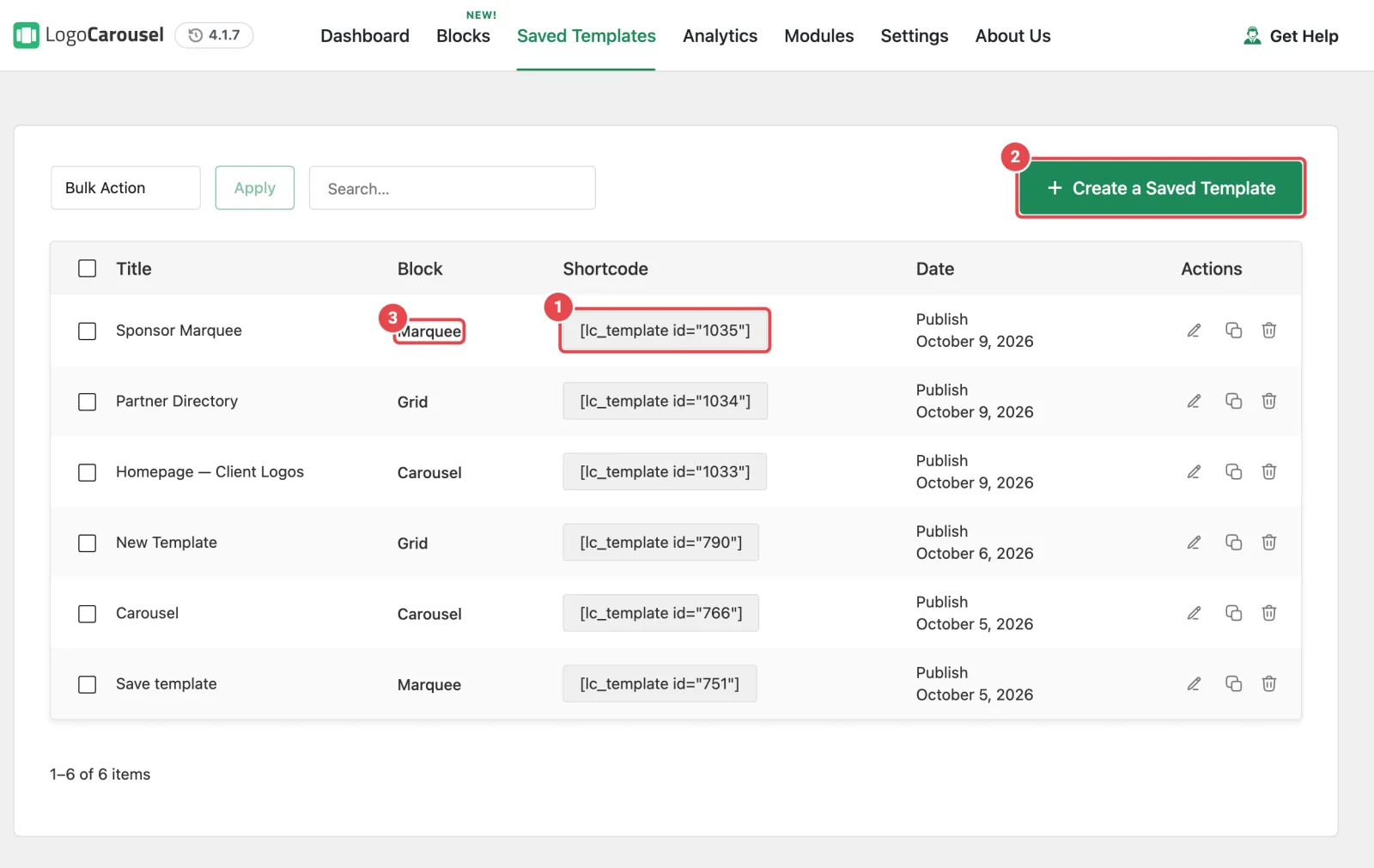
Find the Saved Templates tab
- In your WordPress dashboard, go to Logo Carousel → Getting Started.
- Click the Saved Templates tab at the top.
Saved Templates has no admin-menu entry of its own; it's a tab inside the dashboard. If you don't see the tab, the Saved Templates module is off. Turn it on under Modules. It's on by default.
Create a template
There's no "save as template" button inside a page. Instead, you build the template on its own screen:
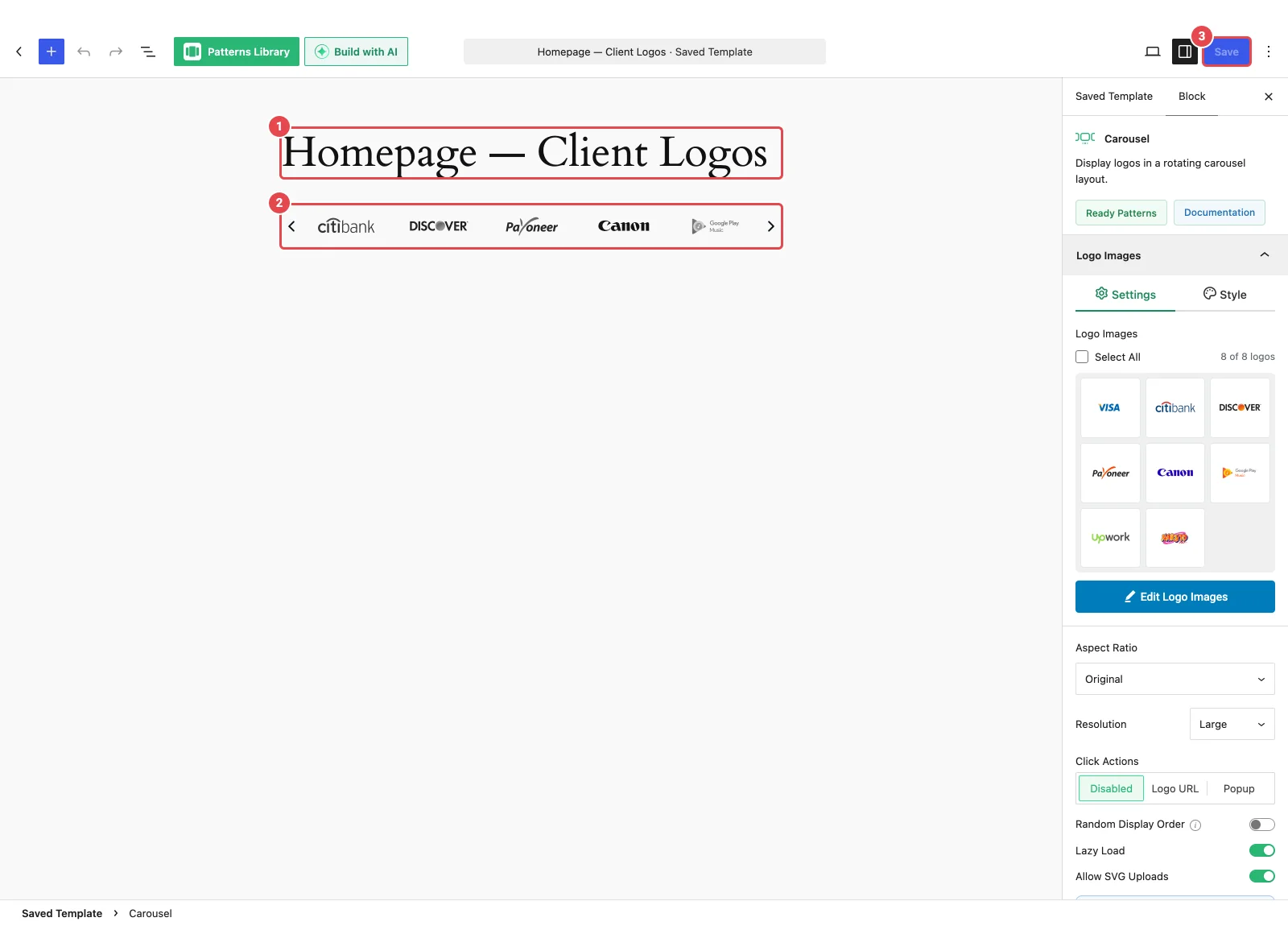
- On the Saved Templates tab, click Create a Saved Template. The block editor opens on a new template.
- Give the template a title. Name it after where it'll go, like "Home · Client logos", so it's easy to pick from a dropdown later.
- Add a Logo Carousel block (Carousel, Grid, List, Marquee, or Table) and set it up exactly as you would on a normal page: add your logos, choose a layout, and style it.
- Click Publish.
- Back on the Saved Templates tab, click the template's shortcode to copy it.
The template editor is always the block editor, even if your site uses the Classic Editor plugin.
Publish, don't just save
Only published templates appear in page builders, and only published templates show to visitors. A draft template shows only to people who can edit it.
What's in the list
| Column | What it holds |
|---|---|
| Checkbox | Select rows for Bulk Action → Delete, then click Apply. |
| Title | The template's name. Click it to edit. Templates that aren't published show their status (for example, draft). |
| Block | Which Logo Carousel blocks the template uses (Carousel, Grid, List, Marquee, or Table). Several show as "Carousel +1". |
| Shortcode | Click to copy [lc_template id="123"]. "Copied!" confirms it. |
| Date | The template's status and date. |
| Actions | Edit, Duplicate, and Delete. |
A Search… box filters the list by title, and the list shows 10 templates per page.
- Duplicate makes a draft copy called "Name (Copy)". It's a quick way to try a variation without touching the live template.
- Delete asks you to confirm, then moves the template to the Trash. It isn't permanent until you empty the Trash.
Only block templates live here
This tab lists Saved Templates and nothing else. Showcases created the older way live under Logo Carousel → Manage Views. See Manage Views.
Use a template
| Where | How |
|---|---|
| A page or post (block editor) | Paste the shortcode into a Shortcode block. |
| A widget area | Paste the shortcode into a Shortcode widget or block. |
| Page builders | Use the Logo Carousel element, or paste the shortcode. Step-by-step guides: Elementor, Divi, WPBakery, Beaver Builder, Bricks, and Oxygen. |
| A theme file (developers) | <?php echo do_shortcode( '[lc_template id="123"]' ); ?> |
The [lc_template] shortcode
[lc_template id="123"]id is the only attribute. It's the template's ID, which you get by copying the shortcode from the list. All the design settings live inside the template itself, so there's nothing else to add.
The shortcode outputs nothing (no error message) when:
- the ID is missing or doesn't belong to a Saved Template,
- the template isn't published and the visitor can't edit it,
- the Saved Templates module is off.
For more shortcode details, see Shortcodes & Attributes.
From a pattern to a template
Don't want to start from a blank block? Combine a template with a Ready Pattern or the AI Builder:
- Click Create a Saved Template.
- Add a Logo Carousel block and choose Use a Pattern (or Build with AI) on its start screen.
- Swap in your own logos and tweak the design.
- Publish, then copy the shortcode and reuse it everywhere.
Good to know
- Edit once, update everywhere. Every page that shows the template picks up your changes. Clear your page cache afterwards so visitors see them.
- Deleting a template leaves a gap. Pages using its shortcode show nothing, and page-builder elements show "Template not found or not published." Find where it's used before you delete it.
- Templates aren't part of Import & Export. The Import & Export tool covers logos and classic views only.
- Clean-up removes them. If you delete the plugin with Clean-up Data on Deletion turned on, your Saved Templates are deleted too. See Uninstalling.
Troubleshooting
| What you see | Likely cause | Fix |
|---|---|---|
| No Saved Templates tab in the dashboard | The module is off. | Turn on Saved Templates in Modules. |
| The shortcode outputs nothing | Template not published, wrong ID, or the module is off. | Copy the shortcode fresh from the list, and check the template is published. |
| The raw shortcode text shows on the page | The plugin is deactivated, or the text was pasted somewhere shortcodes don't run. | Reactivate Logo Carousel, and use a Shortcode block. |
| Changes don't show on pages using the template | Page, builder, or CDN cache. | Purge all three. |
| The template dropdown is empty in a page builder | Nothing published yet, or the builder's integration is off. | Publish a template, and turn the builder on in Integrations. |