

Ajax Live Filter Pro
Add category buttons or a dropdown above your logos, so visitors can show just the ones they care about.
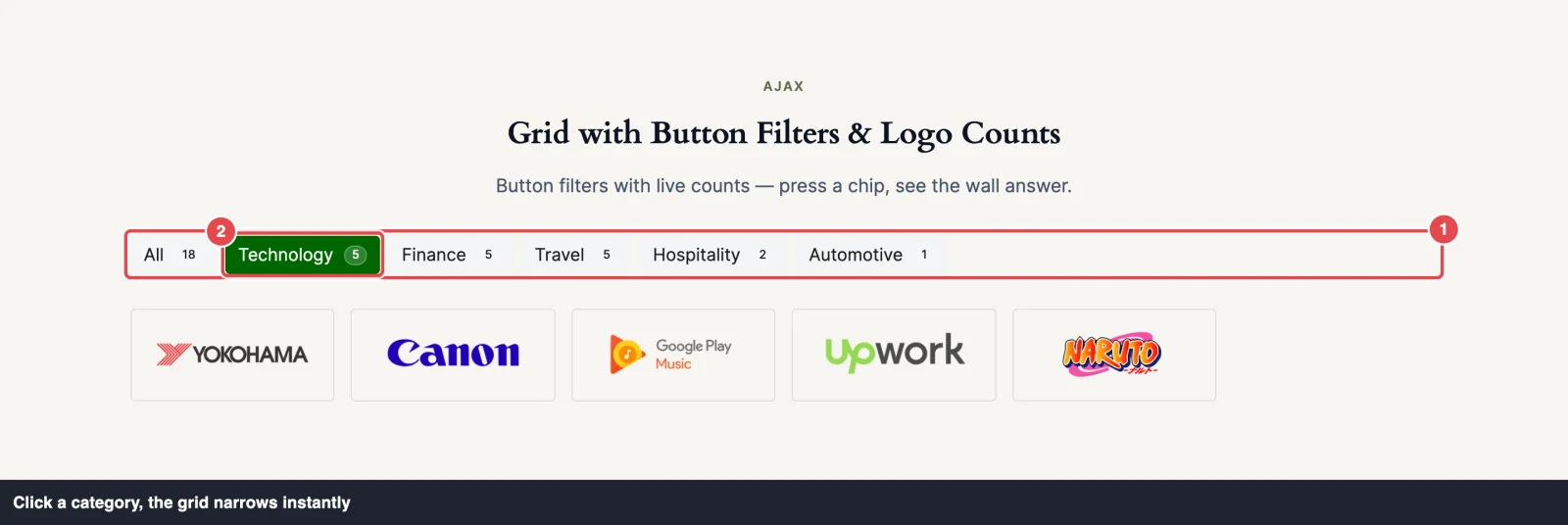
When you've got dozens of logos, visitors rarely want to see all of them at once. Ajax Live Filter adds a row of category filters above your block, such as "Technology", "Retail" or "Media". A visitor clicks one, and only the logos in that category stay on screen.
It all happens instantly, in the browser. The page doesn't reload and the visitor doesn't lose their place. ("Ajax" is a web term for updating part of a page without reloading it. See Ajax.) In fact, every logo is already on the page, so the filter doesn't need to fetch anything from your server. It just shows the matches and hides the rest.
Pro feature
Ajax Live Filter is part of Logo Carousel Pro. See Free vs Pro.
When to use it
- A partner page where visitors look for companies in their own industry.
- A sponsor wall split into tiers, such as "Gold", "Silver" and "Bronze".
- A long directory in a Grid, List or Table that's tiring to scroll through.
Which blocks support it
| Block | Ajax Live Filter |
|---|---|
| Carousel | ✓ (all styles except Staggered) |
| Grid | ✓ |
| List | ✓ |
| Marquee | ✓ (Standard and Wave styles; not Ribbon) |
| Table | ✓ |
Before you start: give your logos categories
The filter is built from the categories you give each logo. No categories, no filter buttons.
- Select your Logo Carousel block and open a logo in the logo editor.
- In the Category field, type a category and press Enter, or pick one you've already used. A logo can belong to several categories.
- Repeat for the rest of your logos.
The full walkthrough is in Logo categories.
The filter only lists categories that at least one logo uses, in the order they first appear among your logos. Spell each category the same way every time, or you'll end up with two filters ("Retail" and "retail") that should be one.
How to turn it on
- Select your block and open the Layouts panel.
- Switch on Ajax Live Filter. It's off by default.
- A new Ajax Live Filter panel appears further down the inspector. Open it to pick a style and adjust the settings below.
Expected result
A row of category filters appears above your logos in the editor preview. On the live page, clicking a category narrows the logos straight away, with no reload.
Filter styles
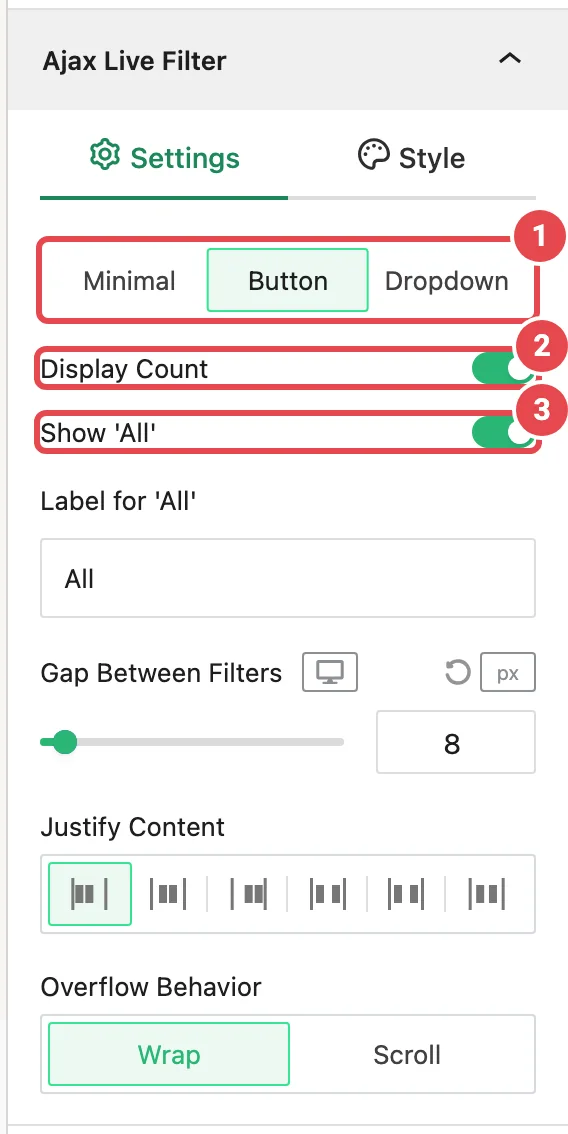
Pick a style at the top of the panel's Settings tab. Each style remembers its own settings, so you can try them all without losing your changes.
| Style | What visitors see | Good for |
|---|---|---|
| Minimal | A row of plain text tabs. The default. | Clean, low-key designs. |
| Button | A row of buttons (chips) with their own background and border. | Making the filters obvious and easy to tap. |
| Dropdown | A single drop-down list, with an optional title beside it. | Lots of categories, or tight spaces like mobile. |
Settings tab
| Option | What it does | Default | Shown for |
|---|---|---|---|
| Filter Title | Shows a title next to the dropdown. | On | Dropdown |
| Title Label | The title text. | Category | Dropdown, with Filter Title on |
| Display Count | Shows how many logos are in each category, next to its name. | Off | All styles |
| Show 'All' | Adds an "All" option at the start, to show every logo again. | On | All styles |
| Label for 'All' | The text for that option, such as "Everyone" or "All partners". | All | Show 'All' on |
| Gap Between Filters | Space between the filters, per device. | 8px | Minimal, Button |
| Justify Content | Where the row sits: Start, Center, End, Space Between, Space Around or Space Evenly. | Start | Minimal, Button |
| Overflow Behavior | Wrap moves extra filters onto a new line. Scroll keeps them on one line that scrolls sideways. | Wrap | Minimal, Button |
| Dropdown Field Width | Width of the dropdown, per device. 80–600, px or %. | 240px | Dropdown |
| Title & Dropdown Gap | Space between the title and the dropdown, per device. | 12px | Dropdown |
| Alignment | Left, Center or Right. | Left | Dropdown |
If you turn off Show 'All'
With no "All" option, the block can't show every logo at once. Instead, the first category is selected when the page loads, and visitors only ever see one category at a time. That's fine for tiers or tabs, but surprising if you didn't expect it.
Style tab
The Style tab changes with the filter style:
- Minimal and Button: Typography and Text Color, with a Normal / Hover & Active switch so the selected filter can look different. Button adds a background and border for each button.
- Dropdown: Title Typography, Filter Typography, Title Color, Filter Text Color, Dropdown Background Color and Border Radius.
- Filter Area Background: a popup for the box around the whole filter row, with background, border, Border Radius, Inner Padding and, for Minimal and Button, Filter Area Width (Full Width or Hug Content).
- Margin: space around the filter area.
Using it with search and pagination
- With Ajax Search: the two work together. A visitor can pick "Retail" and then type "north", and only Retail logos matching "north" show. When both are on, the Layouts panel lets you set Filter & Search Orientation (Inline side by side or Stacked), Filter & Search Gap, and Justify Filter & Search.
- With Pagination (Grid, List, Table): the matching logos are paged again, so the page numbers and the Load More button only count the logos that match.
- On a Grid, logos fade gently as the filter changes, unless the visitor prefers reduced motion.
Troubleshooting
| Symptom | Likely cause | Fix |
|---|---|---|
| The filter row is empty | None of your logos have categories. | Add categories in the logo editor. See Logo categories. |
| A category I added isn't listed | No logo in this block uses it, or it's spelled differently. | Check the spelling on each logo. |
| The Ajax Live Filter switch is missing | The Carousel is on the Staggered style, or the Marquee is on Ribbon. | Switch to another style. |
| Only one category ever shows | Show 'All' is off. | Turn Show 'All' back on. |
| Too many buttons on mobile | Lots of categories wrap onto several lines. | Set Overflow Behavior to Scroll, or use the Dropdown style. |
Tips
- Keep category names short, one or two words. They're buttons, not sentences.
- Five to eight categories is a comfortable number. Beyond that, the Dropdown style is easier to use.
- Turn on Display Count so visitors know how many logos are behind each filter before they click.
- Combine it with Ajax Search for big directories. The partner directory tutorial shows the whole setup.
Related
- Logo categories — where the filters come from
- Ajax Search · Pagination
- Partner directory tutorial
- Grid · List · Table