

Integrations
Design your logo showcase once, then place it in Elementor, Divi, WPBakery, Beaver Builder, Bricks, or Oxygen. No rebuilding, no code.
A page builder is a plugin (or theme) like Elementor or Divi that gives you its own drag-and-drop editor instead of the standard WordPress block editor. Because it's a separate editor, it can't show Logo Carousel's blocks directly.
Logo Carousel bridges that gap with Saved Templates. You design the showcase once in the block editor, save it as a template, and then add that template to any page builder with Logo Carousel's own element. Change the template later, and every page that uses it updates on its own.
How it works
[lc_template id="123"].


You only design in the block editor. Inside your page builder you just place the finished showcase, then style the space around it with the builder's usual tools.
Pick your page builder
Each guide walks you through every click. Whichever builder you use, the element is easy to find: search its panel for Logo Carousel.
ElementorStep-by-step guide →Divi 5 & Divi 4Step-by-step guide →WPBakeryStep-by-step guide →Beaver BuilderStep-by-step guide →BricksStep-by-step guide →OxygenStep-by-step guide →Your builder isn't listed?
Any builder that can run a shortcode can show a Saved Template. Jump to Use the shortcode instead.
Before you start
Check these four things first. Between them, they explain almost every "I can't find it" question.
- Logo Carousel is installed and active. The free plugin and Pro both include these integrations.
- Your page builder is installed and active.
- The Saved Templates module is on. It's on by default; check under Modules.
- You have at least one published Saved Template. Drafts don't appear in page builders.
Step 1: Turn on your builder's integration
Each builder has its own switch. Logo Carousel only loads its element into builders that are switched on, and only when that builder is actually active on your site.
- In your WordPress dashboard, go to Logo Carousel → Settings.
- Click Integrations in the left-hand menu. The panel is headed Manage Integrations.
- Make sure the switch for your builder is on.
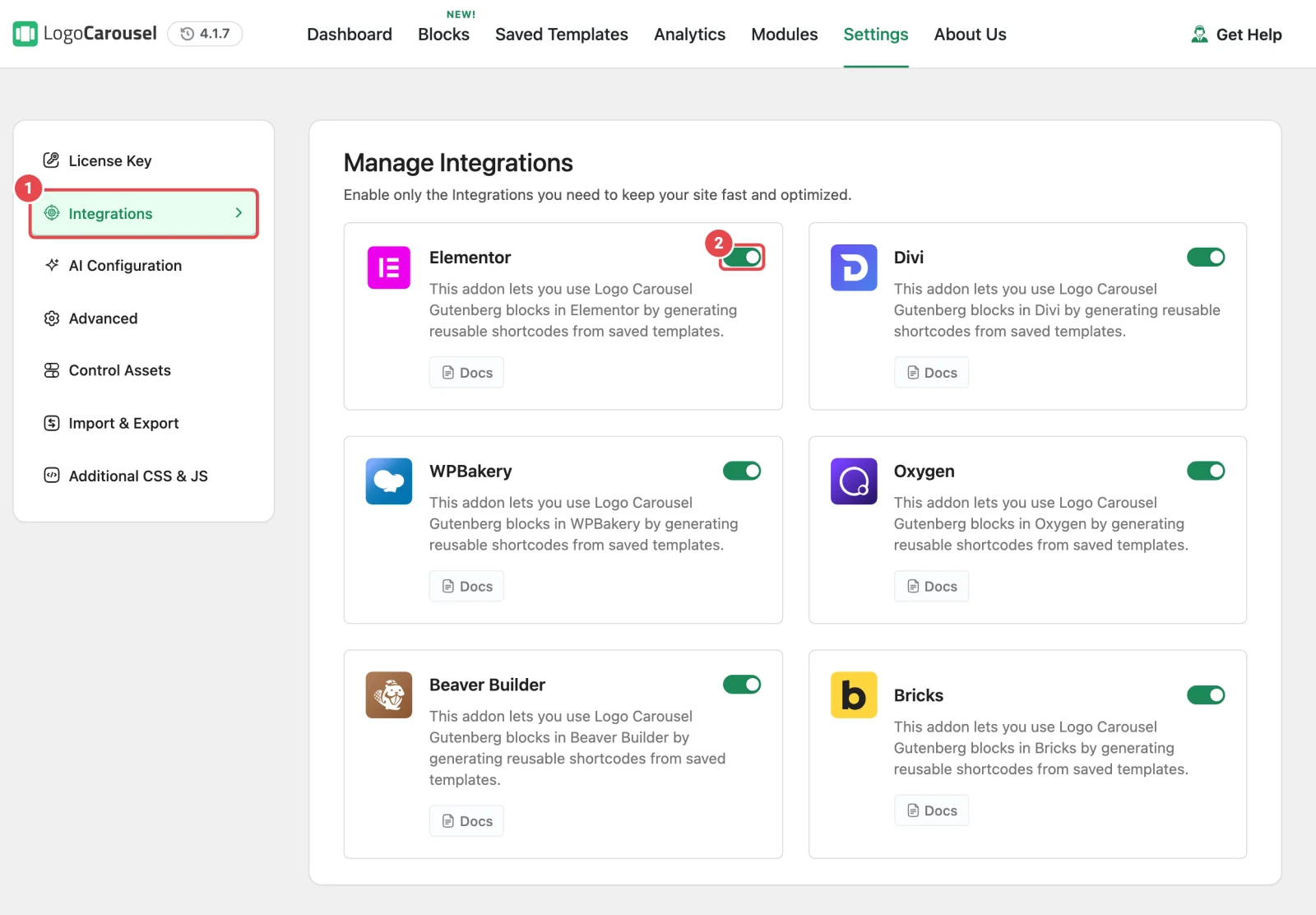
A few things that surprise people here:
- There's no Save button. Each switch saves the moment you flip it, and an "Integration enabled successfully" message confirms it.
- Every switch starts out on. You only need this screen to turn off the builders you don't use.
- All six cards always show, even for builders you haven't installed. A card being here doesn't mean the builder is active on your site.
- Divi has one switch for both versions. Logo Carousel detects whether you run Divi 5 or Divi 4 and loads the matching module.
- A notice about Saved Templates? If you see "Integrations display saved templates. Turn on the Saved Templates module to use them.", switch the module back on under Modules.
Step 2: Create a template
Every page builder picks from the same list: your published Saved Templates.
- Go to Logo Carousel → Getting Started and click the Saved Templates tab.
- No templates yet? Click Create a Saved Template, add a Logo Carousel block (Carousel, Grid, List, Marquee, or Table), add your logos, give the template a title, and click Publish. The Saved Templates guide covers this in detail.
- Find your template in the list. If you plan to paste it somewhere, click its shortcode, for example
[lc_template id="123"], to copy it. "Copied!" flashes to confirm.
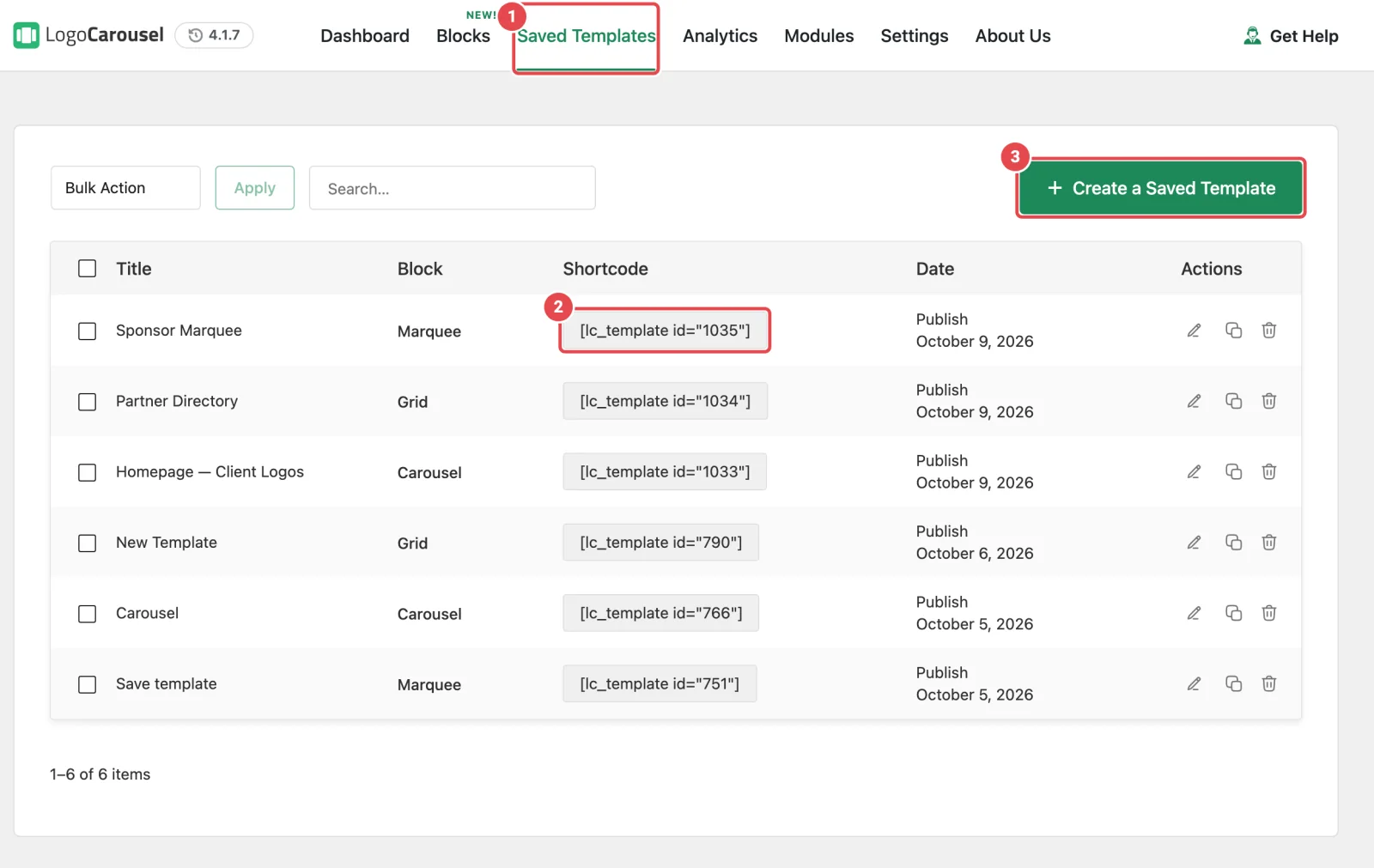
You only need the shortcode for builders without a Logo Carousel element. The builders' own elements list your templates by name.
Name templates after where they go
"Home · Client logos" or "Footer · Partners" is much easier to pick from a dropdown than "Logo showcase 3".
Step 3: Add it in your page builder
This is the part that looks different in every builder, so each one has its own guide. Pick yours above. They all follow the same pattern:
- Open the page in your builder.
- Search the builder's element panel for Logo Carousel.
- Add the element and choose your template from its Saved Template dropdown.
- Publish or save the page.
At a glance
Already comfortable with your builder? Here's where everything lives.
| Builder | Element name | Where it lives | The setting |
|---|---|---|---|
| Elementor | Logo Carousel Saved Template | Elements panel → Basic | Content → Settings → Saved Template |
| Divi 5 | Logo Carousel | Insert Module | Content → Settings → Saved Template |
| Divi 4 | Logo Carousel | Insert Module | Content → Text → Saved Template |
| WPBakery | Logo Carousel | Add Element → Logo Carousel tab | Saved Template |
| Beaver Builder | Logo Carousel | Modules → SP Plugins | General → Saved Templates |
| Bricks | Logo Carousel | Elements panel → General | Saved Template |
| Oxygen (Classic) | Logo Carousel | + Add → Basics → Other | Saved Template |
The element name is the same in the free plugin and Pro.
No switch for your builder? Use the shortcode
You don't need a dedicated element at all. Any builder that can run a shortcode can show a Saved Template:
- Copy the template's shortcode (Step 2). It always looks like
[lc_template id="123"], andidis its only setting. - In your builder, add its shortcode element. Elementor, Bricks, and Oxygen all have one called Shortcode; in other builders, a text or code element that runs shortcodes works too.
- Paste the shortcode, then save the page.
The result is identical to the dedicated element. You just pick the template by pasting its shortcode instead of choosing it from a dropdown.
Built your showcase under Manage Views (the older, classic way) instead of as a block? Its shortcode looks like [logocarousel id="42"] and works the same way. See Classic Version. Elementor (in both editions) and WPBakery (in Pro) also have a separate element for classic views; the Elementor and WPBakery guides explain the difference.
Good to know
- Edit once, update everywhere. Change a Saved Template and every page that uses it picks up the change. If a page still shows the old version, clear your page cache (and your CDN, if you use one).
- Only published templates are listed. A template saved as a draft won't appear in any builder's dropdown until you publish it.
- The buttons open a new tab. In the builder, Edit This Template opens the chosen template in the block editor and Add New Template starts a new one. Both open in a new browser tab, so your builder page stays open. Elementor and Bricks show them in the element's settings; the other builders show them above the showcase on the canvas.
- Unpublishing or deleting a template leaves a gap. Pages that used it show a grey "Template not found or not published." box instead. Before you delete a template, find the pages that use it.
- The Saved Templates module has to stay on. If you switch it off, visitors see nothing where the showcase was. While you're logged in, you'll see a note telling you to turn the module back on.
- Leave a builder's switch on while you use that builder. Turning a switch off removes Logo Carousel's element from that builder, and showcases already placed with it stop displaying.
Troubleshooting
| What you see | Likely cause | Fix |
|---|---|---|
| The Logo Carousel element isn't in the builder | The builder's switch is off. | Turn it on in Step 1, then reload the builder completely. |
| The Saved Template dropdown only shows "- Select Template -" | No published templates yet. | Publish at least one template on the Saved Templates tab. Drafts don't count. |
| "Please Select a Saved Template" | The element was added, but no template was picked. | Open the element's settings and choose a template. |
| "Template content is empty." | The template has no blocks in it. | Edit the template, add a Logo Carousel block, and update it. |
| "Enable the Saved Templates module…" | The Saved Templates module is off. | Turn Saved Templates back on in Modules. |
| A grey "Template not found or not published." box | The template was unpublished, trashed, or deleted. | Republish it, or pick another template in the element's settings. |
| The shortcode shows as plain text on the page | It was pasted into an element that doesn't run shortcodes, or Logo Carousel is deactivated. | Use the builder's Shortcode element, and check that Logo Carousel is active. |
| Template changes don't show up | Page, builder, or CDN cache. | Clear the builder's cache (if it has one), then your page cache and CDN. |
| The carousel shows but doesn't move | An optimisation plugin delayed or combined Logo Carousel's scripts. | See Troubleshooting. |