

Introduction
Meet Logo Carousel — what it does, how it's organized, and how these docs help you put your first logo showcase on a page.
Welcome to Logo Carousel. It's a WordPress plugin for showing off logos — your clients, partners, sponsors, supporters, or the brands you stock — as a sliding carousel, a tidy grid, a stacked list, an endless marquee, or a table. You don't need to write any code.
Here's the whole idea in one sentence: you drop a block (a ready-made piece of content) onto a page, add your logo images to it, and use the inspector (the settings sidebar on the right of the editor) to decide how it looks and moves.
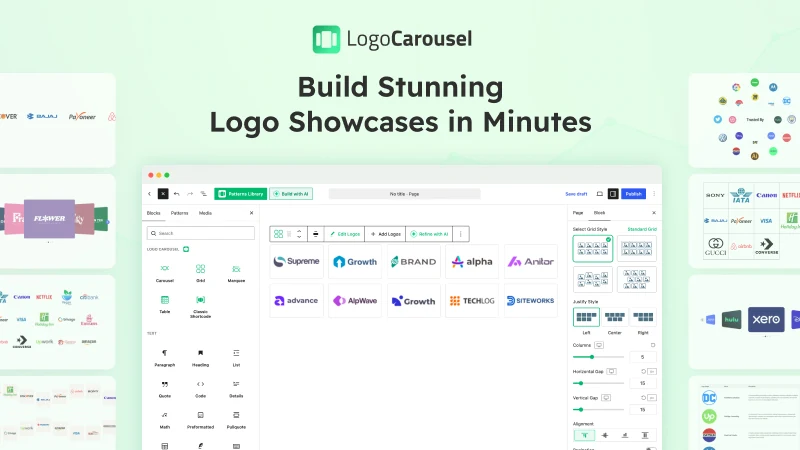
What you can build
Logo Carousel adds five blocks to the WordPress editor. Each one is a different layout for the same job: "show this set of logos."
| Block | In one line |
|---|---|
| Carousel | Logos side by side that slide on their own or with arrows and dots. |
| Grid | A still, responsive wall of logos in rows and columns. |
| List Pro | One logo per row, with its name and description beside it. |
| Marquee Pro | A ticker that scrolls logos endlessly, with no arrows or pauses. |
| Table Pro | Logos in neat columns: image, title, description. |
Carousel and Grid are in the free plugin. List, Marquee, and Table come with Pro — see Free vs Pro for the full breakdown.
On top of the blocks you get:
- Interactive extras — let visitors narrow a big logo wall with an Ajax Live Filter (category buttons) or Ajax Search, split it into pages with Pagination, and show more about each logo in a tooltip or a details popup. These are Pro.
- Modules you can switch off when you don't need them — Ready Patterns, the AI Builder, Saved Templates, Scheduling, Motion Effects, Glassmorphism, and Analytics. The first three are in both editions; Scheduling, Motion Effects, Glassmorphism, and Analytics are Pro. See Modules.
- Build with AI — describe the showcase you want in a sentence, and the AI Builder picks a matching pattern or configures a block for you. You bring your own AI provider key, and it's entirely optional.
- A classic shortcode builder (Manage Views) if you prefer the older admin screens or need a shortcode for a page builder.
Why people pick it
- Five layouts, one set of logos — start with a Carousel, and if a Grid suits the page better later, transform the block Pro. Your logos and shared settings come with it.
- Your logos live where you'd expect — they're ordinary images in your Media Library. Pick them, upload new ones, and the block remembers each logo's title, link, and description.
- Editor-first — design inside the block editor with a live preview. Using Elementor, Divi, or Bricks? Save the design as a template and drop it in.
- Optional complexity — turn off blocks and modules you don't use in the dashboard, so the editor stays calm.
Two ways to work (blocks vs classic)
| Blocks (recommended) | Classic | |
|---|---|---|
| Where you build | On the page itself, in the block editor | Logo Carousel → Manage Views |
| Where logos come from | Images you pick from the Media Library, stored in the block | Logo posts under Logo Carousel → All Logos |
| How visitors see it | The block is the page content | You paste [logocarousel id="…"] somewhere |
| Best when | You use the block editor or Full Site Editing | You already have shortcodes, or work in the Classic Editor |
New here? Start with blocks. The classic path is documented under Classic Version for when you need it.
Blocks and classic views don't share logos
A block keeps its own list of logos. The logo posts you add under All Logos feed the classic views only. If you're switching from classic to blocks, you'll pick your logos again from the Media Library — the images are already there, so it's quick. Adding Logos explains how.
Words you'll see a lot
Four terms come up on almost every page. Here they are in one line each:
| Term | What it means |
|---|---|
| Block | A ready-made piece of content you drop onto a page in the WordPress editor. |
| Inspector | The settings sidebar on the right of the editor, visible whenever a block is selected. |
| Module | An optional feature (like Scheduling or Ready Patterns) you switch on or off in the dashboard. |
| Shortcode | A short piece of text in square brackets, like [logocarousel id="42"], that WordPress swaps for real content. |
How these docs are organized
- Getting Started — requirements, installation and license, a Quick Start that points you to the right path, the Blocks Overview, Adding Logos, and Free vs Pro.
- Blocks — one page per block. Read the Carousel page once: it's the full reference for the panels every block shares. The other block pages only cover what's unique, then link back.
- Tutorials — step-by-step builds, like a client logo carousel, a filterable partner directory, and a sponsor marquee.
- Features — the AI Builder, Ready Patterns, filtering, search, pagination, tooltips, popups, motion, scheduling, plus performance and accessibility.
- Classic Version — logos, Manage Views, and every shortcode option.
- Admin Dashboard — blocks, modules, analytics, saved templates, integrations, and settings.
- Help — the FAQ, Best Practices, Troubleshooting, a plain-English Glossary, and what happens when you uninstall.
- Developers — hooks, shortcodes and block attributes, template overrides, and the REST API.
New to WordPress?
Any unfamiliar word in these docs — block, inspector, shortcode, module — is defined in the Glossary. You don't have to read it first; look things up as you go.
Ready to start?
- Check the Requirements.
- Install the plugin and, for Pro, activate your license.
- Follow the Quick Start to pick blocks or classic and publish something real.
Stuck? The FAQ answers the common questions, and Troubleshooting covers the things that go wrong.